

You can hand the Legal Assistant a document, a contract, a filing, a letter, and ask it to summarise, analyse, or pull out what matters. This guide shows you how to attach a file and ask about it.
Who can do this: Anyone with a ModulawAI account.
Before you start: Have your file ready- PDF, Word (DOC/DOCX), or an image (PNG, JPG, GIF), up to 50 MB.
Attach a document
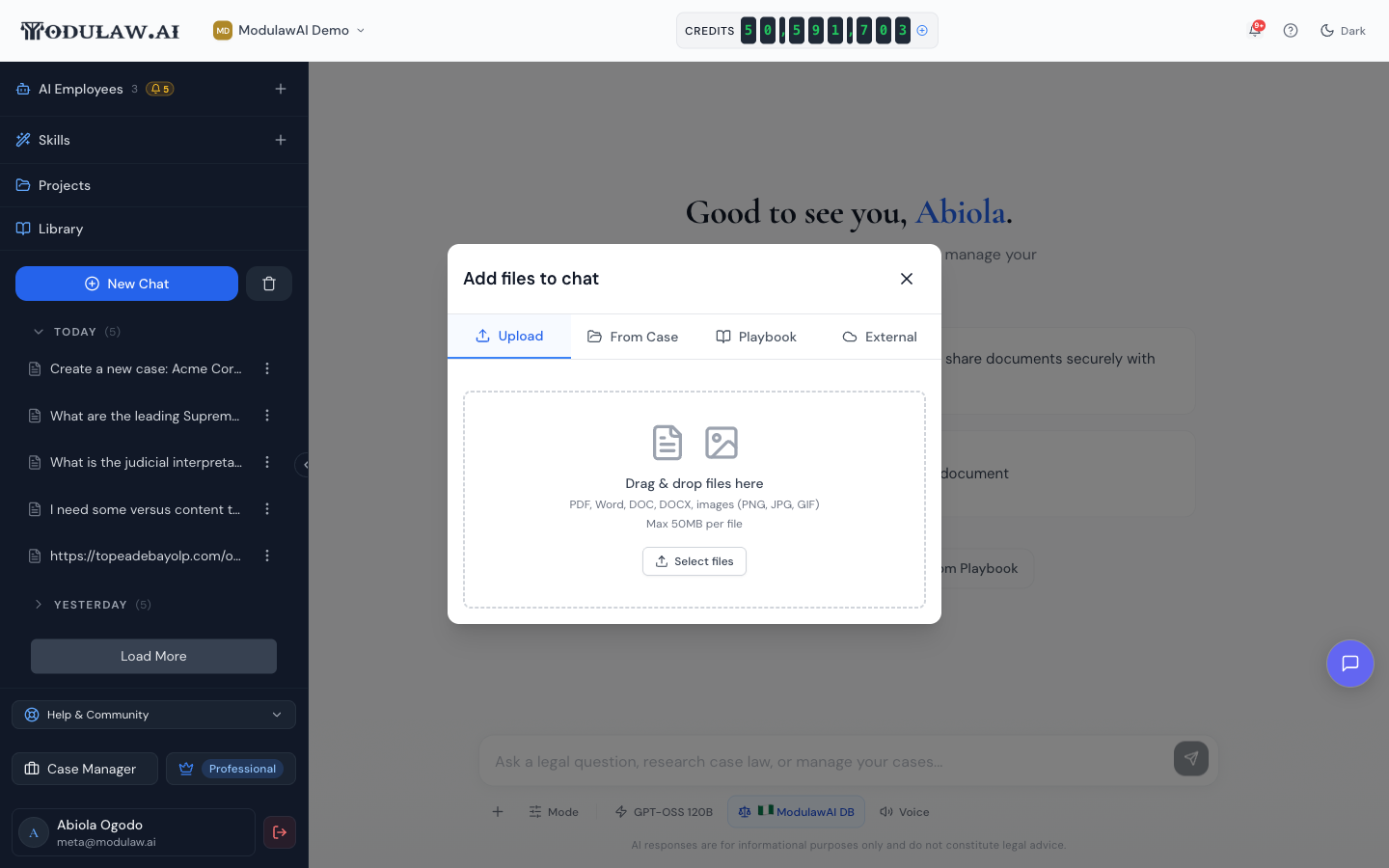
- In the chat, click the + (Add files or connections) button below the message box, then choose Attach files.
- In the Add files to chat window, drag your file onto the drop zone or click Select files. You can also pull a document From Case, from a Playbook, or an External source.
Ask about it
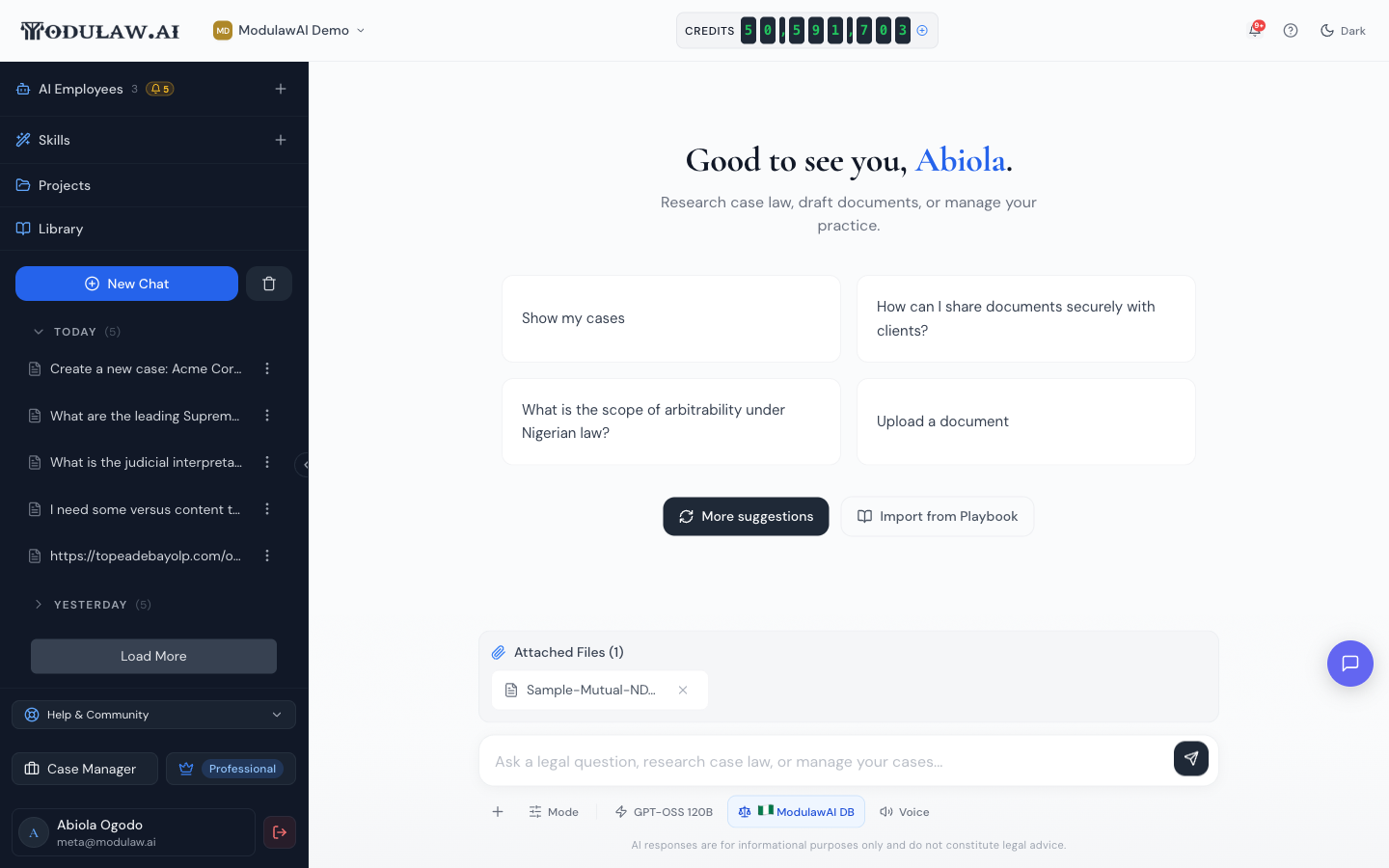
Once the file is attached, you’ll see it above the message box. Type your question, for example, “Summarise this agreement and flag any terms I should review before signing” — and send it.
Read the analysis
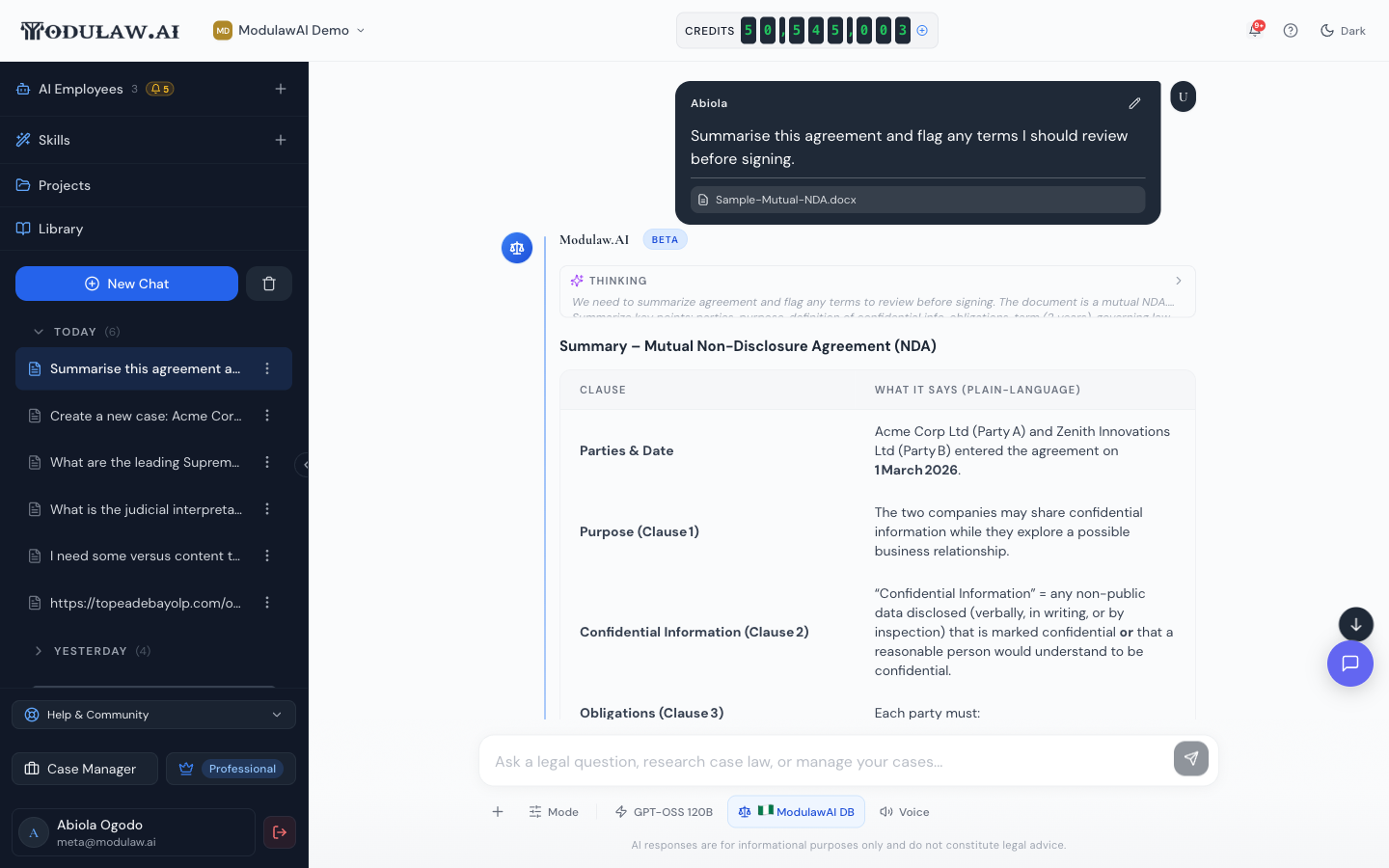
The assistant reads the document and answers in plain language — often as a clause-by-clause table with the points worth your attention called out.
Tips
- Be specific about what you want: a summary, a risk review, key dates, or a comparison against your standard terms.
- You can attach multiple files and ask the assistant to compare them.
- Pulling a document from Case keeps everything tied to the right matter.
- As always, the assistant’s analysis is for information only and is not legal advice — review anything important yourself.