

ModulawAI can pull documents straight out of Zoho WorkDrive: single files, a folder, or an entire drive. Folders keep their structure, imports run in the background so you can carry on working, and everything that lands becomes searchable by the AI assistant.
This guide covers connecting your WorkDrive, choosing where files should land, and keeping track of an import once it is running.
Before you start: WorkDrive is per person
Each person connects their own WorkDrive. A colleague’s connection, or one set up by an administrator, will not appear for you, and nobody else can import from yours. This is deliberate: a drive holds one person’s files, so reading it is that person’s call.
In practice, that means two things:
- If the import buttons are missing, you have not connected WorkDrive yet. Connect it under Integrations.
- If a colleague needs files from a drive only you can see, import them into the firm Library, where the whole workspace can reach them.
Step 1: Connect your WorkDrive
- Go to Integrations in the Case Manager sidebar.
- Find Zoho WorkDrive under Available Integrations and click Connect.
- Sign in to Zoho and approve access. You are returned to Modulaw with the connection marked active.
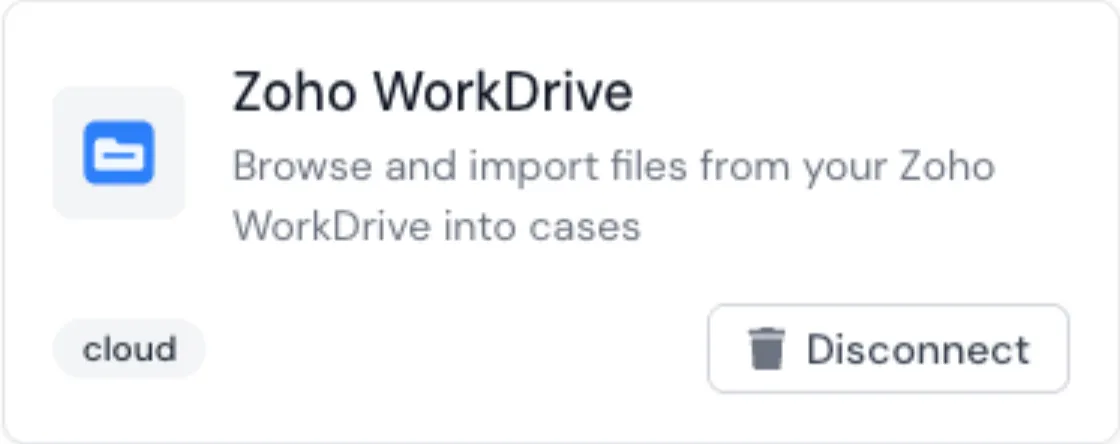
Once connected, the card shows your Zoho account and a Disconnect option. Disconnecting removes only the Modulaw link: nothing in your WorkDrive changes, and documents you already imported stay where they are.
Step 2: Decide where the files should land
Modulaw has three homes for documents, and the import you start decides which one is used.
| Destination | Who can see it | Use it for |
|---|---|---|
| Library (Documents > Library) | Everyone in the workspace | Precedents, templates, firm reference material |
| Personal (Documents > Personal) | Only you, until you share an item | Your own working files and drafts |
| A case (open the case, then Documents) | Anyone with access to that case | Evidence, filings, correspondence for a matter |
Tip: importing into the Library shares those files with the firm. If they should stay private, use the Personal tab instead.
Step 3: Open the importer
Go to Documents in the sidebar, pick the Library or Personal tab, and click Import from cloud.
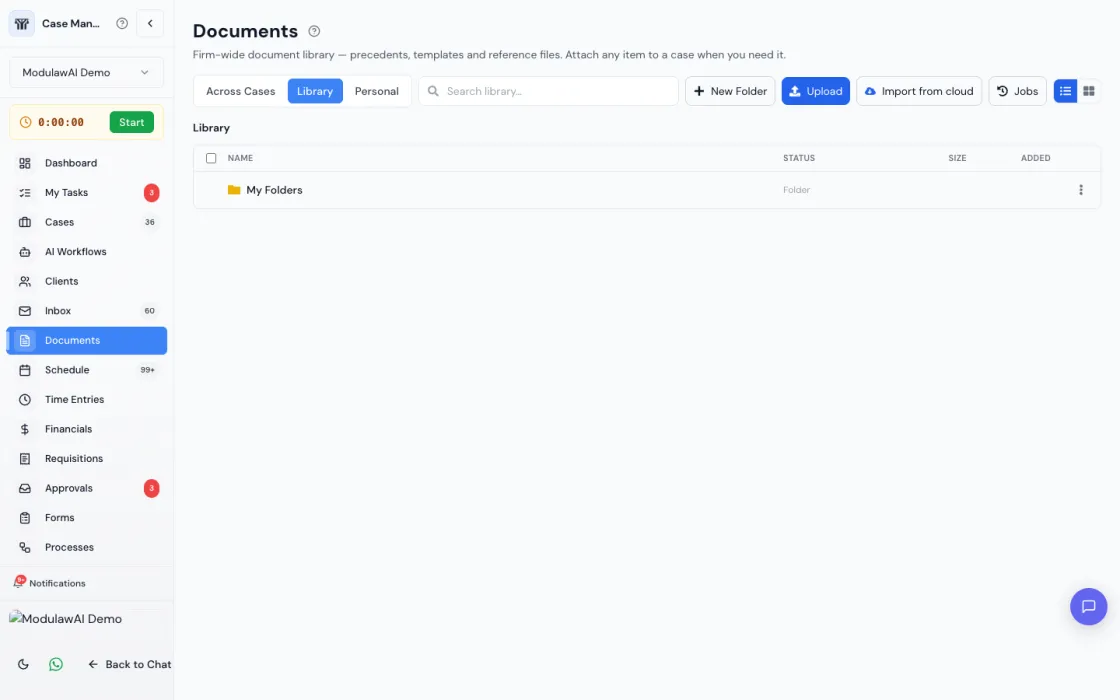
To import into a case instead, open the case, go to its Documents tab, and choose Import from Zoho WorkDrive.
Step 4: Choose what to import
Pick Zoho WorkDrive as the source, then choose one of two routes:
| Route | What it does | Best for |
|---|---|---|
| Choose what to import | Opens a browser so you can tick specific files and folders | A folder or a handful of documents |
| Import everything | Copies every file across the whole drive, recreating the full folder tree | Moving a firm onto Modulaw, or a first bulk load |
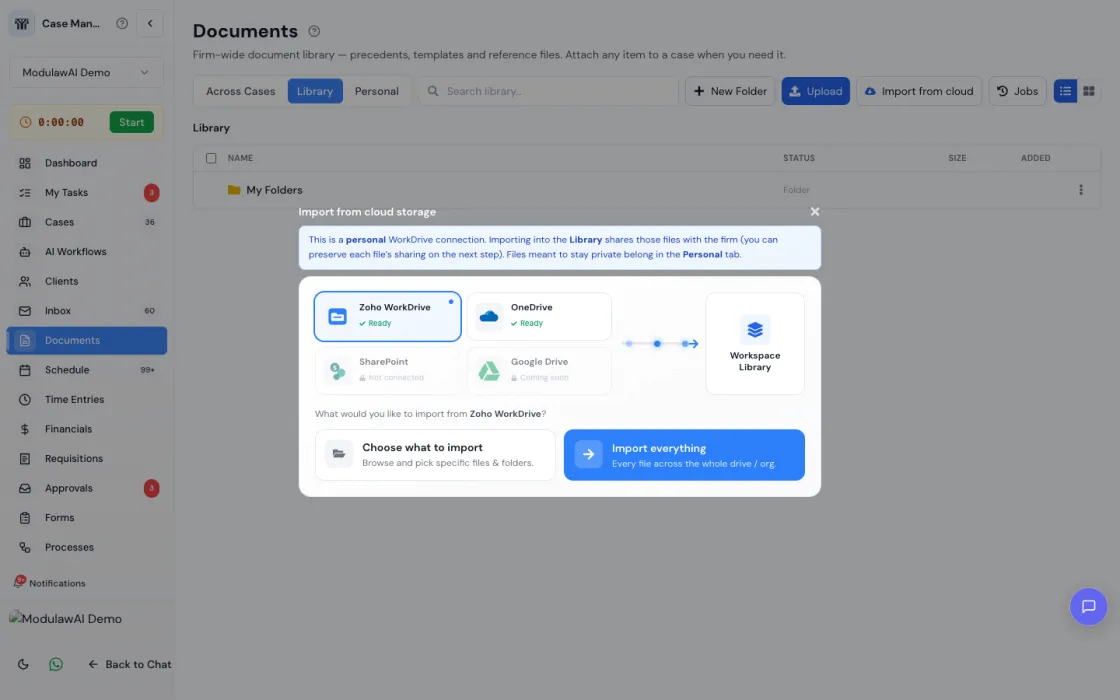
Step 5: Pick your files and folders
The browser opens at the top level of your WorkDrive. Click a folder name to go into it, and use the breadcrumb at the top to come back out. Tick the checkbox beside anything you want.
- Tick a folder and the folder comes across as a folder: subfolders and all, including empty ones.
- Tick individual files and they land in whichever Modulaw folder you had open when you started the import.
- You can mix the two in one import. The counter at the bottom shows what is selected.
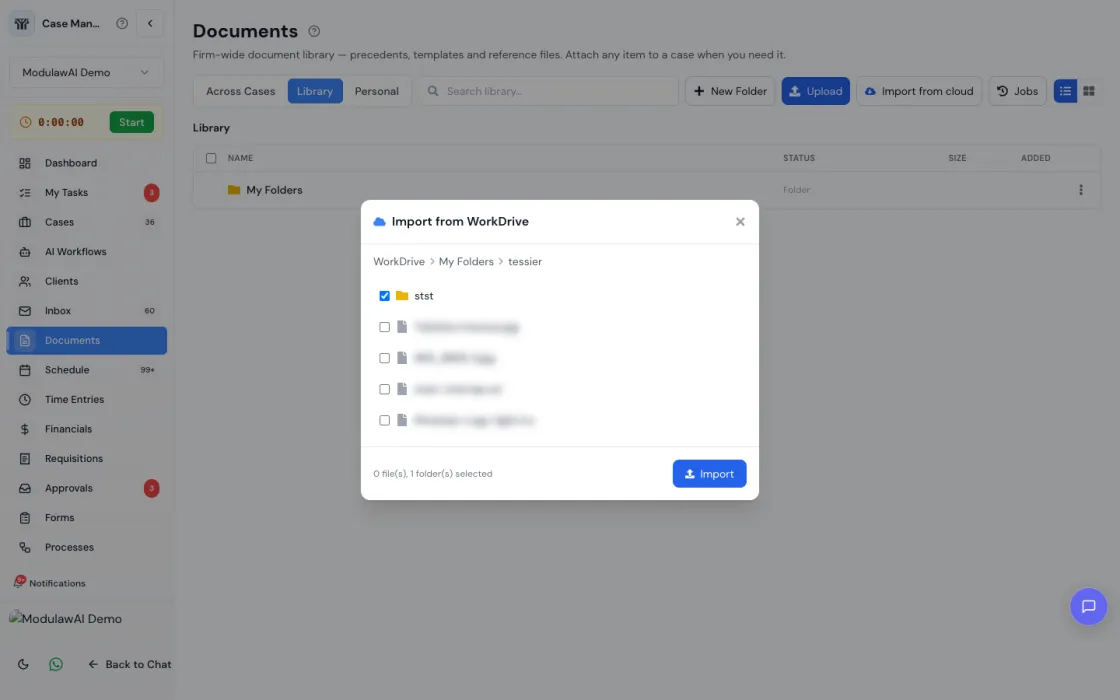
Click Import when you are ready.
Step 6: Let it run
Imports run in the background. A folder can hold hundreds of files, and each one has to be downloaded from Zoho and stored in Modulaw, so the work is handed to a queue rather than made to finish while you wait.
You will see a progress panel with a running count of files processed, imported and skipped. You can close the page, move to another part of Modulaw, or shut your laptop: the import carries on.
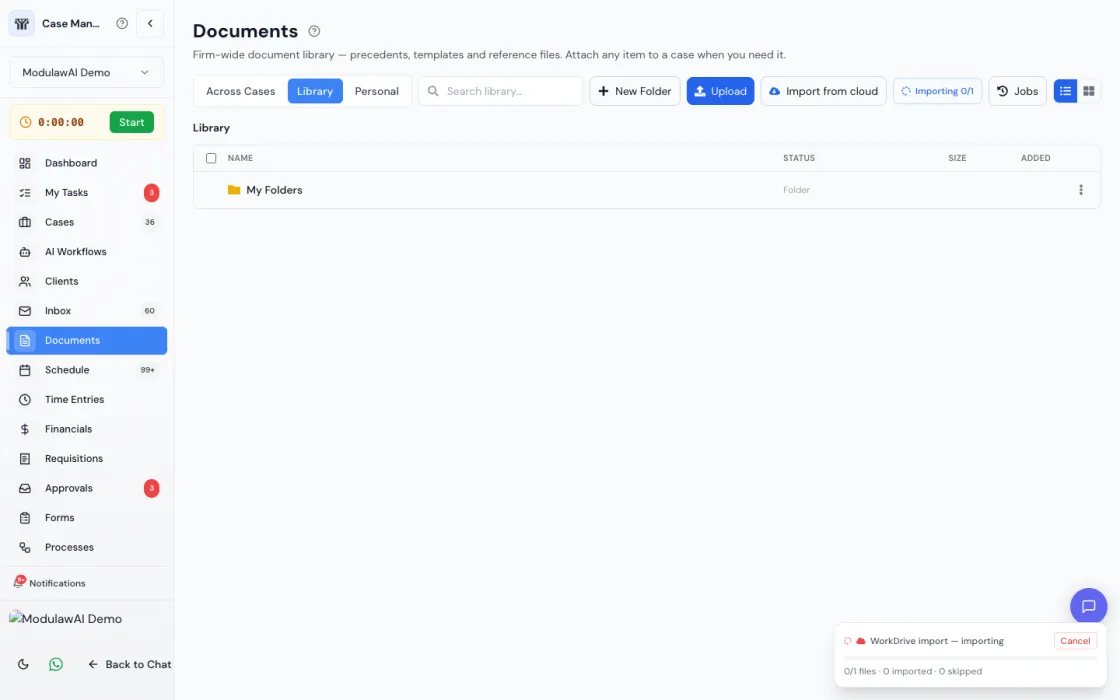
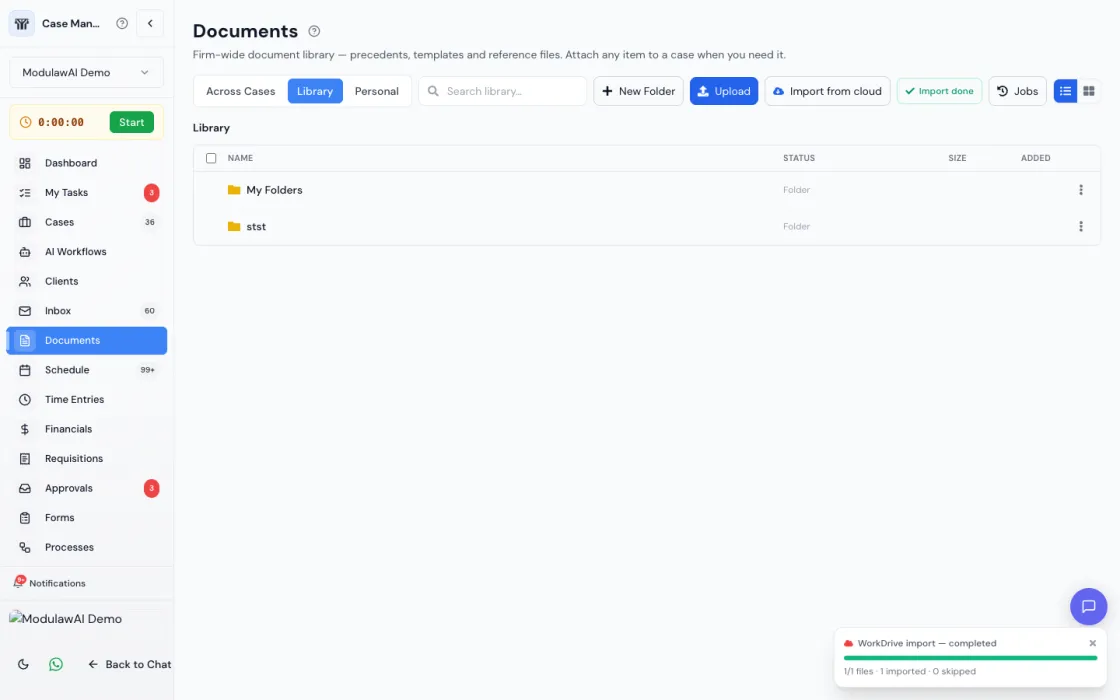
When it finishes you get a notification in the app and an email, telling you how many files arrived, how many were already there, and how many failed.
Checking on an import later
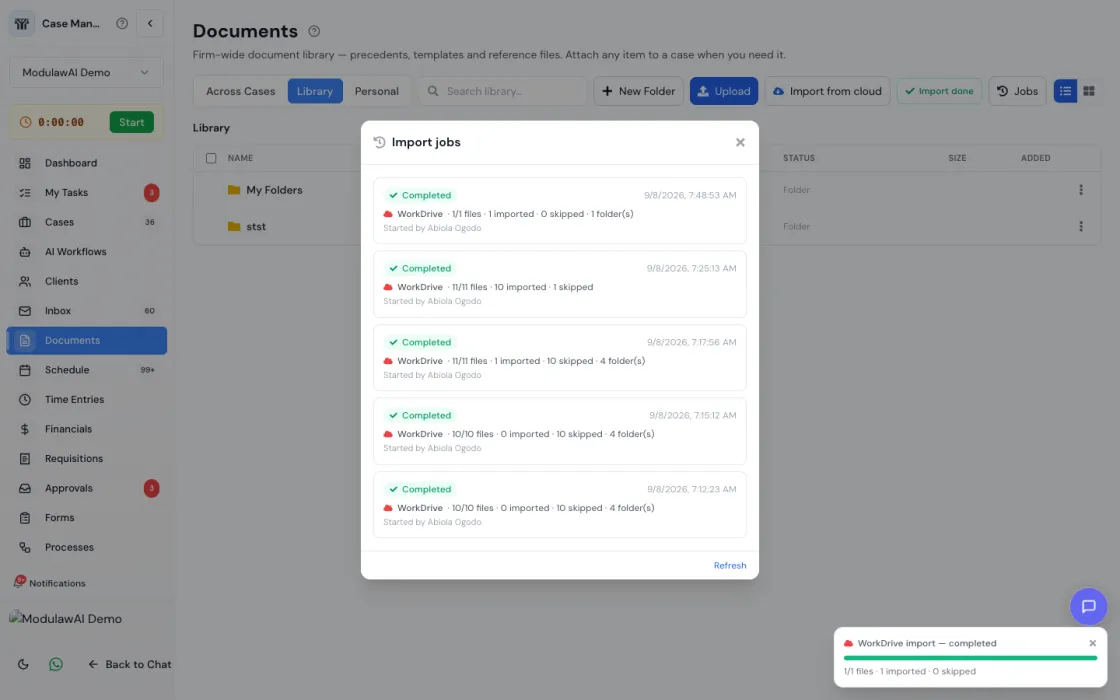
Click Jobs beside the import button to see recent imports, each with its status, counts and who started it. A running import can be cancelled from the progress panel; files already imported stay.
What happens to imported documents
- They become AI-searchable. Text is extracted, including from scanned PDFs and images, so the assistant can cite them in answers.
- Folder structure is preserved. The folder you ticked is recreated with its tree beneath it, rather than every file being tipped into one place.
- Re-importing is safe. A file already sitting in the destination folder is skipped rather than duplicated, so you can run the same import again to pick up what is new.
- Copies, not a live sync. Modulaw takes a copy at the moment of import. Later edits in WorkDrive do not flow through, so re-run the import when you want the newer version.
Troubleshooting
| Problem | Likely cause | Fix |
|---|---|---|
| No “Import from cloud” button | You have not connected WorkDrive yourself | Connect it under Integrations. A colleague’s connection does not carry over. |
| “Zoho WorkDrive is not connected” | The connection expired or was revoked in Zoho | Disconnect and reconnect under Integrations. |
| An import reports files as skipped | Those files are already in that destination folder | Nothing to do. Skipped means “already here”, not failed. |
| A file failed with a size message | Files over 50MB are not imported | Split or compress the file, or upload it directly. |
| The import is taking a while | Large folders are enumerated and downloaded file by file | Leave it running. You will be emailed when it is done. |
| Nothing appears in the folder you were viewing | Files went into the recreated folder tree, not the current folder | Open the folder named after the one you ticked. |
Good to know
- Your Zoho credentials are encrypted and never exposed to other members of your workspace.
- One import at a time per destination. Starting a second import while one is running joins the one already going.
- Failures are retried. A dropped connection or a Zoho hiccup is retried automatically, and the import resumes without duplicating what already arrived.
- OneDrive and SharePoint work the same way. Everything in this guide applies to them: only the source changes.
Need help?
- In-app chat: click the help icon in the bottom-right corner of any page.
- Email: support@modulaw.ai