Once documents are on a case, the assistant can read them. This guide covers working with the documents in a case: previewing them, asking the assistant about them, and using them as the basis for drafting.
For getting files onto the case in the first place, and for folders, tags, versions and search, see Uploading & Organizing Documents.
Previewing a document
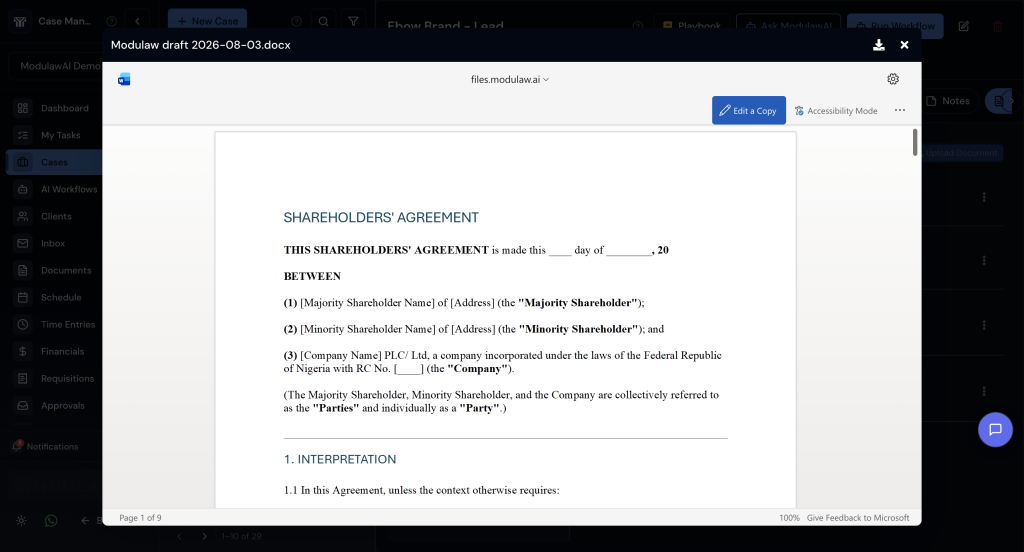
Click any document in the Documents tab to open it in the viewer. You can read it without downloading it, which matters when you are checking one clause rather than working on the whole file.
Asking the assistant about a document
You can bring a case document into a conversation with the assistant without re-uploading it: in the chat, click + → Attach files, open the From Case tab and pick the document. The same dialog also lets you upload a file or pick one from your Library, My files, a playbook or a connected cloud drive.
Then ask. The three things worth knowing it does well:
Summarise
“Summarise this 40-page facility agreement in five bullet points, focusing on the borrower’s obligations.”
Tell it what to focus on and how long the answer should be. An unbounded “summarise this” gives you a lot of text to read.
Extract
“Extract every provision dealing with termination and notice periods, with clause numbers.”
Extraction is where the assistant saves the most time on long documents. Ask for clause numbers so you can check each one against the source.
Compare
Attach two documents and ask:
“What are the substantive differences between these two versions of the shareholders’ agreement? Ignore formatting and numbering changes.”
This is the fastest way to get a plain-language account of what moved between drafts. For a side-by-side view, drafts uploaded under the same file name are kept together in the Documents tab, where Version history and Compare versions show them next to each other.
Drafting from what is on the file
Because the assistant has the case context, you can go from analysis straight to drafting in the same conversation:
- Attach the opposing party’s filing
- “Summarise the points made against us, in order.”
- “Find authorities in our jurisdiction that answer point 3.”
- “Draft a written address responding to points 1 to 4, using those authorities.”
The draft opens in Canvas and includes the authorities identified in step 3 rather than inventing citations.
Things worth knowing
- Scanned documents are read by text recognition. Quality of the scan determines quality of the reading; a poor scan means the assistant reasons from misread text. Check anything critical against the original.
- Very long documents may not fit at once. With a large bundle, work section by section rather than expecting one pass over the whole thing.
- Attached documents cost credits on every turn. Anything in context is charged as tokens each time you send a message. Start a fresh chat when you have finished with a large file.
- Verify extractions. Ask for clause numbers and spot-check them. The assistant is a fast reader, not an infallible one.