Every case opens into its own workspace: a tabbed view that brings everything about that case into one place. There are more tabs than you will use day to day, so this guide groups them by purpose.
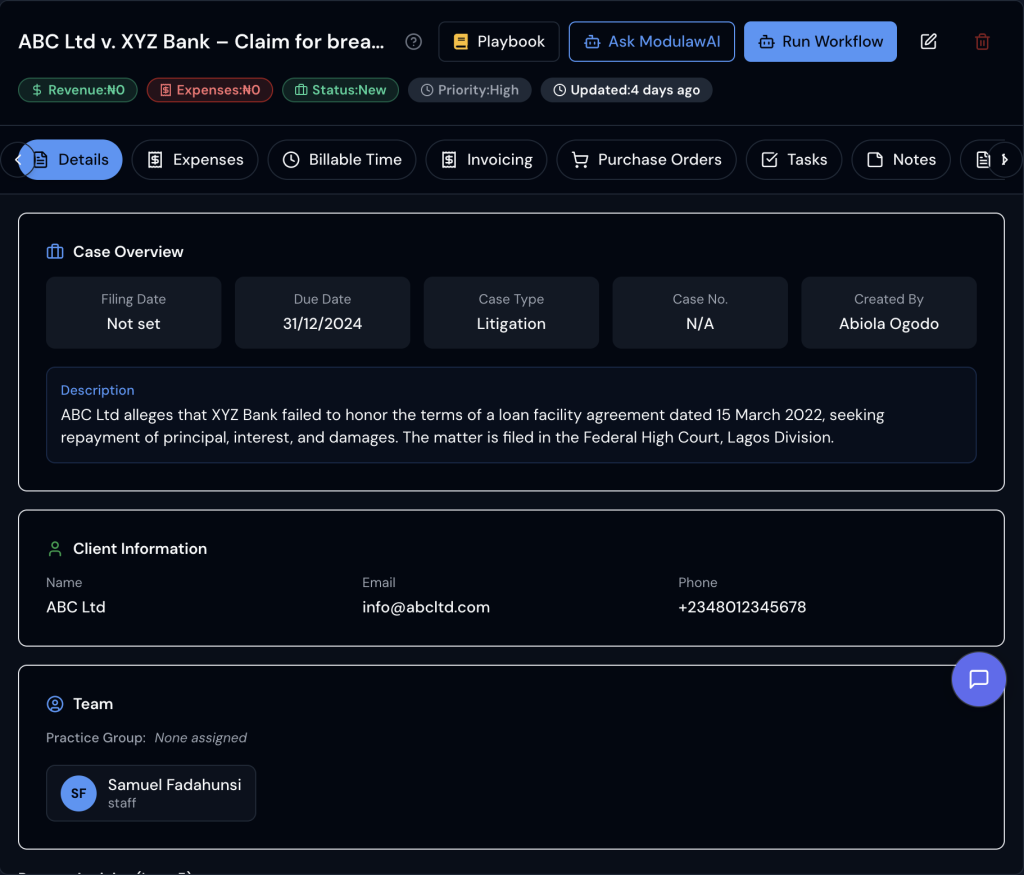
You may not see every tab described here. Your firm can hide tabs and change their order for each role in Settings > Modules > Case Tabs. Hiding a tab only tidies the menu; what each role may open and do is set in Permissions. On the Essential plan, the Requisitions, Approval Policy and Pending Approvals tabs are not available.
The tabs at a glance
| Group | Tabs |
|---|---|
| The case itself | Details, Tasks, Notes, Documents, Calendar, Timeline |
| Money | Expenses, Billable Time, Invoicing, Purchase Orders, Requisitions |
| Process | Forms, Processes, Approval Policy, Pending Approvals |
| The client | Communication |
The case itself
Details
The landing tab. Title, case or suit number, case type, filing date, due date, status, priority, assigned team, and who created it. This is where you correct anything about the case itself.
Access is set here too. Open the case’s edit form with the pencil button in the case header and use Who can see it to limit the case to its team or screen particular people off it. A restricted or screened case shows a badge in its header; if you are allowed to change access, clicking the badge opens the same dialog. There is no separate Access tab.
Tasks
Every piece of work on the case, with an owner and a due date. Each task carries a title, description, type, assignee, due date, priority, and status.
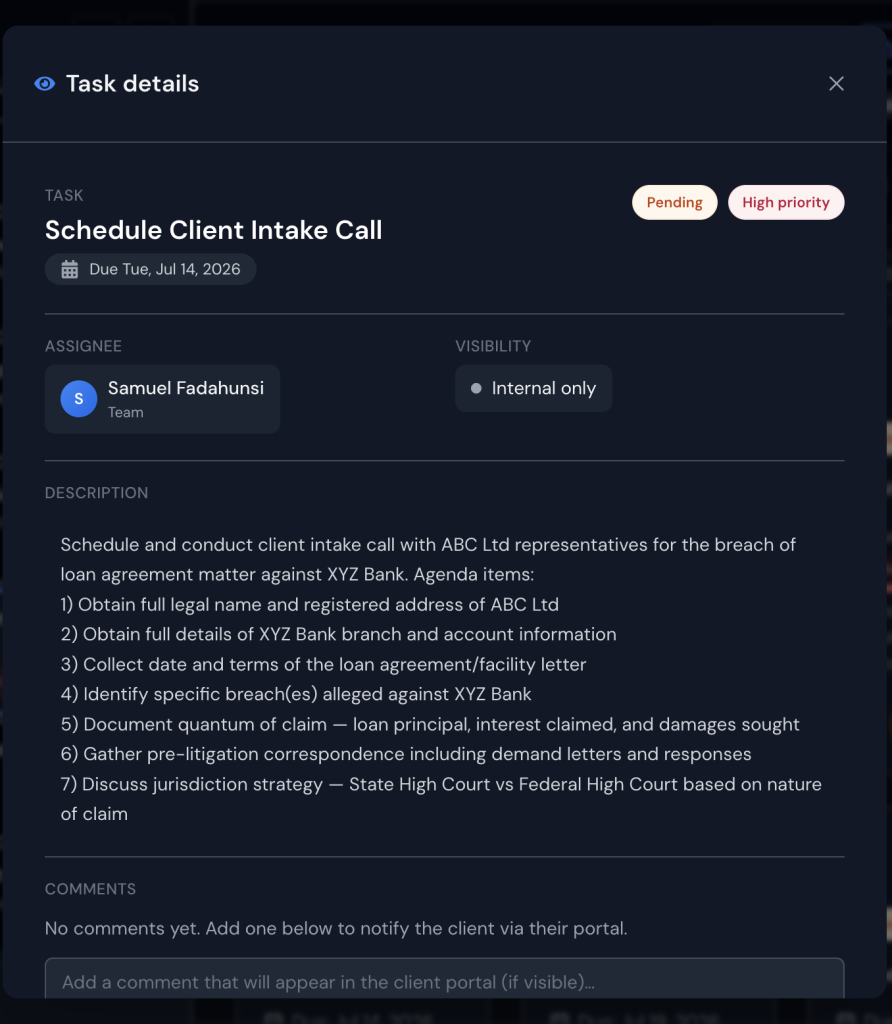
Switch between list and board views with the view toggle. Board view gives you a kanban layout you can drag tasks across as they progress.
Notes
Your running record on the case: what the client said, what the judge ordered, what you decided and why. Notes are visible to the people who can see the case, so a restricted case keeps its notes restricted too.
A note can carry a reminder: set a date and how far in advance you want to be prompted, and the note will chase you. That makes notes useful for “check this in three weeks” as well as for recording what happened.
Documents
The case file. Upload files, organise them into folders, and tag them. Documents are full-text indexed, so searching finds text inside PDFs and Word files, not just filenames.
Documents keep their version history. Uploading a revised file under the same name adds it as a new version, and a document edited in the app keeps a version for every save. Earlier versions stay with the document, so you can open any of them. A case document can also be shown to the client in their portal.
Calendar
Hearings, meetings and dated events for this case, in a calendar view.
Timeline
A chronological log of what has happened on the case: documents uploaded, tasks completed, notes added, workflow runs, status changes. Useful when you need to reconstruct who did what and when.
Money
There is no single “financials” tab; the money side is split across five, which is worth knowing before you go looking.
| Tab | What lives there |
|---|---|
| Expenses | Disbursements such as filing fees, travel and expert fees, with categories and approval status |
| Billable Time | Time entries logged against the case, including start and stop timers |
| Invoicing | Case invoices, payment links, and auto-generation of an invoice from recorded expenses or logged hours |
| Purchase Orders | Purchase orders raised on the case |
| Requisitions | Payment requests raised on the case, numbered in sequence and routed through your firm’s approval chain before money is paid out and later retired |
The useful trick here: once expenses and time are recorded properly, Invoicing can build the invoice from them rather than you retyping it.
Process
Forms
Structured forms attached to the case: checklists and reports your firm wants completed at particular points.
Processes
Multi-step processes running on this case, and how far through them it is.
Approval Policy and Pending Approvals
Approval Policy sets what needs signing off on this case and by whom. Pending Approvals is the queue of things currently waiting for that sign-off. If your firm requires partner approval before an expense or an invoice goes out, this is where that is configured and actioned.
The client
Communication
Correspondence tied to this case: emails filed against the case and messages exchanged with the client. If you have connected your mailbox, this is where case email lands.
How they fit together
A typical sequence:
- A filing arrives. You upload it in Documents.
- It appears in the Timeline.
- You add a Note recording what it means for the case, with a reminder if something needs revisiting.
- You create a Task, such as “Draft response”, assigned with a due date.
- The hearing goes in the Calendar.
- Work done gets logged in Billable Time, disbursements in Expenses.
- At billing time, Invoicing builds the invoice from those two.
Next: Notes, Tasks & Deadlines, the operational layer in detail.