Email scatters client communication across inboxes and forwarded threads. Client messaging keeps the conversation inside ModulawAI, where your colleagues can see it and it does not get lost.
How it is organised
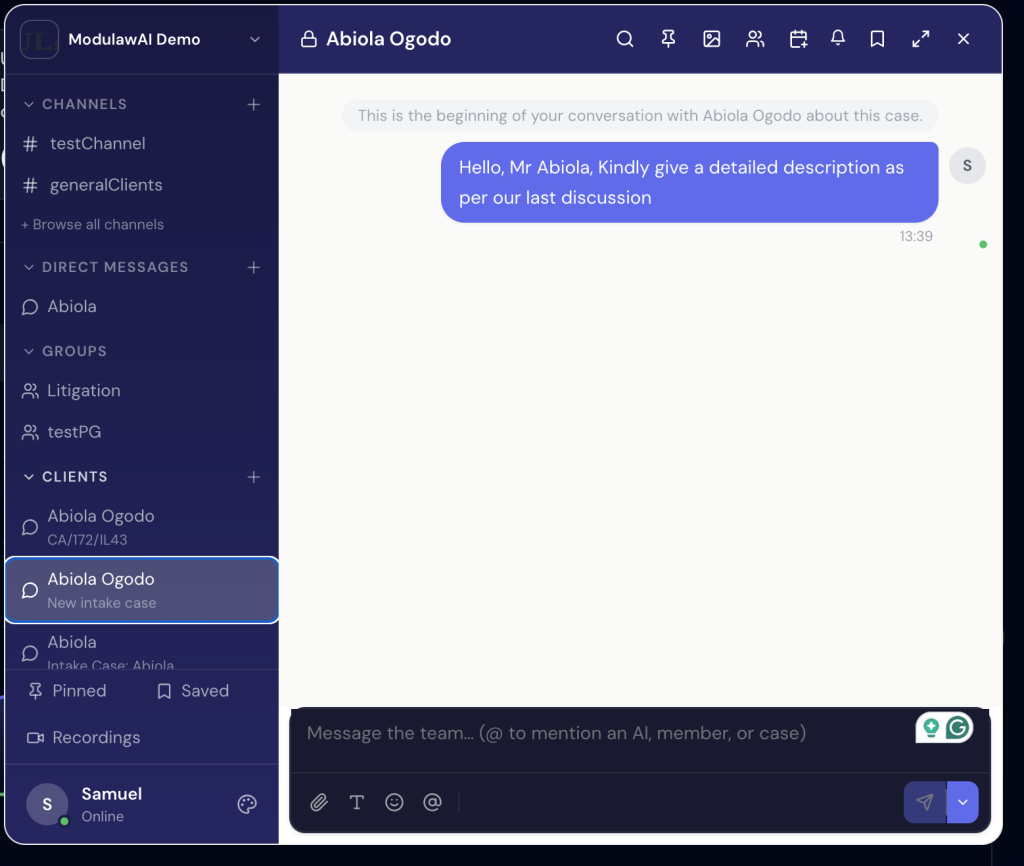
Each client chat belongs to one client and one case. If you act for a client on three cases, you can have three separate chats with them, one per case, so each thread stays on topic. Client chats sit under Clients in the chat sidebar, alongside your team channels and direct messages.
Every message is:
- Visible to the case team: colleagues working on that case can read and reply in the chat
- Persistent: the history stays even as people join and leave the case
- Encrypted in transit and at rest
Starting a client chat
- Open the chat panel
- Click the + next to Clients in the sidebar. The Start Client Chat list opens.
- Pick the case. The list shows each case that has a linked client, with the client’s name under it.
- Type in the composer at the bottom and press Enter to send
If a chat for that client and case already exists, it opens instead of a new one. To reply in an existing chat, just click it under Clients. The message appears immediately, and the client is notified by email.
Remember who can see it
A client chat is shared with the client. Everything written in it is visible to them.
So do not use it to talk to colleagues. Internal comment on a case, such as strategy, an opinion on the client’s position or anything you would not say to their face, belongs in a case note or a team channel. The client chat is correspondence, and should read like it.
Sending files
Client chat is for text messages. Clients cannot attach files to their messages.
Documents travel through the case instead. A client sends you a file by uploading it in the Documents area of their portal, and it is filed onto that case automatically. To share a document with the client, add it to the case and mark it visible in the client portal.
Finding an old message
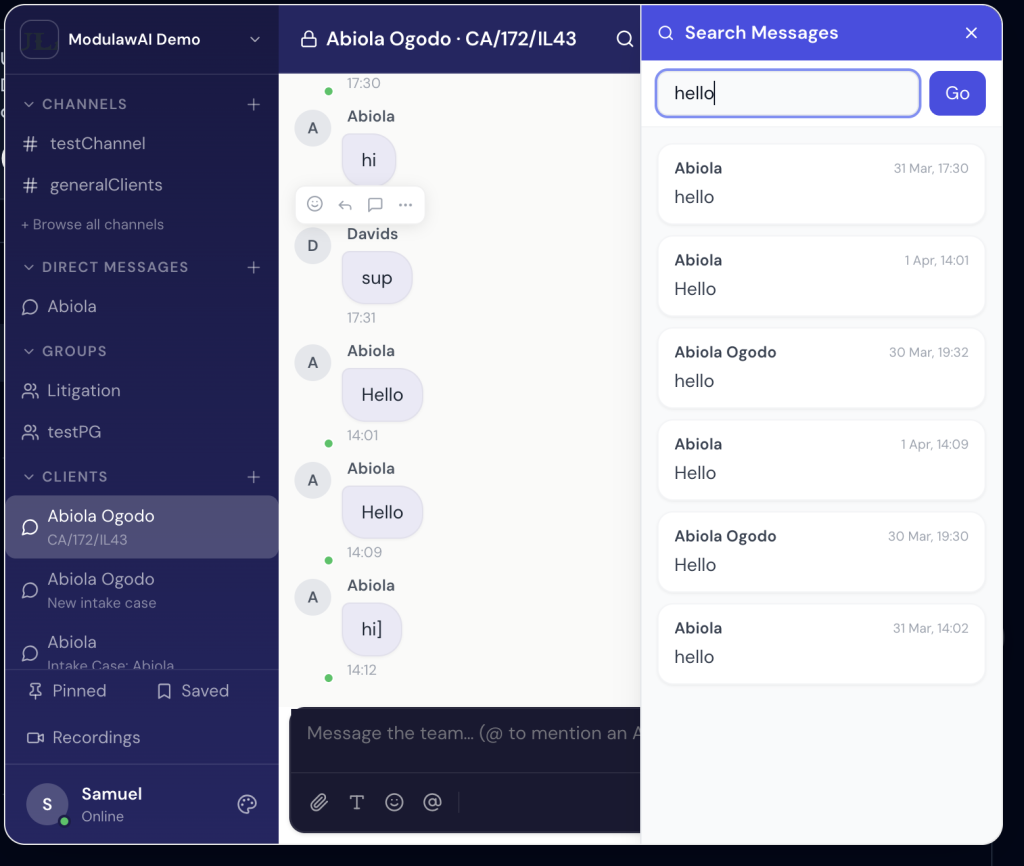
Open the client chat, then click the search icon in the chat header. Search looks within the chat you have open, so a keyword, a party name, or a phrase you remember will surface the message.
Search is plain keyword matching; there is no from: or before: syntax, and it does not search across all chats at once. To look in another client’s chat, open that chat first and search there.
Messaging or email?
| Situation | Use |
|---|---|
| Case updates and questions | Client messaging |
| A formal letter or legal notice | Email: you need the formal record |
| Quick “are you free for a call?” | Client messaging |
| Sharing a document | The case documents, marked visible in the client portal |
| Onboarding, before portal access is enabled | |
| Anything needing a delivery record | Email: messaging has no delivery tracking |
The general rule: once a client is on the portal, default to messaging for day-to-day case communication, and keep email for anything formal.
Practical advice
- Pick the right case. Each chat is tied to one case, so start it from the case the conversation is about.
- Keep internal comments out. The client sees the whole thread.
- Point clients to the portal Documents area for files. They cannot attach files in chat.
- Check the thread before you call. They may already have answered.
- Write it as correspondence. These messages are a permanent part of the client relationship record.