Skills are reusable instruction bundles that teach the ModulawAI assistant to work the way your firm works. Once a skill is active, the assistant applies it automatically whenever the task matches. This guide explains where skills come from, how to write your own, and how the assistant decides when to use one.
What a skill is
A skill is a block of markdown guidance that gets added to the assistant’s instructions for a request. Think of it as a standing instruction, or a house-style note you would give a new associate.
| Without a skill | With a skill |
|---|---|
| The assistant drafts in a generic style | It follows your clause numbering, defined-term format, and governing-law preference |
| Citations come back in whatever format the model picks | They come back in your house citation format every time |
| Tone varies between answers | Formal for court documents, plain English for client advice |
The four skill libraries
The Skills page has four tabs, one for each place a skill can come from.
| Tab | What it holds |
|---|---|
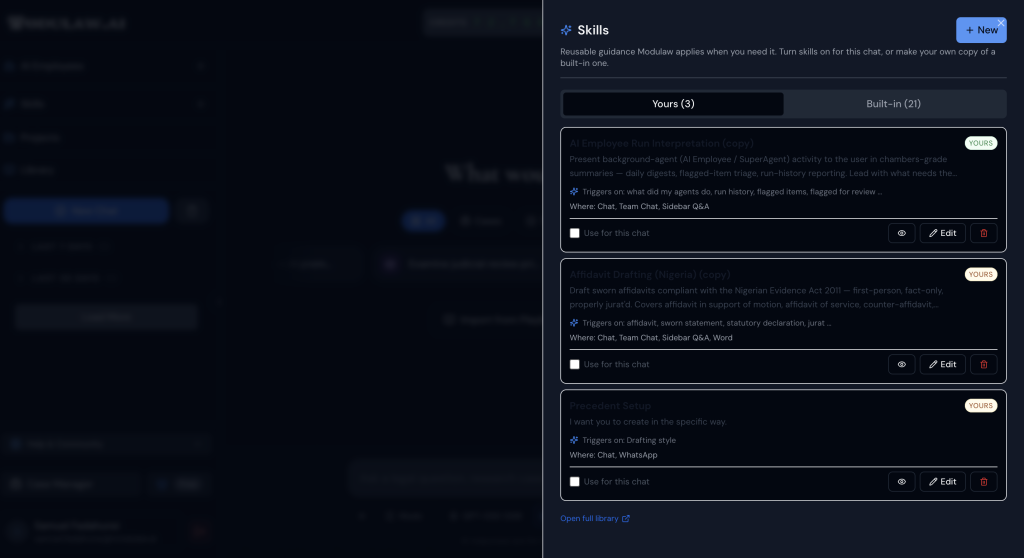
| Built-in | Skills that ship with ModulawAI. Turn on the ones you want; your choices carry across conversations. Some are on by default and carry a Default badge; you can still turn them off. |
| Yours | Skills you wrote or imported. They are private to you. |
| Chambers | Skills shared with everyone in your workspace. This is where house style belongs. The tab appears when you are working in a workspace. |
| Marketplace | Skills published by other ModulawAI users. Installing one makes an independent copy in your library; it does not follow later changes to the original. |
On one of your own skills, Share to chambers puts a copy in the Chambers library so colleagues can use it, and Publish puts it on the Marketplace so anyone using ModulawAI can install it. On a skill that is not yours, Make my own gives you an editable copy.
What ships as standard
The built-in library is mostly about drafting and research. It includes skills for affidavits, motions, briefs of argument, pre-action protocol letters, NDA drafting, contract review checklists, engagement letters and conflict checks, company incorporation, bills of costs, damages quantum, employment computations, transaction tax, limitation periods, court timetables, legal citation format, IRAC case briefing and legal essays, web research strategy, case-management house style, brand design for rendered pages, and summaries of AI Employee runs.
Several built-in skills are written for one jurisdiction, and their names say which. If your firm practises elsewhere, use Make my own to copy one and adapt it to your courts and rules.
Writing your own
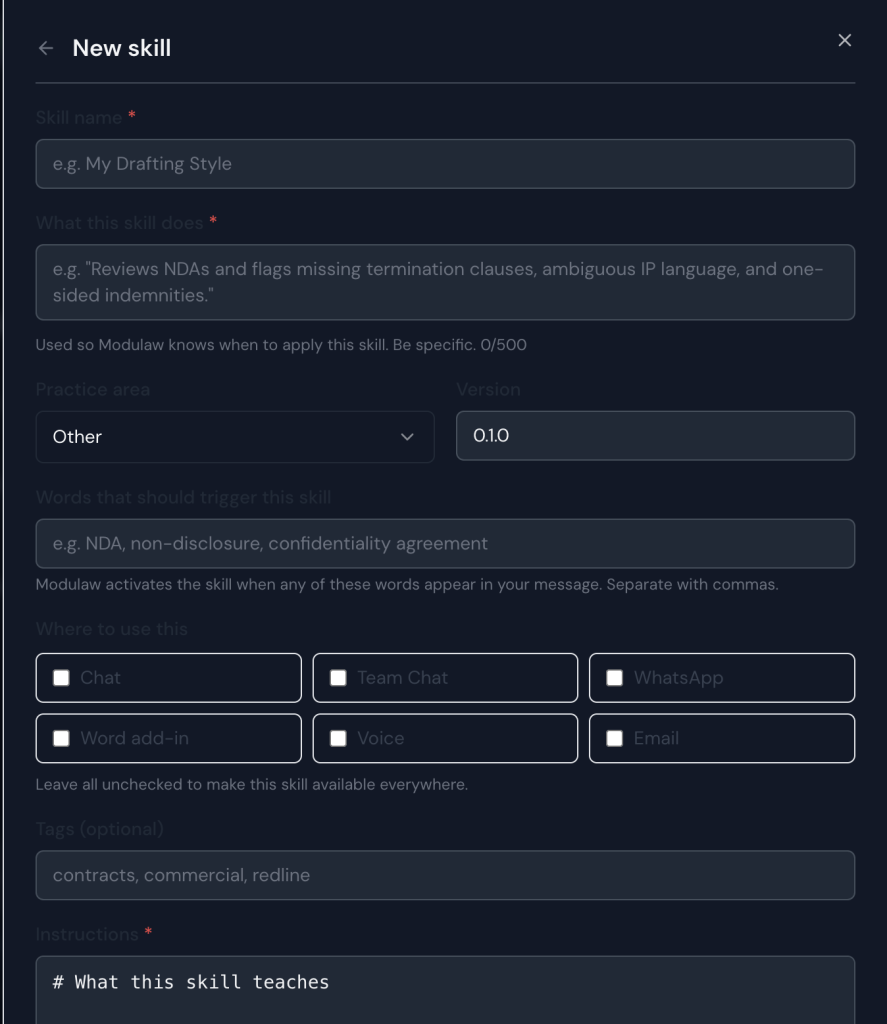
- Open Skills and click New skill.
- Give it a name and a description. The description is what the assistant matches against, so write it as a description of when the skill applies, not what it contains.
- Choose a Practice area: Drafting, Research, Communication, Workflow, Design or Other. You can also set a Version number, such as 0.1.0, to track your changes.
- Optionally add words that should trigger this skill, separated by commas, and tags.
- Under Where to use this, tick the places the skill applies: Chat, Team Chat, WhatsApp, Word add-in, Voice or Email.
- Write the instructions in markdown.
- Save it.
It takes effect immediately. Under Advanced you will find the Short ID, which is generated from the name (lowercase letters, numbers and hyphens) and cannot be changed after the skill is created.
Already have a skill written somewhere else? Click Import on the Skills page to bring one in from a public GitHub repository.
How the assistant picks a skill
Matching is semantic, not keyword-based. Your skill’s description is converted into an embedding when you save it, and the assistant compares your message against those descriptions by meaning. Trigger words supplement this; they do not replace it.
Practically, that means the quality of your description matters more than anything else. “Applied when drafting any document for filing in the High Court” will match reliably. “Court stuff” will not.
Several skills can apply to one request; their instructions stack.
Writing skills that work
Do
- Describe the trigger situation precisely. This is the single highest-leverage thing you can do.
- Be concrete about output format. “Use numbered paragraphs” beats “be organised”.
- Include a short example of what good output looks like.
- Use imperative language. “Always cite the enabling statute”, not “you might want to”.
- Keep one skill to one job. Splitting contract drafting and case research into separate skills makes both match better.
Don’t
- Write one enormous skill. Skills consume part of the assistant’s working context; several focused ones beat one sprawling one.
- Restate things the assistant already does. “Be helpful” adds nothing.
- Put client details in a skill. Skills apply across cases. Client names, account numbers, and privileged facts belong in the case, not in a standing instruction.
Managing skills
- Enable: tick or untick a built-in skill to turn it on or off. A skill that is off stays in the library but is never applied.
- Edit: open one of your skills and change it. Changes take effect on the next message.
- Delete: removes one of your skills permanently. There is no undo.
Example: a house-style skill
Name: Court Document House Style
Description: Applied when drafting any document for filing in court, such as pleadings, motions, affidavits and written submissions.
Instructions:
- Use numbered paragraphs (1., 2., 3., and so on)
- Cite cases in full on first mention, in the citation style your courts expect, and use a short form after that
- Include the case number and court in the header
- Describe the parties by the titles the court uses, such as CLAIMANT and DEFENDANT
- End with the date and a signature block for the filing lawyer
- Add a list of authorities after the conclusion
Save that as one of your skills, then use Share to chambers, and every court document anyone in the firm drafts follows the same conventions.