

Modulaw’s team chat keeps your firm’s conversations organized, searchable, and connected to your cases. This guide covers channels, direct messages, and the features that make team communication work for legal teams.
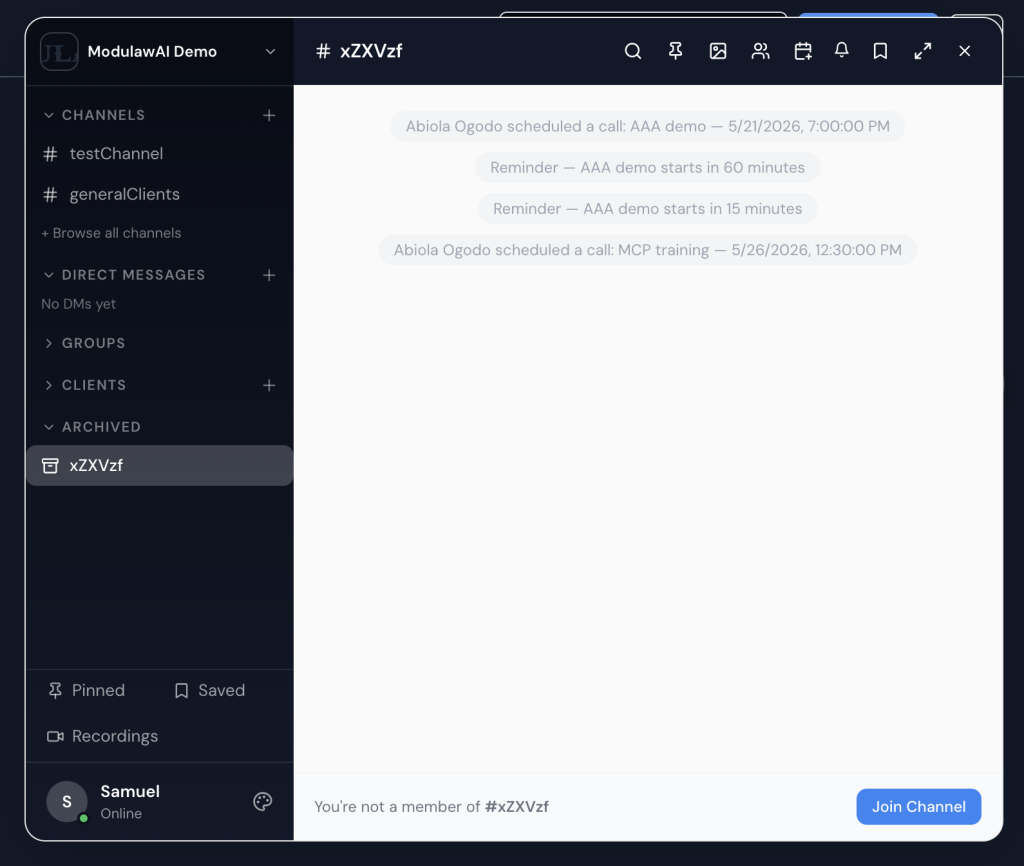
Channels vs. Direct Messages
| Channels | Direct Messages (DMs) | |
|---|---|---|
| Purpose | Topic- or case-based group discussion | One-on-one or small group conversation |
| Visibility | All members can see (public) or invited only (private) | Only participants can see |
| Persistence | Permanent; new members see full history | Permanent; new participants see history from when they joined |
| Search | Searchable by all channel members | Searchable by participants |
| Best for | Case discussions, practice group updates, firm announcements | Quick questions, private coordination, 1:1 check-ins |
Creating a channel
- Click the + icon next to “Channels” in the sidebar
- Choose the channel type and click on create (you can also make the channel private)
Public channels
- Visible to everyone in your workspace
- Anyone can join
- Best for: firm-wide announcements, practice group discussions, general Q&A
Private channels
- Only invited members can see or access
- Members must be added by an existing member
- Best for: sensitive case discussions, management conversations, client-specific channels
- Name your channel– use lowercase with hyphens (e.g.,
litigation-team,case-smith-v-jones) - Add a description– helps people understand the channel’s purpose
- Invite members– add team members now or later
- Click Create
Channel naming conventions
Good channel names are descriptive and consistent. Here’s what works well:
| Pattern | Examples |
|---|---|
| Practice area | corporate-law, family-practice, criminal-defense |
| Case-specific | case-adeyemi-v-cbn, case-okoja-probate |
| Functional | knowledge-management, cle-resources, it-support |
| Social | wins-and-celebrations, lunch-club |
Sending messages
In a channel
- Click the channel name to open it
- Type your message in the input box at the bottom
- Press Enter to send (Shift+Enter for a new line)
Rich text options:
- Bold, italic,
strikethrough– use the formatting toolbar or Markdown - Lists – bulleted and numbered
- Code blocks– for sharing case references or technical details
- Quotes– when replying to a specific point
Direct messages
- Click Direct Messages in the sidebar
- Click the + or search for a team member
- Start typing- it works exactly like a channel, but private
Message features
@mentions
Type @ followed by a name to notify someone specifically:
- @ a colleague’s name — notifies that person directly. Mentions of you are collected in the mentions panel, so they are easy to catch up on.
- @ModulawAI — brings the AI assistant into the channel to answer a question.
There is no @channel or @here broadcast mention. To reach everyone, post the message and rely on their channel notification settings.
Attachments & sharing
Simply click on the attachment icon:
- Documents– PDF, DOCX, XLSX, images (preview inline)
- Case references– type
#followed by a case name to link to a case - Client references– type
#followed by a client name - Links– paste any URL; Modulaw previews it if possible
Pinned messages
Pin important messages so they’re always accessible:
- Hover over a message
- Click the ⋮ menu
- Select the Pin icon
- Pinned messages appear in the channel header; click to view all pins
What to pin:
- Case strategy decisions
- Key deadlines
- Important links or references
- Channel guidelines
Message actions
Hover over any message to:
- Reply in thread – keeps discussions organized without cluttering the main channel
- React – add an emoji reaction (👍, ✅, 👀, etc.)
- Share – forward to another channel or DM
- Copy link – get a permanent link to that specific message
- Edit – fix a typo (edited messages show an “(edited)” marker)
- Delete – remove the message (available for your own messages)
Threads
Threads keep side conversations from overwhelming the main channel:
- Hover over a message and click Reply in thread
- The thread opens in the right panel
- All replies stay in the thread; the main channel shows “3 replies” with a link
- Thread participants get notifications for new replies
Channel management
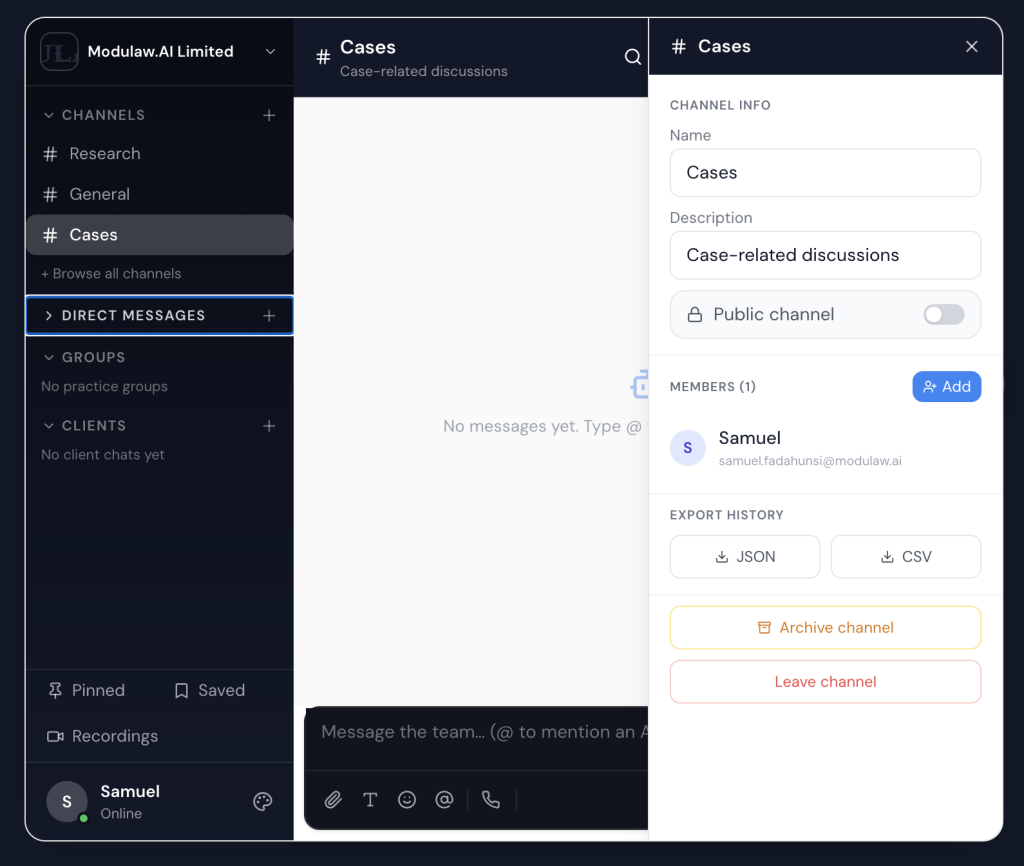
Channel settings
Click the channel name in the header to open settings:
- Description – edit the channel’s purpose
- Members – see who’s in the channel, add or remove people
- Notifications – channel-specific notification preferences
- Shared files – browse all files shared in the channel
Muting channels
If a channel is active but not immediately relevant:
- Go to the channel header
- Click the Volume icon
- Select Mute
Muted channels still show unread indicators (grey, not bold) but don’t send notifications.
Leaving & archiving
- Leave a channel – click the channel name → Leave Channel. You can rejoin public channels anytime; private channels require a re-invite.
- Archive a channel – workspace admins can archive channels. Archived channels are read-only and hidden from the sidebar but still searchable.
Search
The search bar at the top of the chat panel searches across all channels and DMs you have access to:
- Keywords – matches message content
- To narrow a search, open the channel you want first and search from there — there is no
from:,in:orbefore:operator syntax
Search respects channel privacy; you’ll never see results from channels you’re not a member of.