

Modulaw runs an MCP server. MCP (Model Context Protocol) is the open standard AI assistants use to connect to outside systems, so any client that speaks it — Claude, Cursor, ChatGPT and others — can work directly with your cases, clients, documents, invoices and the legal corpus. You point the client at one URL, sign in, and approve the workspace it may reach.
Who can do this: Anyone on a paid plan. Free trials cannot use the API or MCP.
Before you start: Nothing to install and no key to create — you approve the connection in your browser.
The server URL
Every client needs the same one thing:
https://backend.modulaw.ai/mcpYou can also copy it from Profile → API access inside Modulaw, where the same page lists everything you have connected.
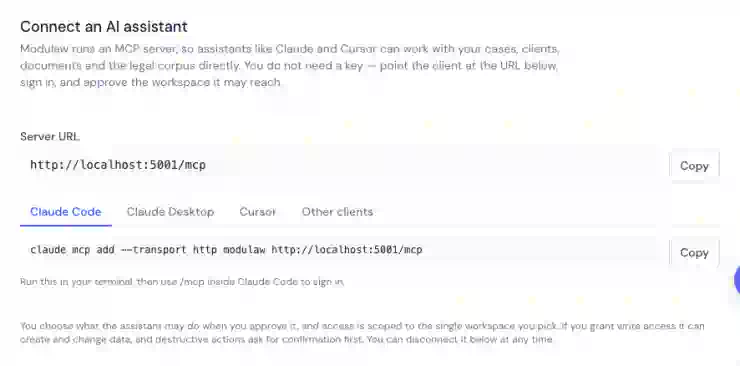
Set up your client
Claude Code
Run this in your terminal, then use /mcp inside Claude Code to sign in:
claude mcp add --transport http modulaw https://backend.modulaw.ai/mcpClaude Desktop
- Open Settings → Connectors → Add custom connector.
- Paste the server URL above.
- Approve the Modulaw sign-in prompt that opens in your browser.
Cursor
Add this to ~/.cursor/mcp.json (or a project-level .cursor/mcp.json), then reload:
{
  "mcpServers": {
    "modulaw": {
      "url": "https://backend.modulaw.ai/mcp"
    }
  }
}
Any other client
Give it the URL and it should discover the rest by itself. For reference, the server uses the Streamable HTTP transport and OAuth 2.1 with dynamic client registration and PKCE — there is no pre-shared secret to configure. Clients find the authorisation server at /.well-known/oauth-protected-resource.
Approving the connection
The first time a client connects, Modulaw opens a consent screen in your browser. It shows you three things, and all three matter.
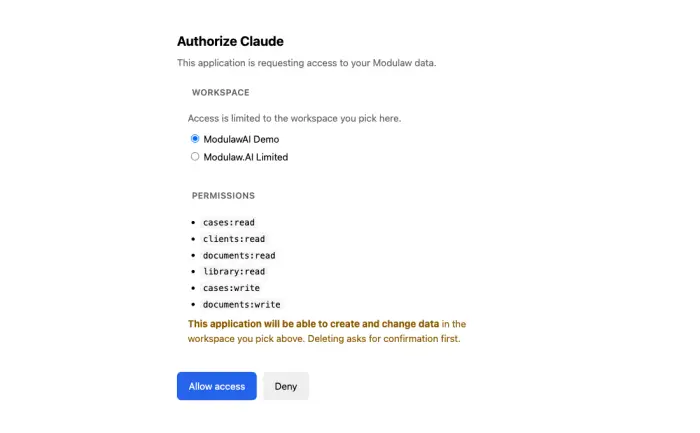
- Which application is asking.
- Which workspace it may reach. Access is limited to the one you pick here — the assistant cannot see your other workspaces, even though you can.
- Which permissions it is requesting, listed individually. If any of them can change data, the screen says so plainly, as in the example above.
If you are not signed in when the consent screen opens, sign in first — the page then continues on its own.
What an assistant can do
Once connected, the assistant gets a set of tools covering cases, clients, tasks, calendar, documents, invoices and time entries, forms and processes, workspace details, and the global legal corpus. What it may actually use depends on the permissions you approved — see Permissions for API keys and AI assistants.
Two limits apply no matter what you approve:
- It can never do more than you can. The assistant acts as you, so your own role and workspace membership still bound everything it does.
- Deleting always asks first. A destructive action is refused on the first attempt and comes back with a plain-English description of what would be removed. The assistant has to put that in front of you and try again before anything is deleted.
Disconnecting
Go to Profile → API access and find the application under Connected apps & agents. Click Disconnect and it loses access immediately — not when its current session expires. To reconnect later, approve it again from the client.
Good to know
- MCP and API keys are different things. Use MCP for AI assistants; use an API key for your own code, and see the API reference for endpoints.
- Building against the tools directly? The MCP tools call the same endpoints as the REST API, so the same request shapes apply. The field contracts section of the API reference covers the three that catch people: the calendar list is a merged feed where
itemTypeis not the eventtype,assignedToClienton a task is an object rather than a flag, and assignees come back expanded but must be sent as ids. - Access is tied to your subscription. If it lapses, connected assistants stop working until it is renewed.
- Connecting one assistant to one workspace is the safest default. Approve a second connection for a second workspace rather than widening the first.
- This is the inbound direction — assistants reaching into Modulaw. Connecting Modulaw out to third-party MCP servers is a separate feature under Integrations.