

Approvals is where you review things other people send you, and track things you have sent. One requisition, expense, invoice or process step can need a sign-off, and every one of them lands here so you never have to chase separate queues. You will find it in the Case Manager, under Approvals in the left sidebar.
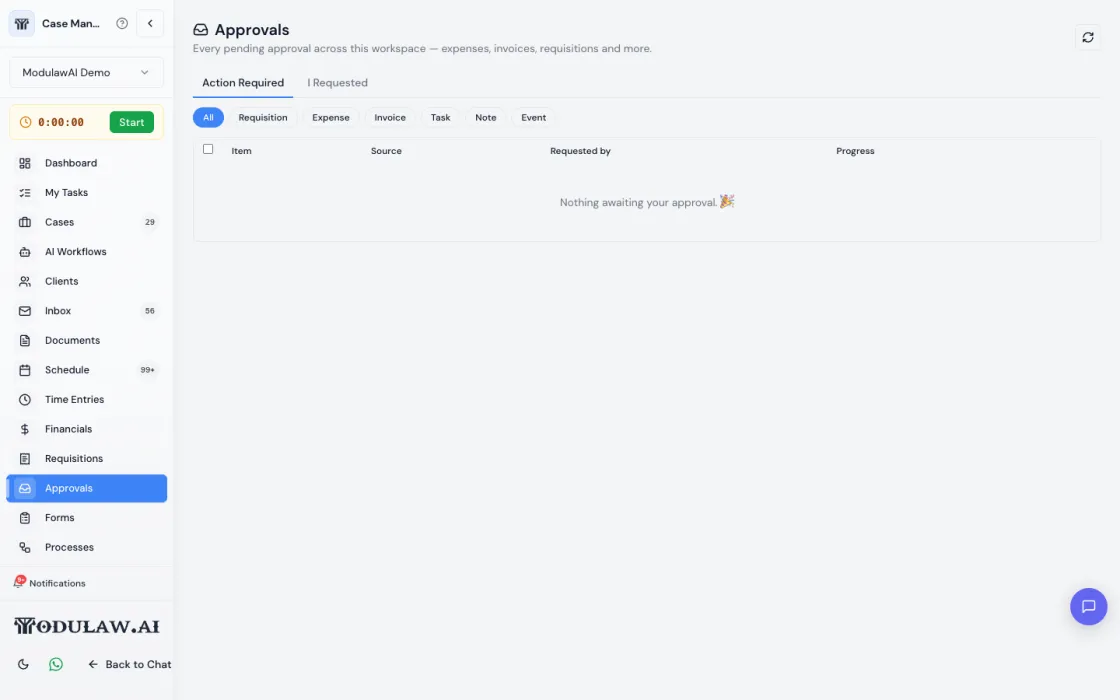
Step by step: review and decide on an item
- In the Case Manager, click Approvals in the left sidebar.
- You land on the Action Required tab. This lists everything waiting for your decision. If it says “Nothing awaiting your approval”, you are done, nothing needs you right now.
- Optional: click a filter chip (All, Requisition, Expense, Invoice, Task, Note, Event) to show only one kind of item.
- Click the row you want to review. A panel opens showing the full details.
- Choose what to do:
- Approve to sign it off.
- Reject to decline it.
- Request changes to send it back to the sender with notes so they can fix it.
- Delegate to hand the decision to someone else.
- Escalate to push it up to a higher approver.
- Add a comment explaining your decision, and add your signature (type it or draw it) if the item asks for one.
- Confirm. If more people need to sign after you, it moves to the next person automatically. If you are the last approver, it is now complete.
Approve several at once
On the Action Required tab, tick the checkbox on the left of each item you want to clear, then use the bulk action to approve them together. This is handy when you have many small, routine items.
Track something you sent
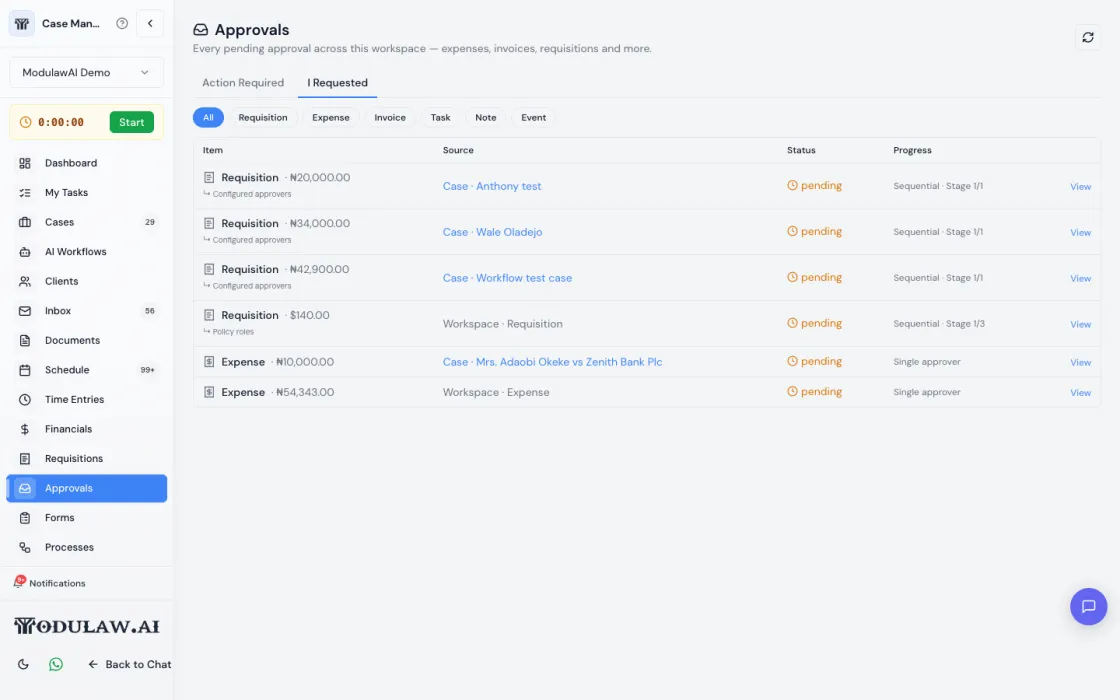
Click the I Requested tab to see the items you raised and where each one is in its chain (who has signed, who is next).
Good to know: how chains are set up
An approval can need one person or several, and administrators decide the default rule for your workspace: single (one person decides), any one (first person to act decides), multiple (several must act), or sequential (a set order, one after another). If an item sits too long, it can remind people and escalate on its own.
Tip: use My Tasks for everything at once
Approvals shows decisions. My Tasks (also in the left sidebar) shows decisions and forms you need to fill, all in one list. If you want a single “what needs me” view, start there.
Who can use it
Approvals are available on all plans and to all roles by default. Setting the default approval rule is an administrator task, done in Settings.