

Notes, tasks and dates are the operational layer of a matter: what happened, what needs doing, and when it is due. This guide covers all three and how they work together.
Notes: your record of the matter
A note is a dated entry on the case, visible to your workspace. Notes are what stop a matter living in one person’s head.
Write one:
- After a client meeting — instructions given, decisions made, next steps agreed
- After a court appearance — what happened, what was ordered, what is due when
- After reviewing a document — your analysis and any follow-up needed
- When you have a strategic thought, even if you are not acting on it yet
- When handing over to a colleague — context and clear instructions
Notes can remind you
This is the part people miss. When you create a note you can attach a reminder: a date, and how far in advance you want prompting. The note then chases you.
That makes a note the right home for “the other side said they would revert by the end of the month” — a fact worth recording and worth being nudged about, but not really a task for anyone.
A note’s reminder is marked pending, completed or cancelled, so you can clear the ones that have served their purpose.
What notes are not
Notes are workspace-visible. There is no per-note switch that publishes one to the client and keeps another internal — everything you write on a matter is seen by colleagues with access to it. Write accordingly. To communicate with a client, use the client portal or email instead.
Tasks: turning intent into work
Every piece of work that needs doing should be a task with an owner and a due date.
Creating one
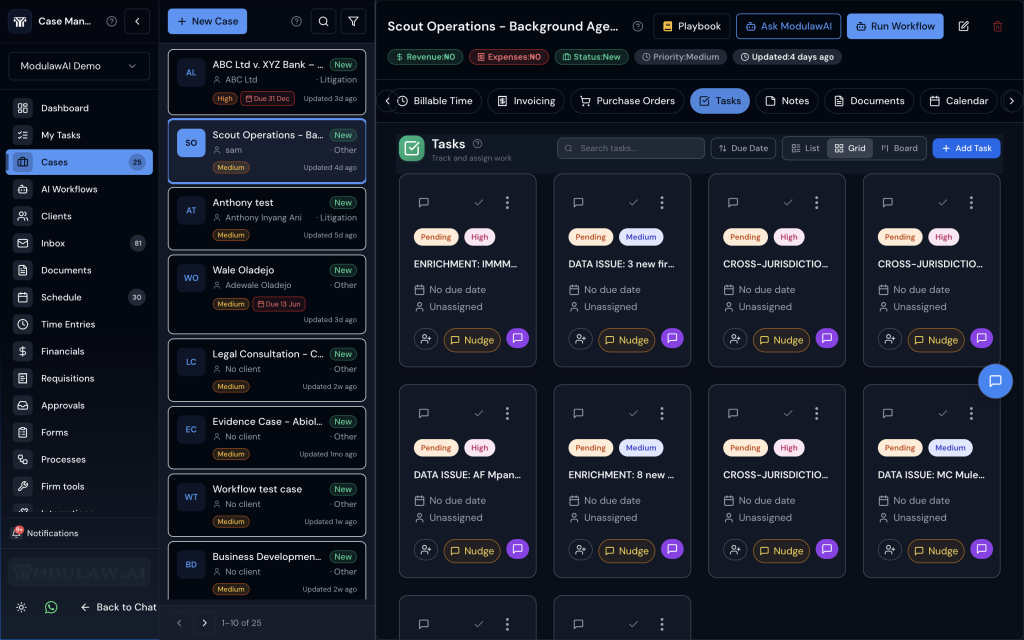
Open the case, go to the Tasks tab, and click Add task.
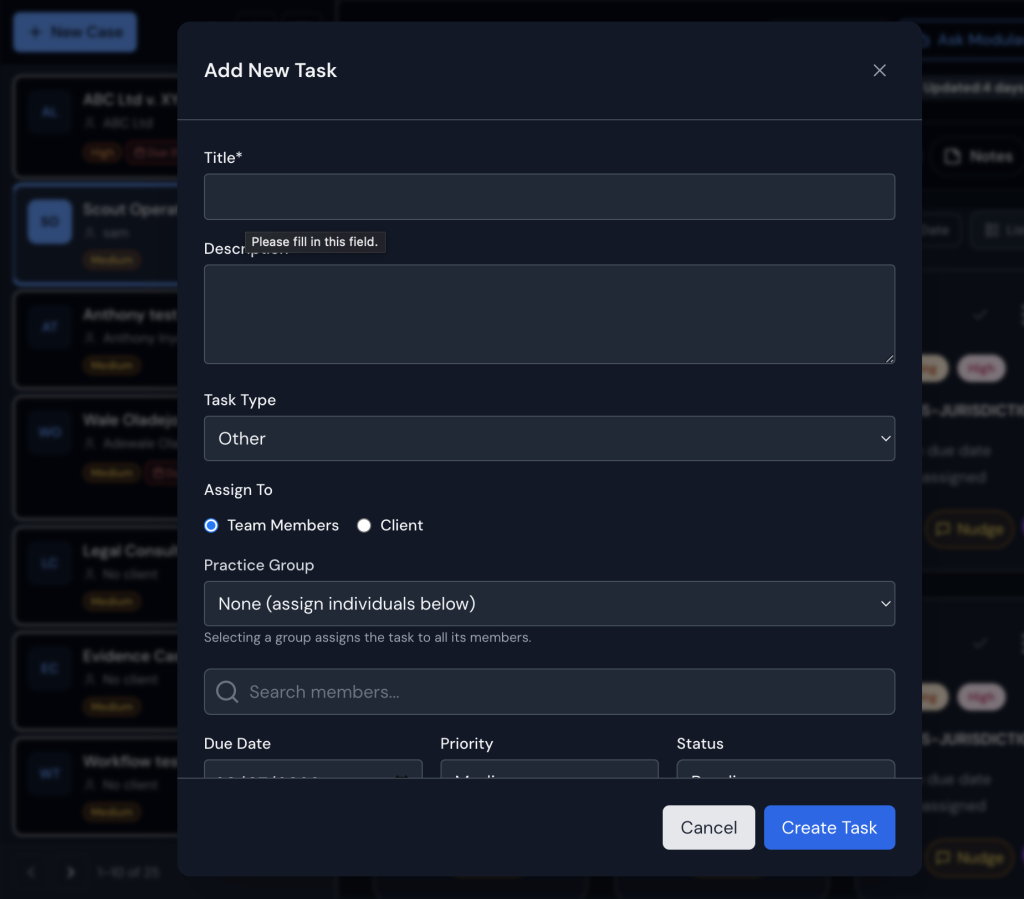
| Field | Notes |
|---|---|
| Title | Be specific. “Draft statement of claim” beats “Drafting”. A good title tells the assignee what to do without opening the task. |
| Description | Context, instructions, references. |
| Task type | What kind of work it is. |
| Assignee | Any member of the workspace. |
| Due date | Drives notifications and dashboard alerts. |
| Priority | High, Medium or Low. Affects sorting. |
| Status | Where the task has got to. |
Working through them
Click a task to open it and change anything — title, assignee, due date, priority or status. Mark it done when the work is finished; it is recorded in the case timeline.
Use the board view for a visual pass over the matter — drag tasks between columns as they move along.
Sequencing work
Tasks are independent of one another. There is no way to mark one task as blocked until another finishes, and nothing unblocks automatically.
Where order matters, encode it in the dates and the titles. For a defence due in 14 days:
- “1. Draft Statement of Defence” — junior associate, due day 10
- “2. Review and settle Statement of Defence” — you, due day 13
- “3. File Statement of Defence” — due day 14
The numbering makes the sequence obvious and the staggered dates create the handoffs.
Deadlines
Dates that carry consequences — limitation periods, court-ordered filing dates, hearings — should exist in two places: as a task with an owner, and as a calendar entry on the matter.
Approaching deadlines are monitored automatically. As one comes within range, it can trigger a workflow — to alert the case team, create preparation tasks, or send a summary. See What Workflows Are for how to set that up.
Practical advice
- Write notes immediately. Two sentences in the corridor beat a paragraph reconstructed that evening.
- Make task titles actionable. “Draft” is not a task. “Draft paragraphs 12–18 addressing the limitation defence” is.
- Always set a due date. A task without one is a wish.
- Use note reminders for things that are not tasks. Anything you need to be nudged about but nobody needs to action.
- Number sequential tasks. Since nothing enforces order, the titles have to carry it.
Next: Documents Inside a Case.