

Workflows turn repetitive legal processes into automated sequences, so your team spends less time on admin and more time practising law.
A workflow has two parts: a trigger (what starts it) and an ordered list of steps (what happens, and in what order). Once built, it runs the same way every time.
Availability: Workflows require a Professional plan or above.
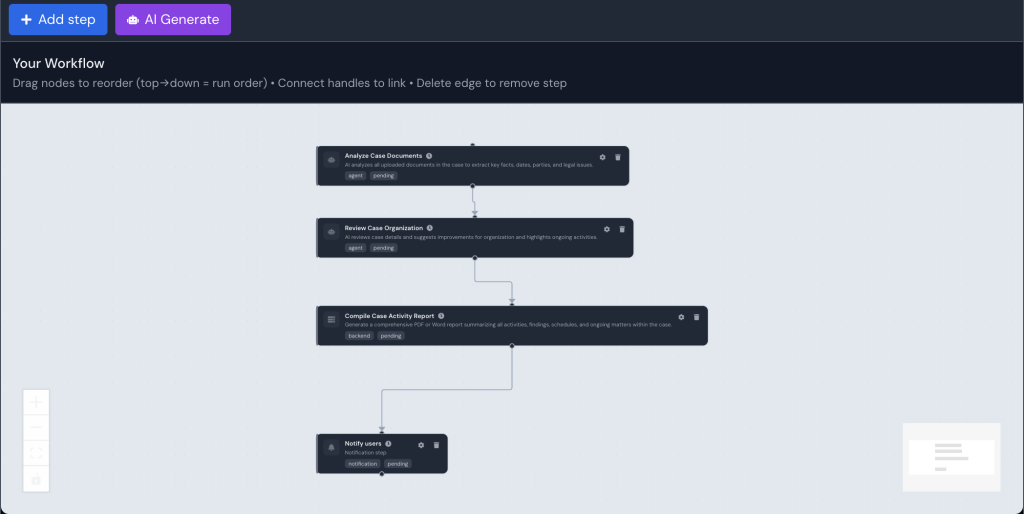
Triggers: what starts a workflow
Under When to run, every workflow uses one of three trigger modes:
| Mode | What it means |
|---|---|
| Manual | You start it yourself by clicking Run. |
| Scheduled | Runs on a repeating schedule you pick from a list of presets (every day at 9:00 AM, weekdays at 5:00 PM, every Monday, 1st of each month, every hour, and so on), or a custom time you build yourself. |
| Event | Runs automatically when something happens in your workspace. |
The six events you can trigger on
| Event | Fires when |
|---|---|
| Case Created | A new case is created |
| Document Uploaded | A document is uploaded to a case |
| Task Completed | A task is marked complete |
| Deadline Approaching | A deadline falls within the number of days you specify |
| Case Status Changed | A case status is updated |
| Intake Submitted | A client submits your intake form |
That is the complete list. If the thing you want to react to is not one of these six, use a Scheduled workflow that checks periodically instead.
Steps: what the workflow does
Steps run in order, one after another. There are six kinds:
| Step type | What it does |
|---|---|
| AI Instruction | A free-form instruction in plain English, carried out by the case manager AI with full case context. |
| AI Agent | A specialist agent: Analyze Documents, Find Case Law, Research Statutes, Assess Risks, or Manage Case. |
| Action | A concrete operation on your data: create a task, add a note, create or manage folders and documents, schedule a calendar event, update a client, generate a document, create invoices, log time entries, record expenses, or work with intake submissions. |
| Loop | Repeats a set of steps once per item in a list from an earlier step, for example every case a previous step returned. |
| Notification | Send an in-app notification, an email, both, or post to a webhook. |
| Custom Action | Call an external API or run custom automation logic. |
What workflows cannot do
Worth knowing up front, so you design around it:
- No waiting. There is no step that pauses for a period of time or waits for a condition. A workflow runs start to finish in one pass. To space actions out, use separate scheduled workflows.
- No branching. There is no if/else step and no conditional paths. Every step runs in sequence, and inside a loop every repeated step runs for every item.
- Loops do not nest. A loop can repeat a set of steps, but one of those steps cannot itself be a loop.
If a step fails, the workflow stops there and the remaining steps do not run. You are notified.
What a workflow costs to run
Not every step consumes credits. An Action step can be pointed at a specific operation, in which case it runs directly with no AI involved and costs nothing. Only the steps that actually call an AI model are billed.
This matters most inside a loop, where an AI step is billed once per item. See Running workflow steps without using credits.
Passing information between steps
Steps can reference the output of earlier steps, and details of the case, using variables:
| Variable | Resolves to |
|---|---|
{{step.0.response}} | The output of step 1 |
{{case.title}}, {{case.caseNumber}}, {{case.status}} | Details of the case the workflow is running on |
{{item.title}}, {{item._id}}, {{itemIndex}} | The current item and its position, inside a loop |
{{today()}}, {{tomorrow()}}, {{addDays(7)}}, {{addWeeks(2)}}, {{addMonths(1)}} | Dates, calculated at run time |
This is how you get an AI step to research something and a later notification step to email you the result.
Realistic examples
New case set-up
Trigger: Event, Case Created
- AI Agent, Analyze Documents: extract key facts, dates and parties
- AI Agent, Find Case Law: find relevant precedents
- Action, Create Task: standard opening tasks for the responsible lawyer
- Action, Add Note: record the initial strategy
- Notification: email the case team
Daily morning briefing
Trigger: Scheduled, every weekday at 8:00 AM
- Action, Workspace Schedule: pull today’s tasks, events and reminders
- AI Instruction: summarise what needs attention today
- Notification: email the summary to the team
Monthly review of every open case
Trigger: Scheduled, 1st of each month
- Action: list the cases to review
- Loop over that list: add a review note and create a follow-up task on each case
- AI Instruction: summarise what the review covered
- Notification: send the summary to the team
See Repeating steps for each item in a list.
Intake follow-up
Trigger: Event, Intake Submitted
- AI Instruction: summarise the enquiry and flag the practice area
- Action, Create Task: “Contact new enquiry”, assigned to intake staff
- Notification: alert the intake team
Let the AI build it for you
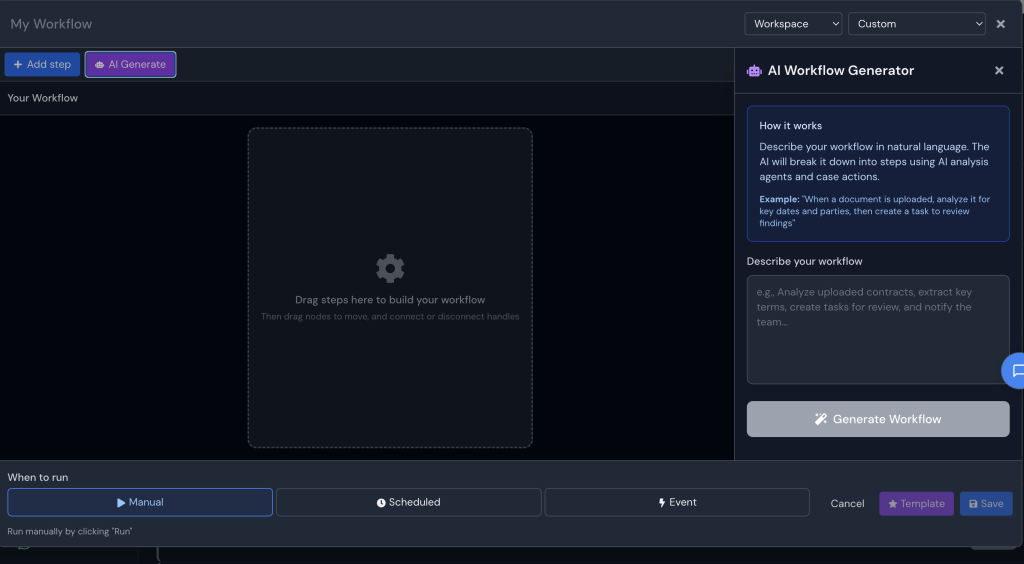
You do not have to assemble steps by hand. Click AI Generate to open a side panel, describe the process you want in plain English, and click Generate workflow. It breaks your description into steps you can then review and adjust.
Why workflows matter
| Without workflows | With workflows |
|---|---|
| Someone has to remember every step | The system remembers for you |
| Steps get missed when people are busy | Every step runs in the same order |
| Set-up varies by who handles it | Every matter starts the same way |
| Training new staff takes longer | Workflows encode your firm’s process |