A workflow step that creates a task, adds a note or updates a case does not need artificial intelligence to do it. It needs the case, the field values, and an instruction to go. Steps set up that way run as direct actions: no AI model is called, and no credits are consumed.
The same step can also be left to the AI, which reads a plain-English instruction and decides what to do. That is more flexible and it costs credits every time the workflow runs. This guide explains how to choose, and how to make the choice stick.
Availability: Workflows require a Professional plan or above.
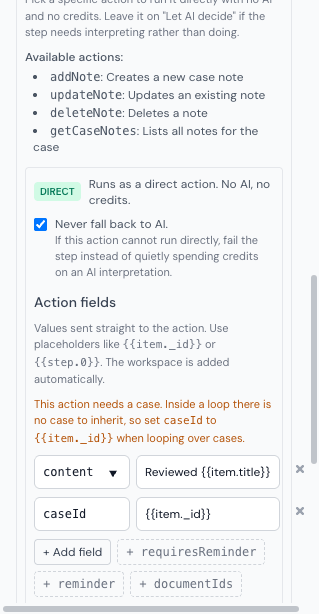
Choosing a specific action
Add an Action step and pick what it works on under What to do?, for example Add Note or Create Task. Then open the Action dropdown underneath:
- Let AI decide (uses credits) is the default. The AI reads your instruction and works out which operation to perform.
- Every other entry is a specific operation, labelled free. Picking one runs it directly.
The list of operations comes from the workflow engine itself, so anything offered there is genuinely available to run directly. A short description sits next to each one, and the full list for the selected area is shown under Available actions.
A badge then tells you how the step will run:
| Badge | Meaning |
|---|---|
| DIRECT | Runs as a direct action. No AI, no credits. |
| AI | Runs through the AI. Consumes credits on every run. |
Filling in the action fields
A direct action needs to be told what to act on. That is what the Action fields section is for. Each row is a field name and a value, sent straight to the operation.
Common field names for the selected operation appear as buttons you can click to add, for example content for a note or title, dueDate and priority for a task. Use + Add field for anything not listed. The workspace is filled in for you.
Values can contain the same placeholders as anywhere else in a workflow:
| Placeholder | Resolves to |
|---|---|
{{case.title}}, {{case.caseNumber}} | Details of the case the workflow is running on |
{{step.0}}, {{step.1.data}} | The result of an earlier step |
{{item._id}}, {{item.title}} | The current item, inside a loop |
{{today()}}, {{addDays(7)}} | Dates calculated when the workflow runs |
One field deserves attention: caseId. A workflow that runs on a case fills this in automatically. A workspace-level workflow has no case to inherit, and neither does a loop over a list of cases, so in those situations set caseId yourself. Inside a loop over cases that is {{item._id}}. The builder warns you when the action needs a case and there is none to inherit.
Never fall back to AI
Under the DIRECT badge is a checkbox: Never fall back to AI. With it ticked, a step that cannot run directly fails instead of quietly spending credits on an AI interpretation.
This is worth turning on for any step you have deliberately made deterministic, particularly one inside a loop. Without it, a small configuration mistake turns a free step into a paid one on every run, and the only visible symptom is the credit balance.
Why a step still used AI
A step that names a specific action can still be handed to the AI. There are three reasons, and each is reported on the step after the run:
| Reason | What happened | Fix |
|---|---|---|
| The action is set to Let AI decide | No specific operation was chosen | Pick one from the Action dropdown |
| The step carries only an instruction | An operation was named but no fields were filled in, so there is nothing to act on | Add the fields the action needs |
| The operation has no direct route | The named operation is not one the engine can run directly | Choose a different operation, or leave the step on Let AI decide |
The builder flags the second case while you are editing, because it is the easy one to miss: the step looks deterministic, and is not.
A worked example
A step that adds an opening note to a case, with no AI involved:
- Add step, then Actions, then Add Note.
- Name it something you will recognise later, such as “Record file opening”.
- Set Action to
addNote. The badge changes to DIRECT. - Click + content and set the value to
File opened on {{today()}} for {{case.title}}. - Tick Never fall back to AI, then Save.
That step now runs the same way every time and costs nothing. Mix it freely with AI steps in the same workflow: only the AI steps consume credits.
When to leave it on the AI
Direct actions are the right default for anything mechanical. Leave a step on Let AI decide when it needs interpreting rather than doing: summarising, drafting, weighing up which of several things to create, or reacting to the content of a document. Paying for judgement is worthwhile. Paying to create a task with a title you already know is not.