Most workflow steps run once. A loop step runs a set of steps once per item in a list produced by an earlier step. List the cases that need review, then add a note and a task to every one of them, in a single workflow.
Availability: Workflows require a Professional plan or above.
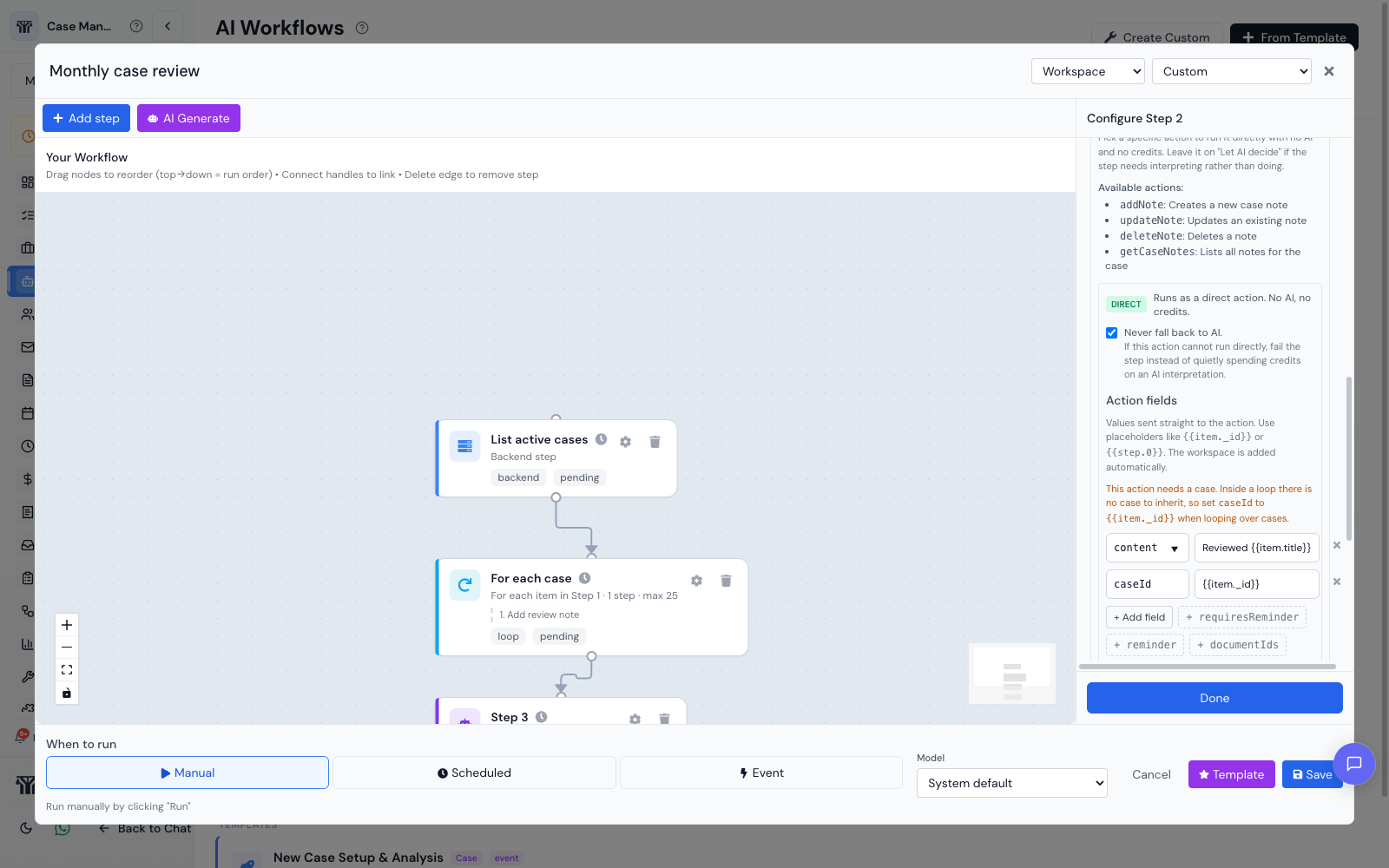
Adding a loop
A loop needs something to repeat over, so it always follows a step that produces a list.
- Add the step that produces the list first, for example an Action step set to list cases.
- Add step, then the Loop tab, then Repeat for each item.
- Click the loop on the canvas to configure it.
The loop is a single node on the canvas. The steps it repeats live inside it, listed under the node so you can see at a glance what it does.
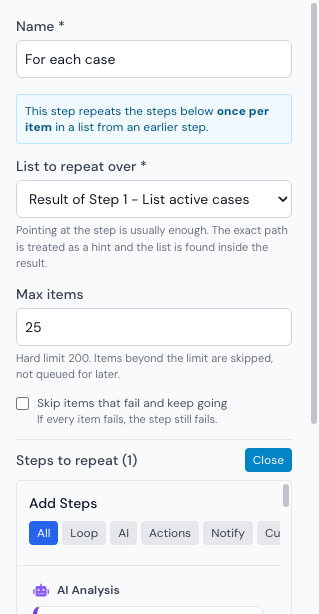
The settings
List to repeat over
Pick the earlier step whose result holds the list. Only steps that come before the loop are offered, because a loop cannot repeat over something that has not run yet.
Pointing at the step is normally enough. You do not have to know where inside the result the list sits: the exact path is treated as a hint, and the list is found inside the result. Choose Custom expression only if you need to target something specific, such as {{step.0.data.cases}}.
Max items
A cap on how many items the loop processes. It defaults to 25 and cannot exceed 200.
Items beyond the cap are skipped, not queued for later. If the list holds 400 cases and the cap is 25, the other 375 are not processed on that run and will not be picked up automatically afterwards. The run reports how many it processed and how many it skipped, so check that number rather than assuming a completed run covered everything.
Keep the cap low while you are testing. Every item is real work against your data.
Skip items that fail and keep going
By default the loop stops at the first item that fails, and the workflow stops with it. Tick this to skip the odd bad item and carry on.
It is not a blanket “ignore errors” switch. If every item fails, the step still fails, because a loop that quietly did nothing at all should not report success.
Steps to repeat
Add the steps that should run for each item. They can be actions, AI steps or notifications, and you can reorder or remove them. Each one is configured exactly like a top-level step.
Referring to the current item
Inside a loop, extra placeholders are available:
| Placeholder | Resolves to |
|---|---|
{{item._id}} | The identifier of the current item |
{{item.title}}, and any other field | That field on the current item |
{{item}} | The whole item |
{{itemIndex}} | Which item this is, counting from 1 |
Numbered step references keep working too, and they count in a specific order: {{step.0}} onwards refer to the steps before the loop, and the numbers after those refer to earlier repeated steps within the current pass. So the second repeated step can use the result of the first one for the same item.
The builder shows the placeholders available for the step you are editing, so you do not have to work the numbering out yourself.
Actions that need a case
Adding a note or creating a task requires a case. A workflow running on a single case supplies that automatically, but a loop over a list of cases does not: each pass is a different case, so there is nothing to inherit.
Set the caseId field on those repeated steps to {{item._id}}. The builder points this out when it applies. Without it the step fails with a message saying it needs a case.
Watch the cost
A loop multiplies whatever is inside it. Repeated steps set up as direct actions cost nothing however many times they run. An AI step inside a loop is billed once per item, so 25 items means 25 AI turns.
The builder warns you when a loop contains an AI step. If the repeated work is mechanical, set those steps to a specific action and tick Never fall back to AI. See Running workflow steps without using credits.
Limits
- No loops inside loops. A repeated step cannot itself be a loop, and the Loop option is hidden when you add steps inside one.
- Items are processed one after another, not in parallel, so a large loop takes time.
- 200 items is the ceiling regardless of what the list contains.
- No branching. Every repeated step runs for every item. There is no way to act on only some of them beyond what the listing step returns, so filter by making the earlier step return the right list.
A worked example: monthly case review
- Action, list cases. Set the Action to the operation that lists cases so this step is free.
- Loop, repeating over the result of step 1. Max items 25.
- Add Note, action
addNote, withcaseIdset to{{item._id}}andcontentset toReviewed {{item.title}} on {{today()}}. - Create Task, action
createTask, withcaseIdset to{{item._id}}andtitleset toFollow up on {{item.title}}.
- Add Note, action
- AI Instruction, summarising what the review covered.
- Notification, sending that summary to the team.
Everything inside the loop is a direct action, so the cost of that workflow is the single AI step at the end, whether the loop processes three cases or twenty-five.