

The workflow builder is where you create and customise automation for your firm. This guide walks through the canvas, the step types, and how to save and reuse what you build.
Availability: Workflows require a Professional plan or above.
When a workflow is the right tool
| Good fit | Poor fit |
|---|---|
| The same sequence of steps runs on many matters | A one-off, bespoke task. Just ask the assistant directly |
| You want AI to do the thinking (research, drafting, summarising) and the platform to do the admin (tasks, documents, notifications) | Anything needing a decision partway through. Workflows cannot branch or wait |
| The same handful of actions must be applied to every item in a list | Anything requiring real-time human judgement |
| The process is time-based, or reacts to one of the six workspace events | Anything that must pause and resume later |
Getting to the builder
- Open AI Workflows from the Case Manager sidebar
- Choose Create Custom for a blank canvas, or From Template to start from a pre-built workflow
The canvas
| Element | What it does |
|---|---|
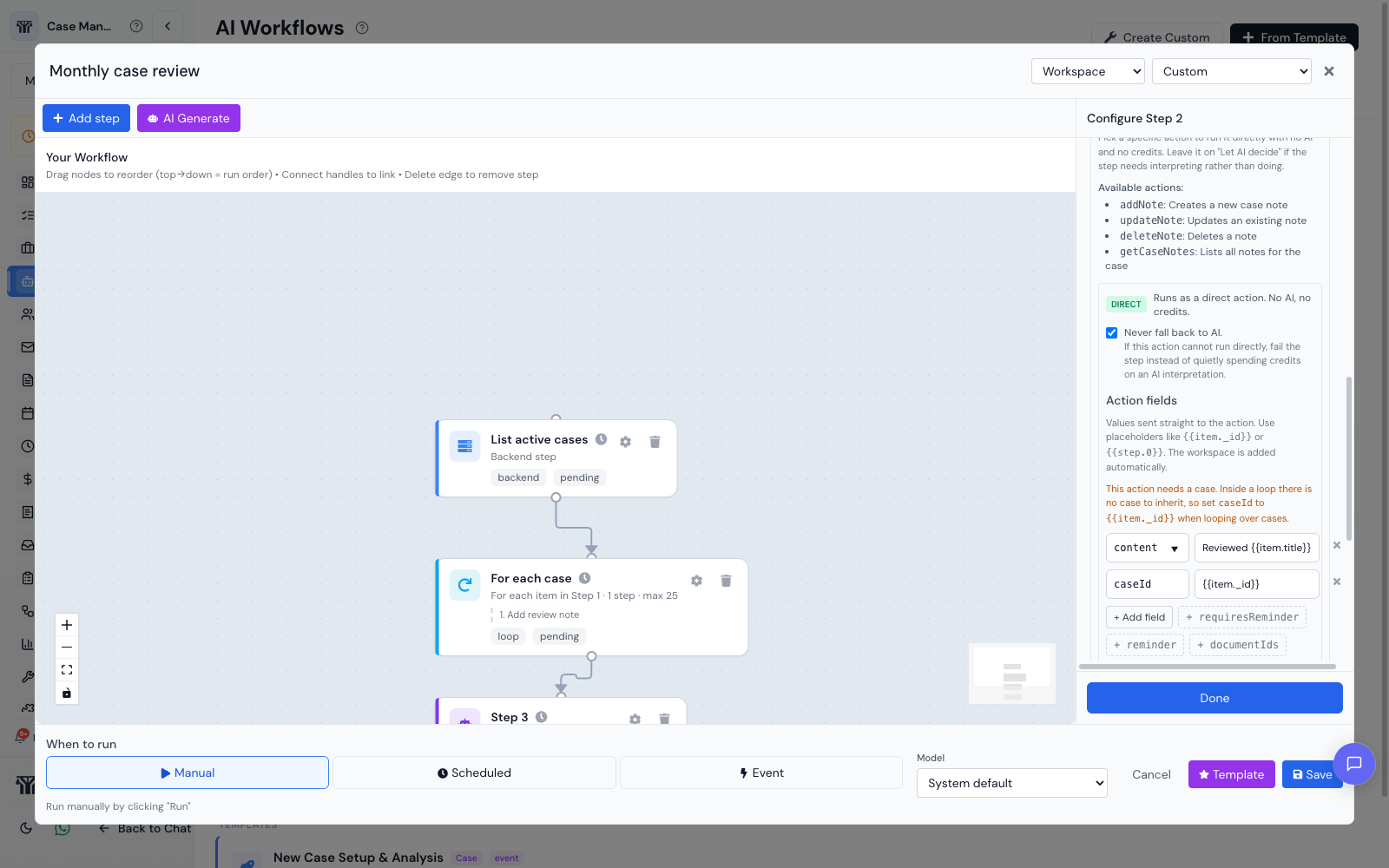
| Add step | Inserts a node. Pick the step type from the menu, which is grouped into Loop, AI, Actions, Notify and Custom. |
| The canvas | Drag nodes to arrange them. Position is cosmetic. Execution order comes from the step sequence. |
| Handles | The small circles on each node. Drag from one node’s handle to the next to connect them; drag a connection off a handle to remove it. |
| Configuration panel | Click any node to open its settings on the right: action, fields, prompt, recipients, and so on. |
| When to run | Manual, Scheduled, or Event. See below. |
| Model | Which AI model the workflow’s AI steps use. Leave it on System default unless you have a reason to change it. |
| Save | Saves the workflow to your workspace. |
| Template | Saves it as a reusable custom template. |
| Cancel | Discards unsaved changes. |
If a step is missing something required, saving is refused and a message names the step and the missing field.
Choosing a trigger
The When to run control has three options, not two:
- Manual: you press Run.
- Scheduled: pick a preset (daily, weekdays, weekly, monthly, hourly) or build a custom time.
- Event: choose one of six workspace events: Case Created, Document Uploaded, Task Completed, Deadline Approaching, Case Status Changed, Intake Submitted.
If you want a workflow to run when an intake form arrives, use Event then Intake Submitted. Do not use a scheduled workflow to poll for new intakes. The event fires immediately and is the right tool.
The step types
| Step | Use it for |
|---|---|
| AI Instruction | A plain-English instruction, run by the case manager AI with the full case in context. The most flexible step. |
| AI Agent | A specialist: Analyze Documents, Find Case Law, Research Statutes, Assess Risks, Manage Case. |
| Action | Create Task, Add Note, Manage Folders, Manage Documents, Workspace Schedule, Schedule Event, Update Client, Generate Document, Case Invoices, Time Entries, Intake Forms, Manage Invoices, Track Expenses. |
| Loop | Repeat a set of steps once per item in a list from an earlier step. |
| Notification | In-app, email, both, or webhook. Choose recipients: the case team, specific people, or practice groups. |
| Custom Action | Call an external API or run custom logic. |
There is no wait step and no branch step. Steps run in order, and apart from a loop, each runs once.
Configuring an Action step
An Action step has two dropdowns. What to do? picks the area it works on, such as notes or tasks. Action picks how it runs:
- Let AI decide (uses credits): the AI reads your instruction and works out what to do.
- A named operation, labelled free: runs directly, with no AI and no credits.
Pick a named operation and a DIRECT badge appears, along with an Action fields editor where you supply the values the operation needs, and a Never fall back to AI option. Full detail in Running workflow steps without using credits.
Repeating steps over a list
Add a Loop step after a step that produces a list, choose which earlier step to repeat over, then add the steps to repeat inside it. A loop is one node on the canvas, and the steps it repeats are listed underneath it.
Inside a loop, {{item.title}}, {{item._id}} and {{itemIndex}} refer to the current item. See Repeating steps for each item in a list.
Choosing the model
The Model control at the bottom of the builder sets which AI model this workflow’s AI steps use. System default follows the setting your administrator has chosen, and is the right choice most of the time.
Override it when a workflow does work that justifies a stronger model, or when a cheaper one is plenty. Models that consume credits at a higher rate say so in the list. The choice only affects steps that call an AI model, so a workflow built entirely from direct actions is unaffected.
A worked example: new intake
- Set When to run to Event, then Intake Submitted
- Add step, AI Instruction. Prompt: “Summarise this enquiry, identify the likely practice area, and list what we need from the client.”
- Add step, Action, Create Task. Set the Action to
createTask, then add fields: title “Contact new enquiry”,assignedToyour intake staff,dueDate{{addDays(1)}}. - Add step, Notification. Medium: email. Message:
{{step.0.response}}, which pastes the AI summary from step 1 into the email. - Connect the nodes in order, then Save.
Only step 2 costs credits. The task and the notification run directly.
Starting from a template
Eighteen templates ship with the platform. Under From Template you will find:
| Area | Templates |
|---|---|
| Case set-up | New Case Setup & Analysis, Case Diagnostic, Case Closure Protocol |
| Deadlines | Smart Deadline Monitor, Deadline Alert |
| Documents | Document Auto-Processing |
| Billing | Smart Billing Assistant |
| Client communication | Proactive Client Communication, New Intake Received, New Intake Follow-Up |
| Research | Monthly Research, Deep Statutory Research, Full Legal Intelligence Brief |
| Discovery & litigation | Discovery Process Manager, Pre-Trial War Room |
| Reporting | Daily Morning Briefing, Weekly Case Health Check, Weekly Workspace Intelligence |
Pick one, then edit it on the canvas. Your changes apply to your copy, not the original.
Saving your own templates
Click Template to save a workflow as a reusable custom template for your workspace. It then appears under the Custom tab alongside the built-in ones, and can be shared with other workspaces.
Templates are not versioned. Saving over one replaces it, and there is no history to roll back to, so if you are making a significant change to a template the firm relies on, save it under a new name instead.
Practical advice
- Start with one step. Get a single step producing good output, then build around it.
- Name a specific action wherever the work is mechanical. It is faster, it is repeatable, and it does not consume credits.
- Be specific in prompts. Name the jurisdiction, the matter type and the output format you want.
- Use descriptive names. “New Client Onboarding v2” beats “Workflow 7”.
- Keep loop limits low while testing. Every item is real work against your data.
- Design around the absence of waits and branches. If your process genuinely needs “wait 14 days, then check”, build two workflows: one that acts now, and a scheduled one that runs later.
- Test on a case that does not matter before pointing a workflow at live matters.