

Connecting your email to Modulaw brings your inbox into your workspace. You can send, receive, and track emails directly from cases and client records. This guide walks through connecting Zoho Mail and Gmail, the permissions required, and how to troubleshoot common issues.
Why connect your email?
When your email is connected, you can:
- Send emails from within a case– replies are automatically logged to the case timeline
- Receive client emails in Modulaw-no switching between apps
- Link emails to cases– associate incoming and outgoing messages with specific matters
- Use email templates– send engagement letters, status updates, and invoices without leaving Modulaw
- Track communication history– every email tied to a case or client is visible in one place
- Send from a case– with the recipient and case link already in place
Connecting Zoho Mail
Zoho Mail is one of the most popular email providers among Nigerian law firms. Here’s how to connect it:
Step 1: Start the connection
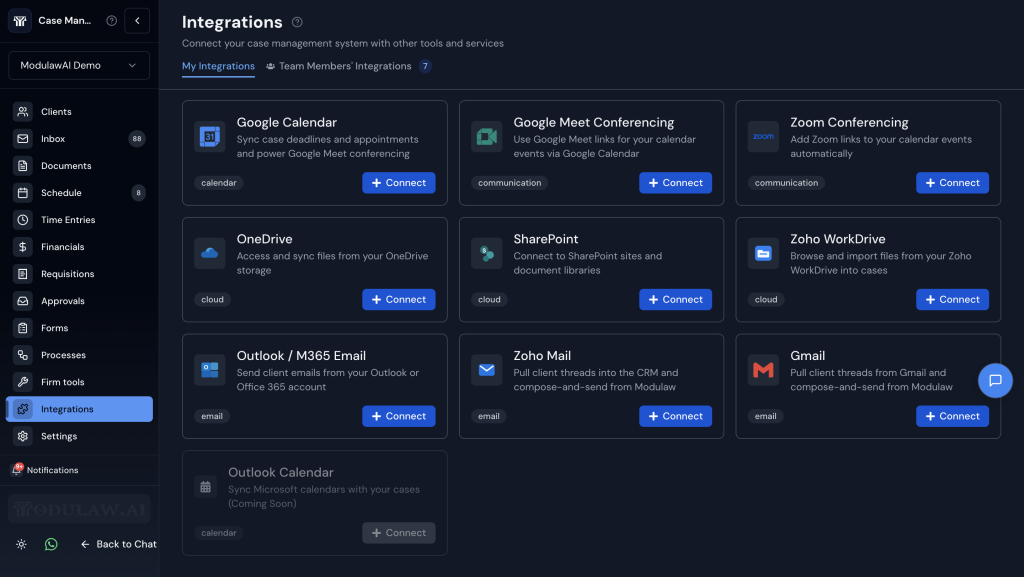
- Navigate to the Case Manager Interface and click on Integrations
- Find Zoho Mail in the list
- Click Connect
Step 2: Authorize via OAuth
- You’ll be redirected to Zoho’s login page
- Sign in with your Zoho Mail credentials
- Zoho will show you the permissions Modulaw is requesting:
- Read your emails– to display your inbox in Modulaw
- Send emails on your behalf– to send from your Zoho address
- Read your folders and update message status– so your inbox in Modulaw reflects what you have read
- Click Accept (or Allow)
- You’ll be redirected back to Modulaw- the connection is complete
Step 3: Verify
- Go to Inbox in the Modulaw sidebar
- You should see your Zoho inbox loading
- Send a test email to yourself to confirm sending works
Zoho-specific notes
- Zoho Workplace accounts– use your full email address to sign in
- Zoho Mail-only (free) accounts– OAuth works the same way
- Custom domain Zoho (e.g., you@yourfirm.com via Zoho) — fully supported
- Two-factor authentication — supported; you’ll complete 2FA during the OAuth flow
Connecting Gmail / Google Workspace
Step 1: Start the connection
- Go to Settings → Integrations
- Find Google Mail (Gmail) in the list
- Click Connect
Step 2: Authorize via OAuth
- You’ll be redirected to Google’s consent screen
- Sign in with your Google account
- Google will show the permissions Modulaw requests:
- Read, compose, send and organise your mail — the Gmail “modify” permission. This does not include permanently deleting your mailbox.
- See your primary email address — to identify your account
- Access your calendar — to sync court dates and deadlines
- Click Allow
- You’ll be redirected back to Modulaw
Step 3: Verify
- Go to Inbox in the sidebar
- Your Gmail inbox should appear
- Send a test email to confirm
Google Workspace (business) notes
- Admin approval may be required — if your firm uses Google Workspace, your admin may need to approve the Modulaw app. If you see “This app is blocked,” ask your Google Workspace admin to allow it.
- Personal Gmail — works without admin approval
- Multiple accounts — you can connect multiple Gmail accounts (e.g., personal and work)
Permissions explained
You might wonder why Modulaw asks for the permissions it does. Here’s exactly what each one is used for:
| Permission | Why Modulaw needs it | What Modulaw does NOT do |
|---|---|---|
| Read emails | Display your inbox, link emails to cases | Read emails unrelated to your cases |
| Send emails | Send from your address within Modulaw | Send emails without your action |
| Read folders and update message status | Mirror your folder structure and keep read/unread in sync | Reorganise or delete your mailbox |
| Access calendar (Google) | Sync court dates and deadlines | Modify your calendar without your action |
Mail is synced into Modulaw so it can be displayed, searched and filed against matters. It stays within your workspace and is not used to train models. Note that workflows cannot be triggered by incoming email — there is no “when an email arrives” trigger.
Managing connected emails
Viewing your inbox
Once connected, click Inbox in the sidebar. You’ll see:
- Your full inbox with the same folders/labels as your email provider
- Unread counts and threading
- Ability to compose, reply, forward, and delete
Linking emails to cases
- Open an email in your Modulaw inbox
- Click File to Case
- Search for the case name or number
- Select the case; the email is now visible in that case’s Communications tab
Auto-linking: If a client’s email address matches one in your client records, Modulaw can auto-suggest linking incoming emails to their active cases.
Sending from a case
- Open the case workspace
- Go to the Communications tab
- Click Send Email
- The email is automatically linked to the case
- Recipient auto-completes from the case’s client and team members
Switching between accounts
If you’ve connected multiple email accounts:
- Click your current email address at the top of the Inbox
- Select the account you want to use
- When composing, choose which account to send from
Disconnecting an email
- Go to Settings → Integrations
- Find the connected email provider
- Click Disconnect
- Confirm
What happens when you disconnect:
- Your inbox is no longer visible in Modulaw
- Previously linked emails remain linked to cases
- You can reconnect at any time; your email history will reload
Troubleshooting connection failures
“Connection failed” or “Something went wrong”
| Cause | Fix |
|---|---|
| Pop-up blocked | Allow pop-ups for Modulaw in your browser settings |
| Session expired | Log out of Modulaw and your email provider, then try again |
| Browser cache | Clear your browser cache and cookies, then retry |
| VPN or firewall | Some office networks block OAuth redirects- try from a different network |
“This app is blocked” (Google Workspace)
Your Google Workspace administrator needs to approve Modulaw:
- Ask your admin to go to the Google Admin Console
- Navigate to Security → API Controls → Manage Third-Party App Access
- Find Modulaw and set it to Trusted
“Invalid credentials” (Zoho)
- Make sure you’re using the correct Zoho domain (.com, .eu, .in, etc.)
- If you use Zoho via a custom domain, sign in with your full email address
- Reset your Zoho password if you’ve recently changed it
Emails not loading after connection
- Wait up to 2 minutes for the initial sync
- Check your internet connection
- If the inbox is very large, initial sync may take longer — the most recent emails load first
“Send failed” when composing
- Verify your email connection is still active (Settings → Integrations)
- Check that your email provider isn’t experiencing an outage
- Try disconnecting and reconnecting
Security & privacy
- OAuth 2.0 — Modulaw uses the industry-standard OAuth. Your email password is never stored on Modulaw’s servers.
- Encryption in transit — all email data is encrypted using TLS
- Token-based access — you can revoke Modulaw’s access at any time from your email provider’s security settings
- Audit log — all email actions (send, link to case) are logged in your workspace audit trail
Next steps
- Client Messaging — messaging clients through the portal instead
- The Case Workspace: Tabs Explained — where filed email appears on a matter
- Outlook and Microsoft 365 mailboxes can also be connected, from the same Integrations screen