Permissions
Decide who sees what, down to the action.
Write access rules once as named policies, apply them to groups by role, title or department, and override for one person when you need to. When someone asks why they can or cannot do something, the answer is one click away.
Capabilities
What’s inside.
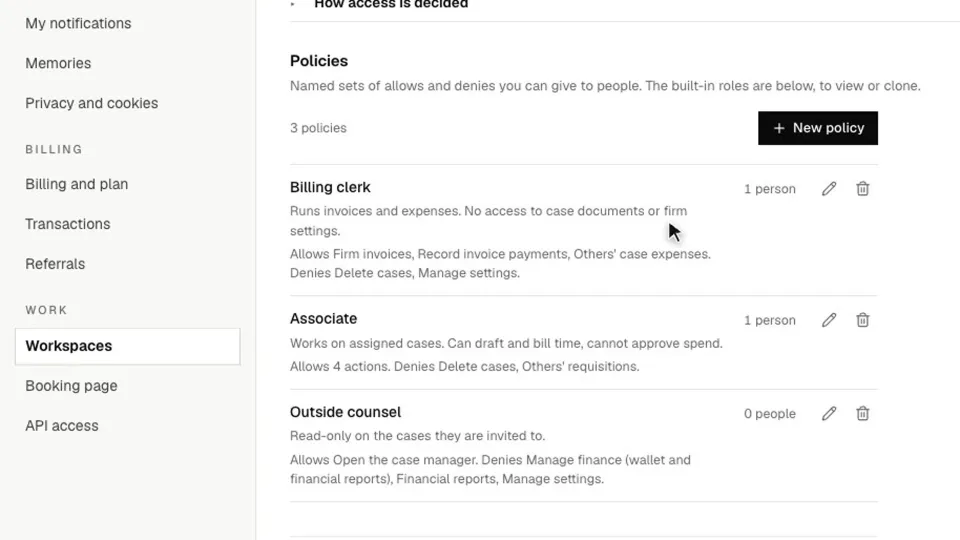
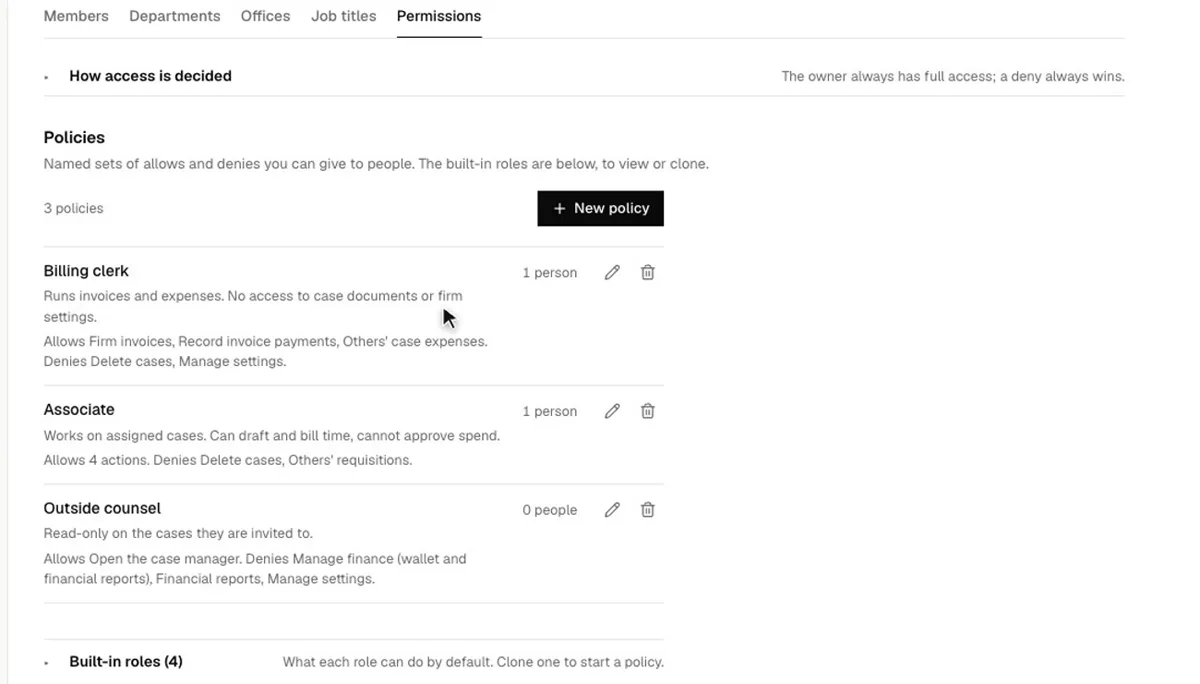
Named policies
Write allow and deny statements once and reuse them. When rules conflict, deny wins.
Built-in roles
Start from the roles provided and clone one when your firm needs something different.
Group policies
Apply a policy to everyone with a given role, title or department in one step.
Per-member overrides
Grant or remove access for one person without changing the rule for everyone else.
Explain access
See anyone’s effective access and which rule gave it to them, instead of guessing.
Module visibility
Show each role only the modules it uses, so the workspace stays simple for every team.
In depth
A closer look.
Policies
Sixty-eight actions, each yours to allow or deny.
A policy is a named set of things a person may or may not do, such as Invite members, Approve vendors or Disburse requisitions. Set each action to Allow or Deny, or leave it for the role to decide. Roles give everyone a sensible start, and policies adjust that without a new role for every combination.
- Use a wildcard to cover a whole family of actions, including ones added later
- Give a policy to a role, department, job title or named person
- People who join a group later pick up its policies
Answers
Why can’t they approve this?
Open Access next to anyone’s name to see every action, whether they can do it, and what decided it, in words: a named policy, their role, an override on that person, or workspace ownership. Nobody has to read every policy to find the answer.
Safeguards
Nobody can hand themselves more access.
A few fixed rules stop permissions being used to take more than someone should have, and every change is recorded in the audit log with what it was before and after.
- You can only grant actions you hold yourself
- You cannot change your own permissions, or a policy that applies to you
- You cannot change someone whose role is above yours
- The workspace owner can never be locked out
Everywhere
The same rules bind the AI.
Permissions apply across the web app, the desktop app, the AI assistant, connected AI assistants, workflows and AI employees. The assistant acts as you, so it can never do something you are not allowed to do. API keys and connected assistants carry narrower permissions on top.
FAQ
Questions, addressed.
What happens when two rules conflict?
Deny wins. A deny from any policy or override beats any allow, except for the workspace owner, who can always do everything.
Do we have to write policies from nothing?
No. Clone a built-in role and change what you need.
What does someone with no policies get?
Exactly what their role gives. Policies only change something once you add them.
Can we make an exception for one person?
Yes. An override is a one-person allow or deny, such as screening one person from finance. Use a policy when the same rule applies to several people.
Can a person hold several policies?
Yes. Their own policies and any given to their groups are combined, and any deny still wins.
Does the AI assistant respect these rules?
Yes. The assistant acts as you, so it can never do something you are not allowed to do.
Built-in roles
Where everyone starts.
Each role is listed as a read-only policy, so you can see exactly what it allows and clone it as a starting point.
| Role | What it can do by default |
|---|---|
| Super admin | Everything in the workspace, including finance, payment accounts and every requisition and approval |
| Org admin | Runs the workspace: members, settings, templates and integrations. Finance needs a grant |
| Case manager | Works on and manages cases, including restricting cases and case approval policies |
| Team member | Works on cases, clients and documents, and handles vendors, bills and purchase orders |
| Auditor | Reads what they can see. Changing records needs a grant |
| Client | Sees only the cases they are on |
Keep reading
Related reading.
See it on your firm’s structure.
Get started in minutes, or book a demo and we’ll walk through your access rules.