ModulawAI copies documents straight out of Zoho WorkDrive: a few files, a folder, or an entire drive. It is built for whole-firm moves: tens of thousands of files, single files up to 10 GB, folders recreated exactly, and a file-by-file report you can check against WorkDrive before you cancel your Zoho subscription.
This guide covers planning a move, running an import, what you see while it works, and how to get back anything that did not come across.
Before you start
WorkDrive is connected per person
Each person connects their own WorkDrive, and an import always reads the drive of the person who starts it. Nobody can import from a colleague’s drive, and an administrator’s connection does not carry over to anyone else. A drive holds one person’s files, so reading it is that person’s call.
Moving a whole firm? Decide who imports what
The cleanest firm-wide moves follow one rule: shared material goes into the Firm Library once, personal material goes into each person’s Personal files.
- Team folders and shared folders (precedents, forms, publications, department folders): one person imports them into the Firm Library. Everyone in the firm can then see them, so nobody else needs to import them again.
- Each person’s own folders (My Folders): each person imports their own into Personal files. These stay private to them.
- Matter files can go straight into a case instead, where everyone on the case can reach them.
If someone tries to import a folder into Personal files that is already in the Firm Library, ModulawAI warns them before they start. A Personal copy would be a second, private download of something the firm already shares.
Step 1: Connect your WorkDrive
- Go to Integrations in the Case Manager sidebar.
- Find Zoho WorkDrive and click Connect.
- Sign in to Zoho and approve access. You come back to ModulawAI with the connection marked active.
Disconnecting later removes only the link. Nothing in WorkDrive changes, and documents you already imported stay where they are.
Step 2: Choose where the files land
| Destination | Who can see it | Use it for |
|---|---|---|
| Firm Library (Documents > Library) | Everyone in the firm, unless a folder is restricted | Precedents, forms, team and department folders |
| Personal files (Documents > Personal) | Only you, until you share something | Your own working files and drafts |
| A case (open the case, then Documents) | Everyone with access to that case | Evidence, filings and correspondence for a matter |
You can move files and folders between Personal files and the Firm Library afterwards with Move to, so a wrong choice is easy to fix.
Step 3: Open the importer
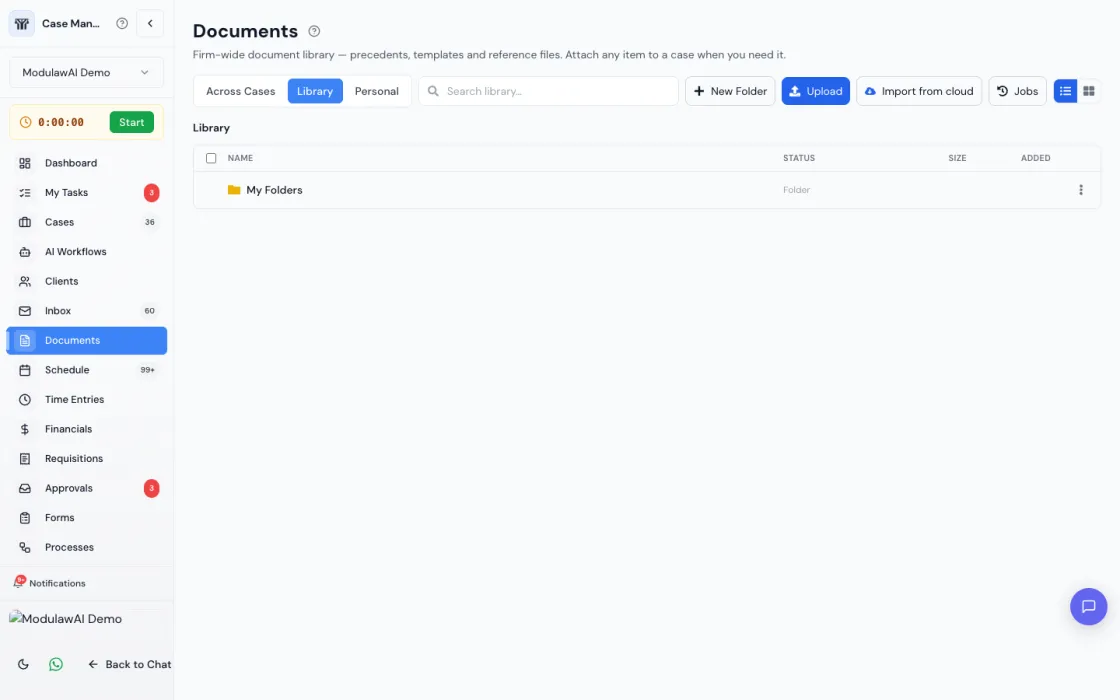
Go to Documents, pick the Library or Personal tab, open the folder you want files to land in, and click Import from cloud. To import into a case, open the case, go to its Documents tab and choose Import from Zoho WorkDrive.
Step 4: Choose what to import
| Option | What it does | Best for |
|---|---|---|
| Choose what to import | Opens your drive so you can tick files and folders | A folder, or a handful of documents |
| Import everything | Copies every file in your drive and recreates the whole folder tree | A full move onto ModulawAI |
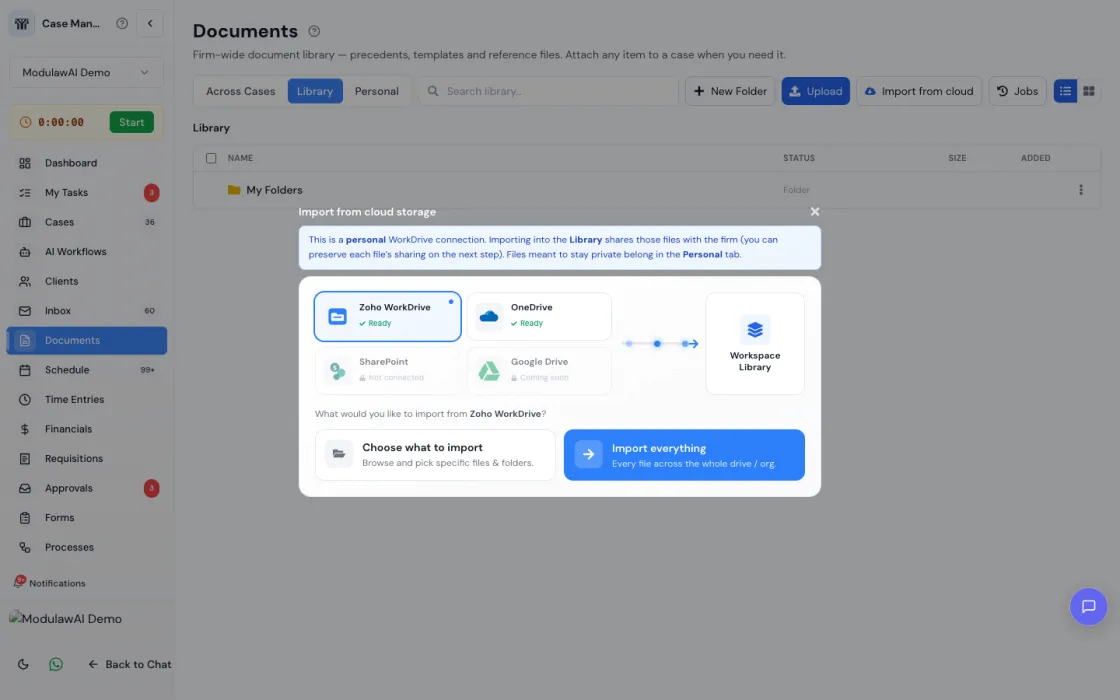
Scan first. When you choose Import everything, ModulawAI offers to scan the drive before importing. A scan counts the files, folders and total size without copying anything, so you know what you are committing to. Start the real import when you are ready.
Step 5: Pick your files and folders
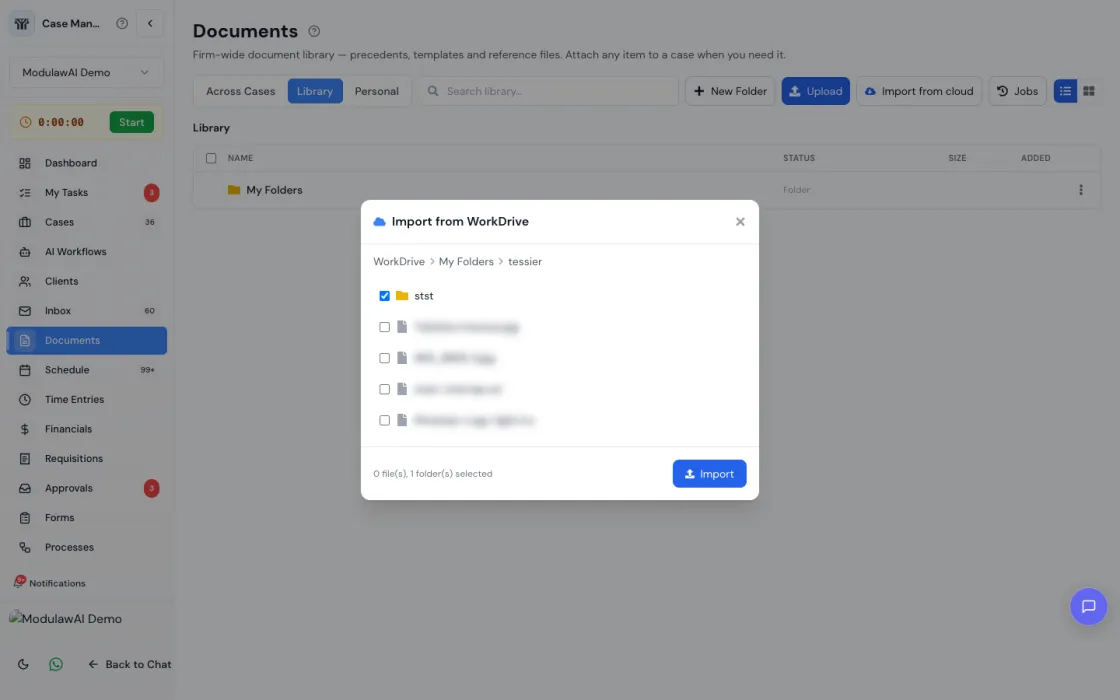
The browser opens at the top of your WorkDrive. Click a folder to go into it and use the breadcrumb to come back out. Tick anything you want.
- A ticked folder comes across as a folder, with every subfolder, including empty ones.
- Ticked files land in the folder you had open when you started.
- You can mix both in one import. The counter at the bottom shows what is selected.
Importing into the Firm Library can also carry over WorkDrive sharing: files shared with specific people in WorkDrive are restricted to those people in ModulawAI. If a file’s sharing cannot be read, it is restricted and flagged rather than opened to the firm.
Click Import when you are ready.
Step 6: Let it run
Imports run in the background. Close the page, work elsewhere in ModulawAI or shut your laptop: the import carries on, and several people across the firm can import at the same time.
An import works in two stages:
- Scanning. ModulawAI lists every file and folder in what you selected. On a large drive this takes a while. The list is saved as soon as it is complete, so if the import is interrupted it picks up straight at copying rather than scanning again.
- Copying. Files are downloaded from Zoho, stored, and made searchable. The progress panel counts files as they are processed, imported and skipped.
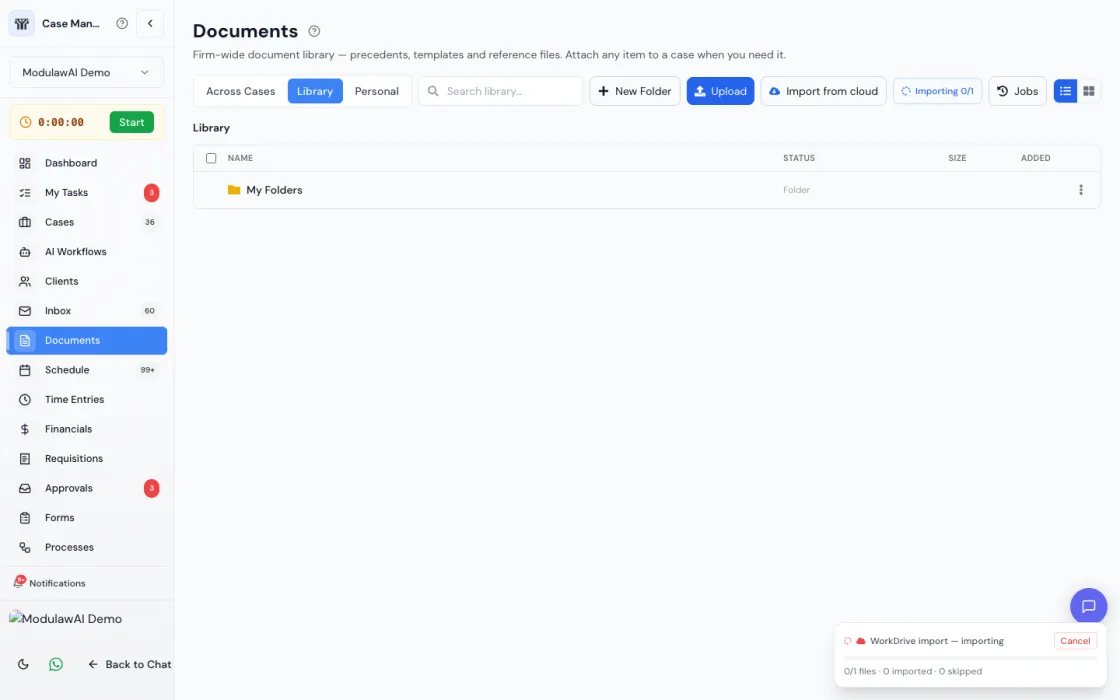
Messages you may see while it runs
| Message | What it means |
|---|---|
| Zoho is limiting how fast we can read this drive, so the import is paused | Zoho caps how many requests one account can make. The import waits it out and carries on by itself. Nothing is lost. |
| Waiting for your other import from this drive to finish | Imports from one drive run one at a time, so Zoho does not slow both down. This one starts by itself. |
| Waiting for other imports in your workspace to finish | Your firm has several imports running. This one starts as soon as one finishes. |
| Waiting for a free import slot | ModulawAI is making room. It starts by itself within a few minutes. |
Large files. WorkDrive files up to 10 GB are streamed straight into storage. Zoho sometimes drops very long downloads part way; ModulawAI resumes them from where they stopped instead of starting again.
When it finishes
You get a notification and an email with the result:
- how many files were imported, and how much data;
- how many were already there from an earlier import (these are skipped, not duplicated);
- how many could not be imported, with the first few named, the folder they were in and the reason;
- how many folders are in what you imported, and how long it took.
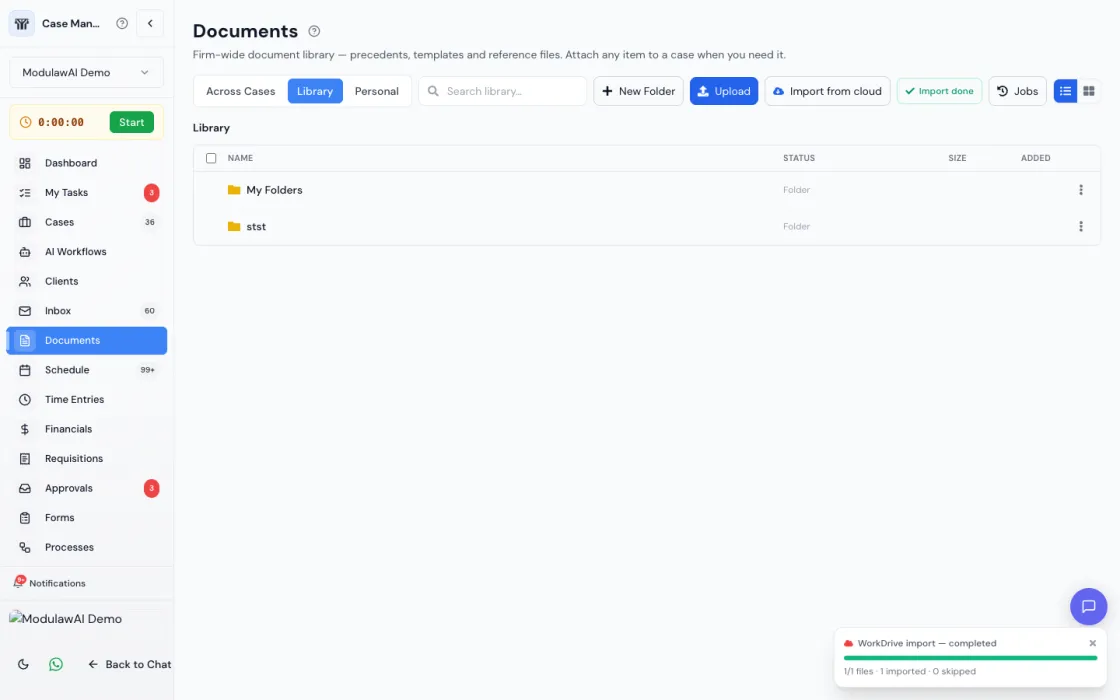
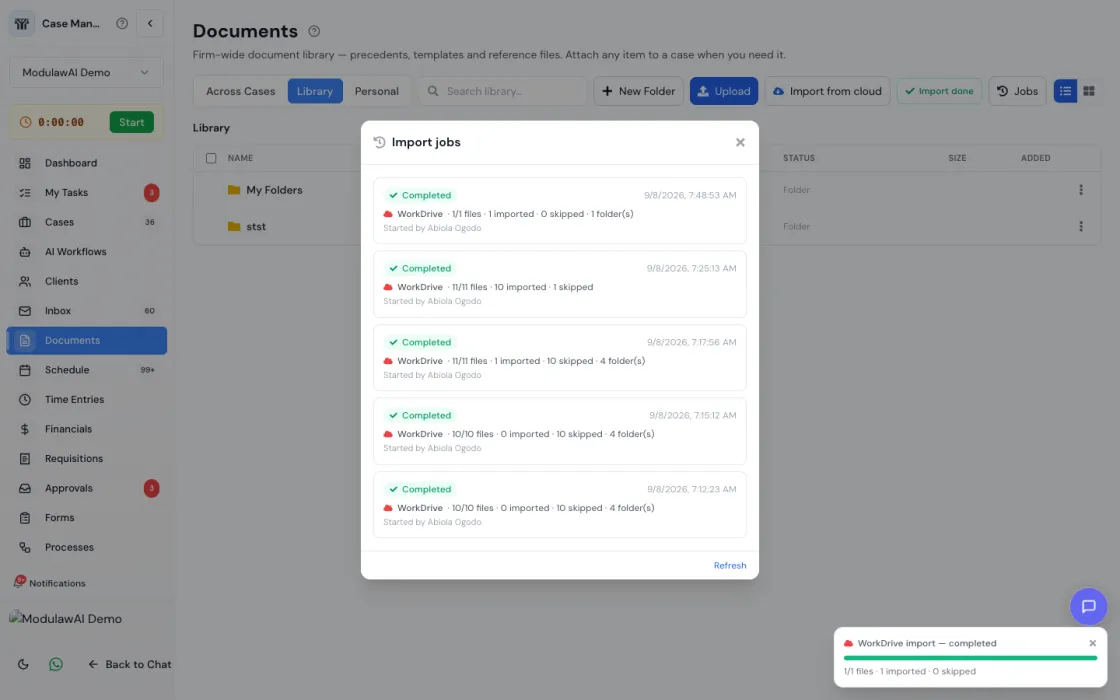
If something did not come across
Click Jobs beside the import button. Each import shows its status and counts, and its menu offers:
| Option | What it does | Use it when |
|---|---|---|
| Retry failed files | Fetches only the files that failed, into the same folders, without scanning the drive again | A few files failed. On a 40,000-file drive this takes seconds rather than hours. |
| Retry whole import (scan again) | Runs the original selection again. Files already imported are skipped. | Zoho could not list some folders, or new files were added in WorkDrive since. |
| Download manifest (CSV) | A file-by-file report: every file’s folder, name, size and whether it was imported, already there, or failed and why | Checking a migration against WorkDrive before you cancel Zoho. |
| Report to support | Sends the import to ModulawAI support with a reference number | Anything you cannot fix yourself. Support can retry it for you on your own connection. |
Only the person who started an import can retry it, because it runs on their WorkDrive. Anyone in the firm can report it to support.
What happens to imported documents
- They become searchable by the AI assistant. Text is extracted, including from scanned PDFs and images, so the assistant can find and cite them. It only ever reads documents the person asking is allowed to open.
- Folder structure is kept. What you ticked is recreated with its whole tree beneath it.
- Re-importing is safe. A file already in the same destination folder is skipped, so you can run an import again to pick up what is new. In Personal files this is per person: your copy never stops a colleague’s.
- They are copies, not a live sync. Later edits in WorkDrive do not flow through. Run the import again for newer versions.
- Deleting is recoverable. Deleted files and folders go to the Recycle bin for 30 days and restore whole.
Limits
| Limit | Value |
|---|---|
| Largest single file from Zoho WorkDrive | 10 GB |
| Largest single file from OneDrive or SharePoint | 200 MB |
| Imports per person per destination | One at a time. Starting another joins the one already running. |
Troubleshooting
| Problem | Likely cause | Fix |
|---|---|---|
| No Import from cloud button | You have not connected WorkDrive yourself | Connect it under Integrations. A colleague’s connection does not carry over. |
| “Zoho WorkDrive is not connected” | The connection expired or was revoked in Zoho | Disconnect and reconnect under Integrations, then retry the import. |
| The import says it is paused or waiting | Zoho’s rate limit, or other imports ahead of it | Nothing to do. It carries on by itself. |
| Files show as skipped | They are already in that destination folder | Nothing to do. Skipped means already there, not failed. |
| A file failed as “no longer in WorkDrive” | It was moved or deleted in WorkDrive after the scan | Check it in WorkDrive. If it is still there, use Retry failed files. |
| A file failed as larger than the limit | It is over the size limit for its source | Upload it directly, or split it. |
| Some folders seem to be missing | Zoho could not list them during the scan | Use Retry whole import (scan again). |
| Nothing appears in the folder you were viewing | Ticked folders are recreated as folders | Open the folder named after the one you ticked. |
Good to know
- Your Zoho credentials are encrypted and never visible to anyone else in your workspace.
- A failed download is retried automatically before it counts as failed, and an interrupted import resumes without duplicating what already arrived.
- OneDrive and SharePoint work the same way. Only the source and the file size limit differ.
Need help?
- From the import: Jobs, then Report to support, sends us everything we need.
- In-app chat: the help icon in the bottom-right corner of any page.
- Email: support@modulaw.ai