Notifications tell you when something needs you: a task assigned to you, a requisition awaiting your approval, a mention in a channel, a case that moved. You decide which of them reach you, and how. You will find your settings in Profile, under Notifications.
These settings are yours alone. Changing them affects nobody else in your firm, and nobody else can change them for you.
The channels
- In-app: the bell inside Modulaw, plus a small pop-up while you have the page open.
- Email: sent to your account address.
- WhatsApp: sent to a phone number you have verified.
- Push: a notification from your browser or the desktop app, which reaches you even when Modulaw is closed.
A channel that your firm has not set up shows as unavailable, with a short note saying why. If the reason is something you can fix, the note will say so.
WhatsApp is the fourth channel, and it needs one extra step: you have to verify your phone number. Add a number in Profile, Basic Info, then verify it with the code we send you on WhatsApp. Until a number is verified we will not message it, so that a mistyped number never receives your firm’s work.
Some categories may still not reach you on WhatsApp even once you are verified, because your firm decides which events go to which roles. The row will tell you when that is the case.
Step by step: choose your channels
- Open Profile, then Notifications.
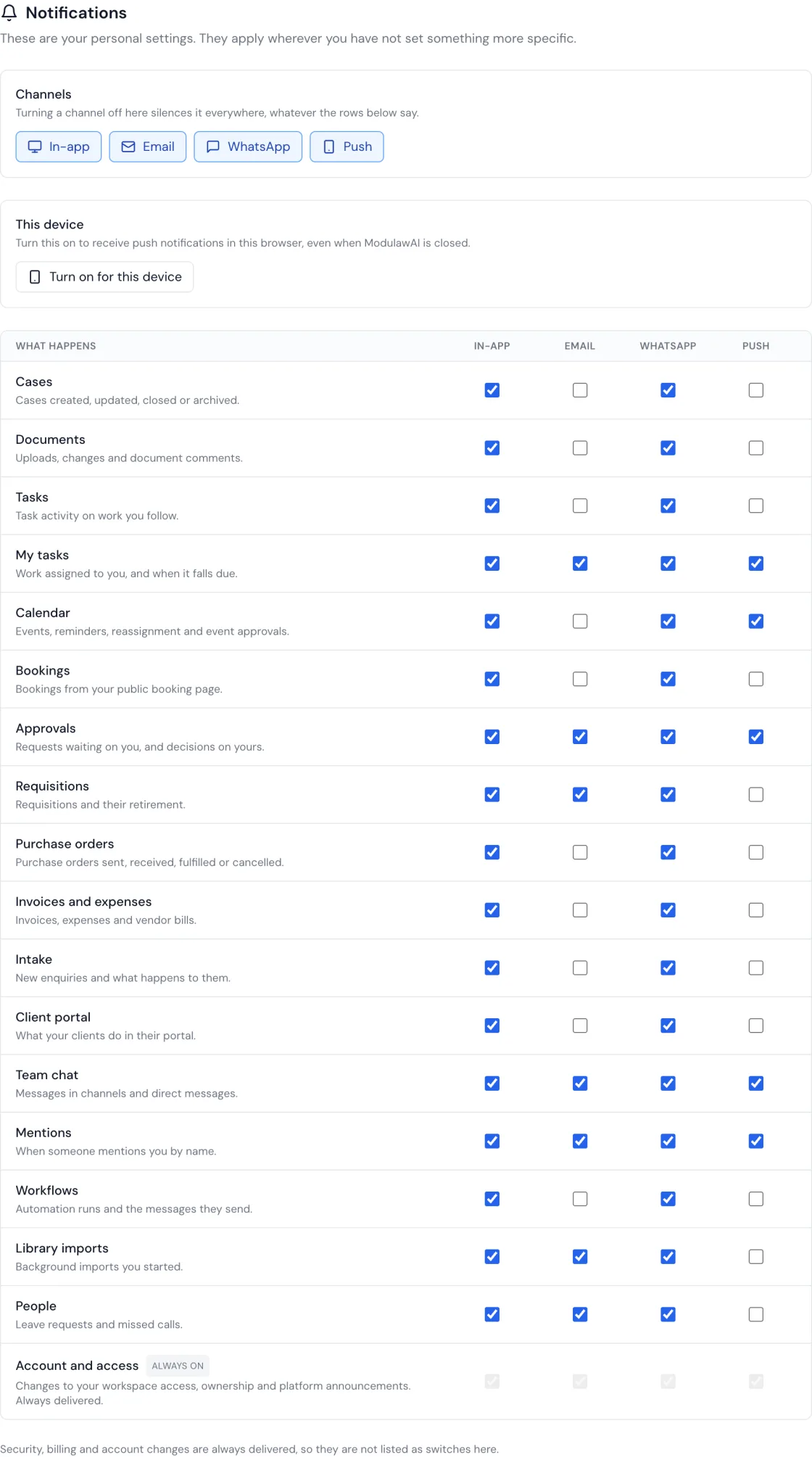
- At the top you will see Channels. These are master switches. Turning one off here silences it everywhere, whatever the rows below say. Use this when you want a quiet week without unpicking every category.
- Below that is a list of categories: Cases, Documents, Tasks, Approvals, Team chat, Mentions, Requisitions, and so on. Each row has a tick box per channel.
- Tick or untick to choose what reaches you where. Changes save immediately, and the page shows you the result rather than what you asked for, so what you see is what will happen.
Settings are per workspace. If you belong to more than one firm or workspace in Modulaw, switch between them and set each one separately. Turning on chat notifications in one workspace does not turn them on in another.
Turning on browser push
Push is the only channel that needs something from the device in front of you, not just a saved setting. Your browser has to agree to show notifications, and that agreement belongs to that one browser on that one machine.

- In Profile, Notifications, find the This device section.
- Click Turn on for this device.
- Your browser will ask permission. Choose Allow.
- Now tick Push on the categories you want. Turning push on for the device is not the same as choosing what it fires for, and both are needed.
Repeat this on every browser and machine where you want push. Your laptop and your office desktop are separate devices as far as push is concerned.
Why am I not getting notifications?
Work down this list. The first two catch most cases.
- Is the category ticked for that channel? Not every category sends on every channel by default. Team chat and mentions push by default, for example, while requisitions and purchasing do not until you ask for them.
- Are you in the right workspace? Settings do not carry across workspaces.
- Is the master switch on? A channel switched off at the top silences every row beneath it.
- Does the row say your firm does not send it to your role? Some categories are routed by your firm to particular roles. If yours is not one of them, the row will tell you. You will still get those notifications when one is about you directly, for instance a task assigned to you.
- For push, is your computer awake and your browser running? Notifications sent while a machine is asleep are held and delivered when it wakes, so several can arrive together.
- For push, has your operating system allowed it? Browser permission and system permission are separate. On a Mac, check System Settings, then Notifications, and confirm your browser is allowed. Focus or Do Not Disturb will also hold them back silently.
- For WhatsApp, have you verified your number? A number added to your profile is not enough on its own. Verify it, and the row will stop showing WhatsApp as unavailable.
If the in-app bell shows a notification but your email or push did not arrive, the notification itself was created and the problem is with that one channel. That is a useful thing to mention when you contact support.
Good to know: what your firm controls
Your firm decides who is notified about each kind of event. An administrator might route purchase orders to finance and case updates to the case team. You decide how you are reached about the things that come to you.
That is why a category can appear in your settings while telling you your firm does not send it to your role. The choice is kept, so if your firm starts routing it to you later, your preference is already there and takes effect immediately.
Anything addressed to you personally reaches you regardless of that routing. If a task is assigned to you, a requisition you raised is approved, or someone mentions you by name, you are told because the event is about you.
Some notifications cannot be switched off
A small number of categories are marked Always on. These tell you that your own access or standing changed by an action you did not take: being added to or removed from a workspace, being moved between workspaces, a change of workspace ownership, and platform announcements.

Switching those off would leave you believing something about your account that is no longer true, so that choice is not offered.
Who can use it
Everyone, on every plan, including if you use Modulaw on your own without a workspace. Notification settings are not an administrator feature: every person sets their own.