ModulawAI has two connected sides: a Chat workspace where you talk to the AI Legal Assistant, and a Case Manager where you run the practice, matters, clients, billing, and more. This quick tour shows you where everything lives so you can find your way around.
The chat workspace
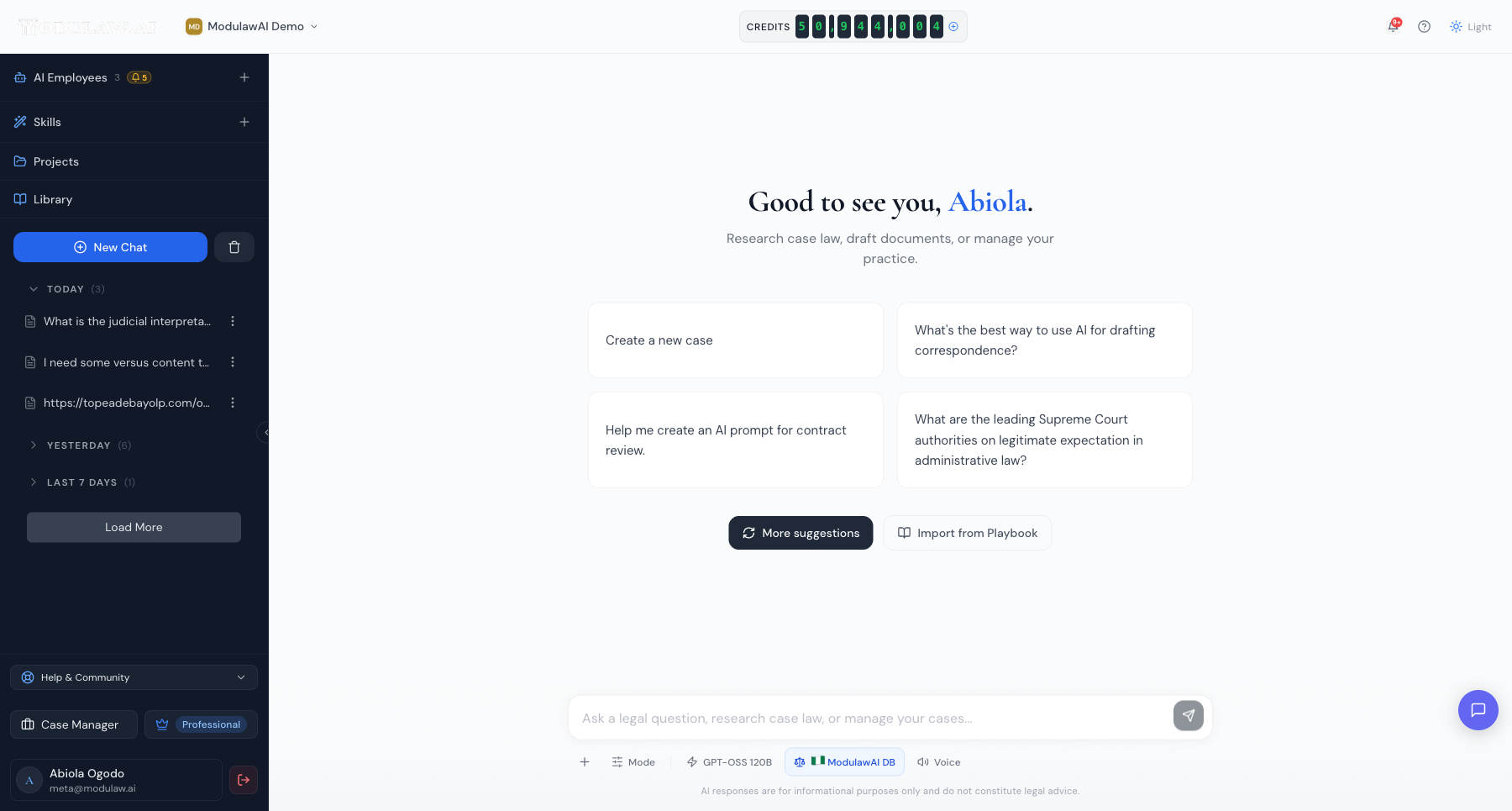
This is where you land when you sign in. The large message box in the centre is where you ask questions and give instructions.
- Left sidebar: your conversation history, plus AI Employees, Skills, Projects, and the Library. Start a fresh conversation any time with New Chat.
- Top bar: switch workspaces, see your credit balance, open notifications, and toggle light or dark mode.
- Message box: below it, you can attach files, change the Mode, pick the AI model and jurisdiction, or switch to Voice.
The Case Manager
Click Case Manager in the bottom-left to switch to the practice-management side. Its dashboard gives you an at-a-glance view of the firm.
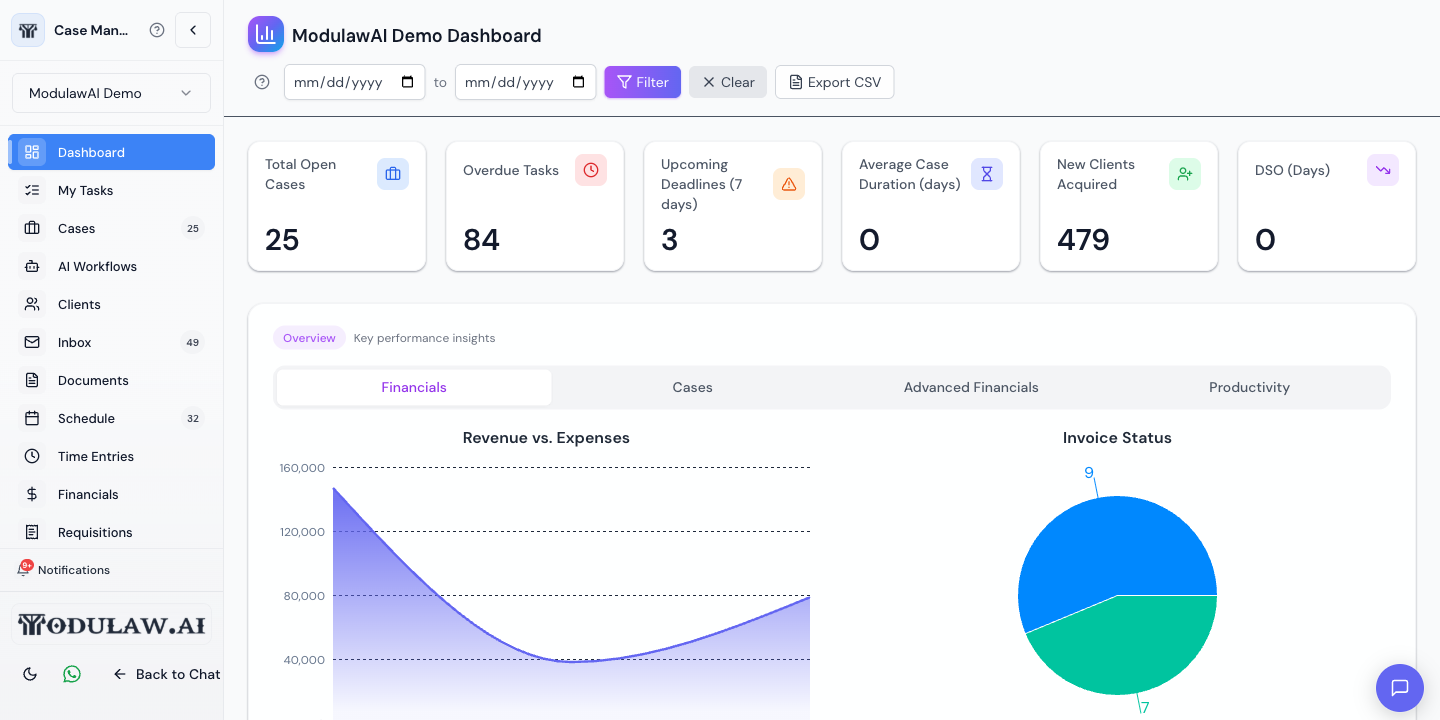
The left navigation takes you to everything a firm runs on: Cases, Clients, Documents, Inbox, Schedule, Time Entries, Financials, Requisitions, Approvals, Reports and more. The dashboard up top surfaces open cases, overdue tasks, upcoming deadlines, and key financials.
Moving between the two
Use Case Manager to jump to the practice side, and Back to Chat to return to the assistant. They share the same data, so a matter you open in Case Manager is the same one the assistant can work with in chat.
A tip to start
You don’t have to hunt through menus. Most things you can do in the Case Manager, you can also just ask for in chat: “show my cases”, “draft a letter”, “create a new matter”. When in doubt, describe what you want in the message box.