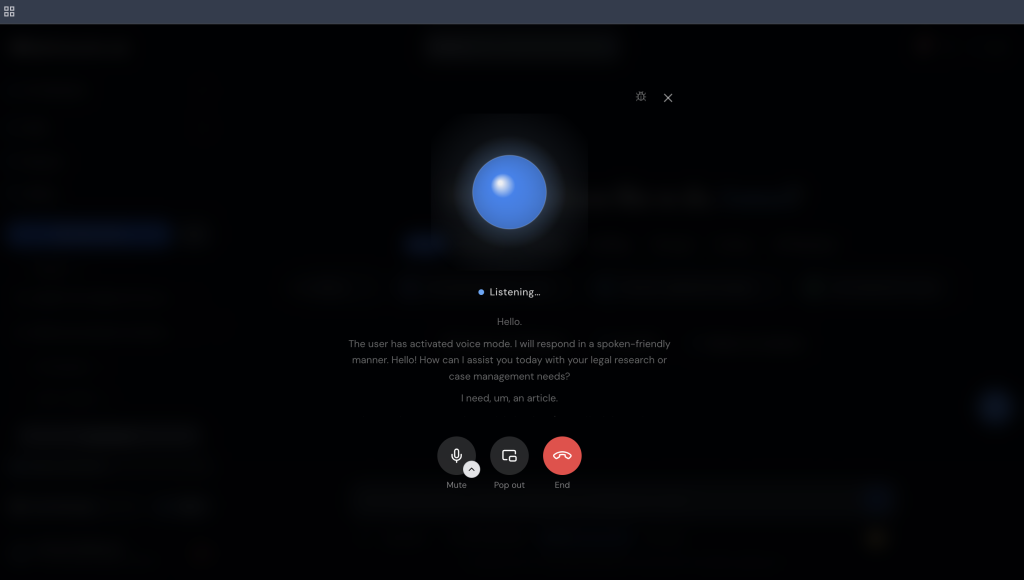
Voice mode lets you talk to the ModulawAI assistant instead of typing. It is a live conversation: you speak, it answers out loud, and the exchange is written into your chat history as you go.
Starting a voice session
- Open the assistant chat
- Click Voice below the chat input
- Allow microphone access if your browser asks
- Wait for the connection to establish, then start talking
How it behaves
This is a live call, not dictation. There is no “send” step and nothing to approve before the assistant hears you. It is listening while you speak and replies when you stop.
- Speak naturally. No commands or special phrasing needed. Ask as you would ask a colleague.
- Your words appear as text as you speak, and the assistant’s reply is both spoken and written.
- Pause between questions. Let it finish answering before you start the next one.
- Both sides are saved to your conversation, so the session is there in your chat history afterwards and you can carry on by typing.
To end the session, click the red end call button.
If it mishears you
Because there is no review step, the way to correct a misheard word is simply to say so: “sorry, I meant Section 6, not Section 16”. The assistant carries the correction forward like any other clarification.
Things that make misreadings more likely:
- Background noise. This is the biggest single factor. A quiet room makes a large difference.
- Rushed citations. Slow down for reference numbers, “L-P-E-L-R, five eight one one nine” lands better than saying it at speed.
- Unusual proper nouns. Party names it has not encountered may come back approximated.
For anything where exact wording matters (a specific citation, an email address, a long reference) end the voice session and type it. Voice is best for thinking out loud and asking questions; typing is better for precision.
Requirements
- A current version of Chrome, Edge, Safari or Firefox, on desktop or mobile
- Microphone permission granted to the site
- A reasonable internet connection. Voice is realtime, so it is more sensitive to a poor connection than typing is
Privacy
Audio is processed live. What is kept is the text of the conversation, saved into your chat history exactly as a typed exchange would be, and covered by the same protections. Voice recordings are not retained.
Troubleshooting
| Problem | Fix |
|---|---|
| Microphone not working | Check the site’s microphone permission, click the padlock in the address bar. Make sure no other app has the microphone. |
| “Permission denied” | Browser settings → Privacy → Microphone, and allow the site. |
| It keeps mishearing | Move somewhere quieter, get closer to the microphone, and slow down. |
| Session will not connect | Refresh the page and try again. If it persists, check whether your network blocks realtime audio. Some office firewalls do. |
| Choppy or delayed audio | Close bandwidth-heavy apps, or switch to a better connection. |