Every case and invoice ties back to a client record. This guide covers creating one, what lives on the profile, and how clients connect to cases.
Adding a client
Go to Clients in the Case Manager sidebar and click New client.
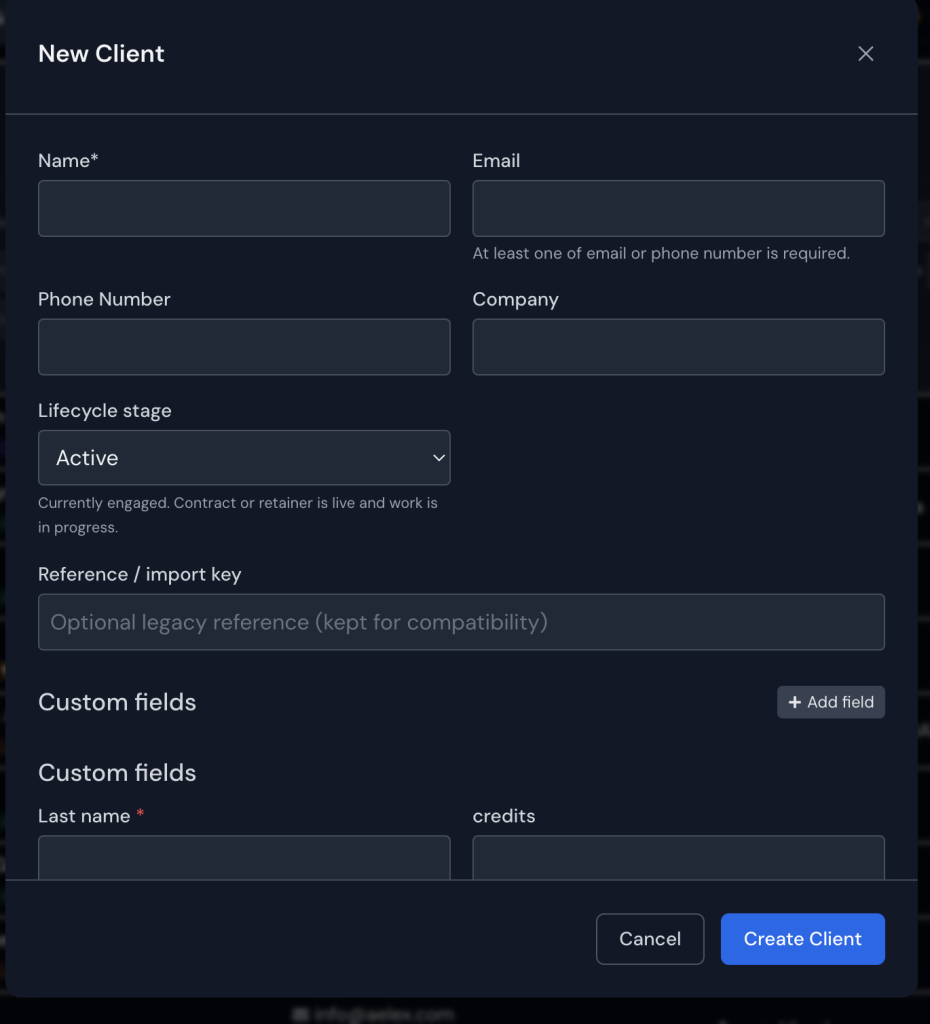
Core details
| Field | What to enter |
|---|---|
| Name/organisation | For individuals, their name. For companies, the registered name. |
| The main contact address. Optional: a client needs an email or a phone number, so phone-only clients are fine. You need an email before you can send portal login links or email invoices. | |
| Phone | Primary contact number. Also what the dialler uses if you call the client from the roster. |
| Address | Needed for service, demand letters and filings. |
Custom fields
Anything your workspace has defined, such as referral source, industry or billing tier, appears in its own section on the form. Custom fields are also what the client list filters on, so it is worth defining the handful you will actually sort by.
Lifecycle stage
Every client sits at a stage in your relationship with them. The stages are configured by your firm, not fixed by the platform. Your workspace administrator sets them up, so what you see reflects how your practice actually works.
A common set runs from an initial enquiry through to a closed relationship, but yours may differ. Stages drive the client list filter and the kanban board, so keeping them current is what makes those views useful.
Set the stage manually as the relationship moves. It does not update itself when you open or close cases.
For a second opinion, click Qualify with AI on the client record. It suggests a lifecycle stage and values for your custom fields, and you choose which suggestions to apply. Nothing changes until you apply them.
Conflict check
Each client carries a conflict check status: not required, pending, cleared or conflicted. Use it. It is the field that lets you answer “has this been cleared?” without asking around, and it is visible on the client record for anyone picking up the case.
The client profile
Once saved, the client record has six tabs.
| Tab | What it holds |
|---|---|
| Overview | Contact details, lifecycle stage, conflict status and custom fields. |
| Notes | Client-level notes: things true across every case. |
| Communications | Logged correspondence with this client. |
| Conversations | Client chats with this client, one per case. |
| Cases | Every case linked to this client. The tab uses your firm’s term for a case. |
| Calls | Calls with this client. |
Use client notes properly
Client notes are distinct from case notes, and the distinction is useful. Anything true across all their cases goes here:
- Preferences: “prefers WhatsApp, not email”
- Billing arrangements: “agreed 15% discount on all cases”
- Relationship context and who introduced them
Bury that inside one case’s notes, and the next person to act for them will never find it.
Linking clients to cases
You link a client on the case form. Start typing the client’s name in the Client field and pick them. If they do not exist yet, create them inline without leaving the form.
Once linked, the case appears on the client’s Cases tab, which lists every case for that client and opens each one.
A client can have any number of cases, and each is independent. Closing one does not affect the others.
Editing and removing
Open the profile and edit any field. To remove a client, use Delete from the client list, either on the record itself or as a bulk action after selecting several.
There is no merge tool. If you find you have created the same client twice, decide which record to keep, move any cases across, and delete the other. Catching duplicates early is much easier than untangling them once both have history.
Bringing clients in from elsewhere
You do not have to type them in one at a time:
- Import: the import wizard walks you through mapping a spreadsheet’s columns onto client fields, and keeps a history of past imports.
- Sync: connect Zoho CRM or an external database to pull records in.
- Enrich: run enrichment over selected clients to fill in missing details, with a review step before anything is saved.
Practical advice
- Add an email before you need the portal. Email is optional on the record, but portal login links and emailed invoices depend on it.
- Keep the conflict status current. It only has value if it is trustworthy.
- Put cross-case facts in client notes, not in one case.
- Search before creating. With no merge tool, avoiding the duplicate is cheaper than fixing it.