ModulawAI for Chrome
Your legal assistant, beside every page.
ModulawAI in Chrome’s side panel. Ask about the judgment, contract or registry entry you have open, or give it a task: it opens the pages, reads them and fills in forms with the sign-ins you already have, and it checks with you before it submits, sends or deletes anything.
Free with your ModulawAI account · Google Chrome 116 or later on Windows, macOS and Linux · Published by Modulaw.AI Limited
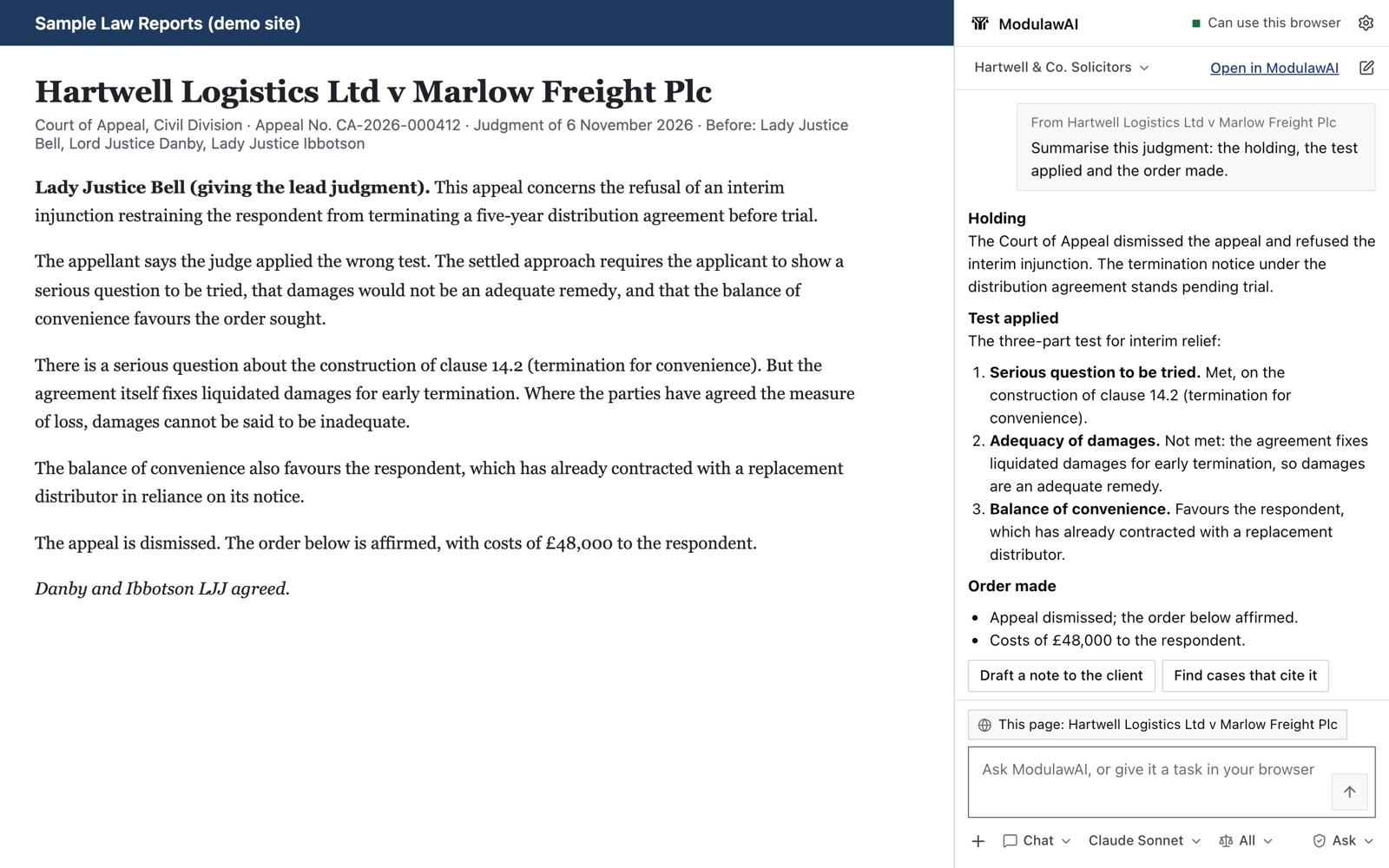
Side panel
Beside the page you are reading
Your sign-ins
Court, registry and firm portals as you see them
Three modes
You choose how often it asks
Never
Types your passwords or card numbers, or pays
Capabilities
It reads with you, then does the legwork.
Ask about the page
The page you are on goes with your message: its title, address and text. Summarise a judgment, pull out a clause or check a figure without copying anything. One click on the This page chip leaves the page out.
Select, right-click, ask
Highlight a passage on any site and choose Ask ModulawAI from the right-click menu. The panel opens with the passage already in the message box.
Your files and your Library
Attach a PDF, Word file or image, or pick up to eight documents from your firm’s Library or My files. Choose the mode (Chat, Deep Research or Case Mgmt), the model and the jurisdictions to search, as you would in the web app.
Tasks in your browser
Search a cause list, look a company up on a registry, collect details from a portal. It works in its own ModulawAI tab group and clicks and types as you would, with the logins you already have.
Approvals you set
Pick Ask before acting, Plan first or Act without asking from the menu under the message box. Submitting, sending and deleting need your yes in every mode.
Your other chats can use it
Turn on Let ModulawAI use this browser and your chats in the web app, ModulawAI Desktop and ModulawAI for Word can work in this browser too. It stays off until you switch it on.
A closer look
What working with it looks like.
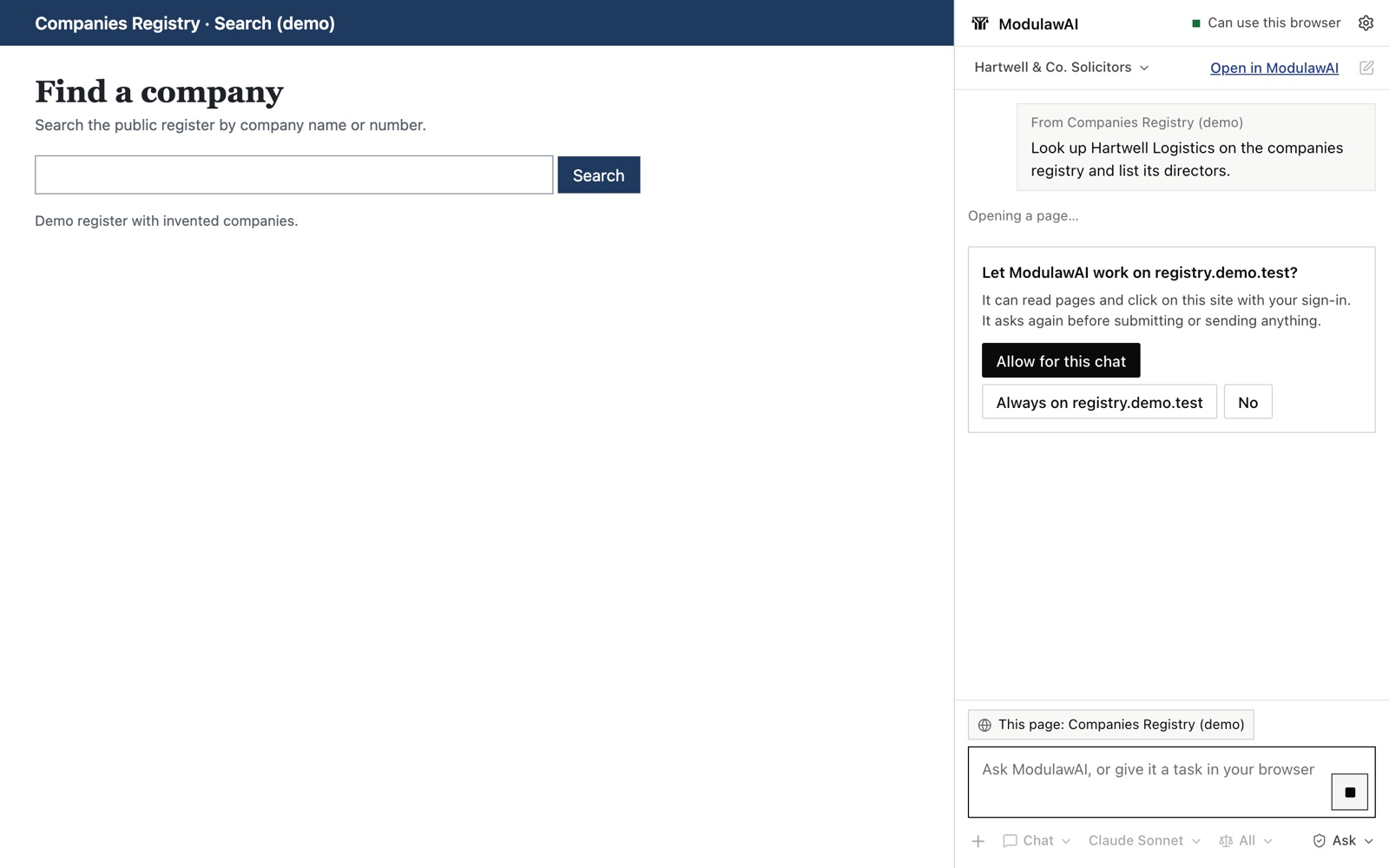
It asks before a new site
The first time a task needs a site, the panel asks whether it may work there: for this chat, always, or not at all. Sites you allow are listed in Settings, where one click forgets them. Money and government sites ask every time.
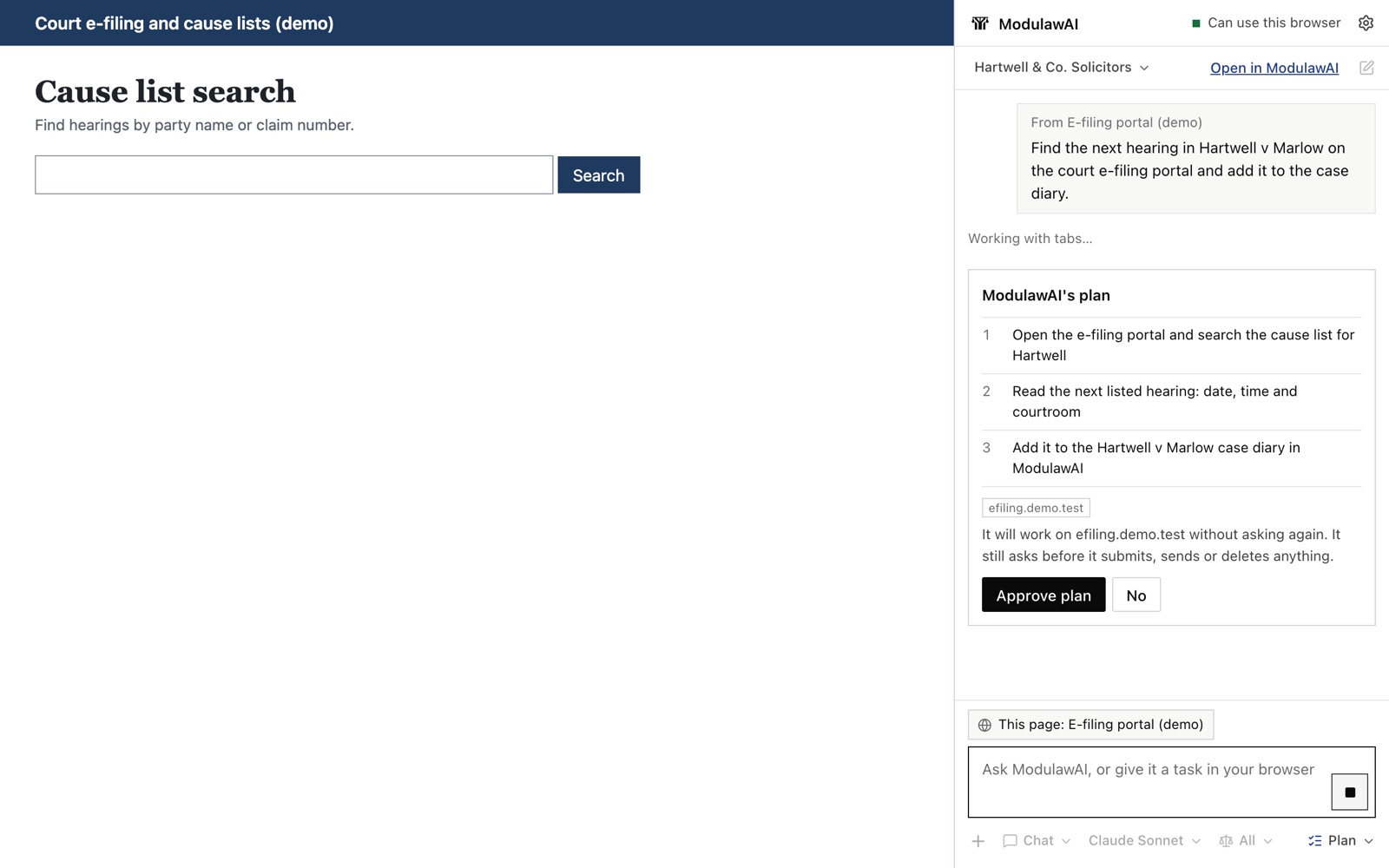
Plan first, for longer tasks
With Plan first on, the assistant sets out its steps and every site it will use before it opens or clicks anything. One approval covers those sites for that task, and the next task brings a new plan.
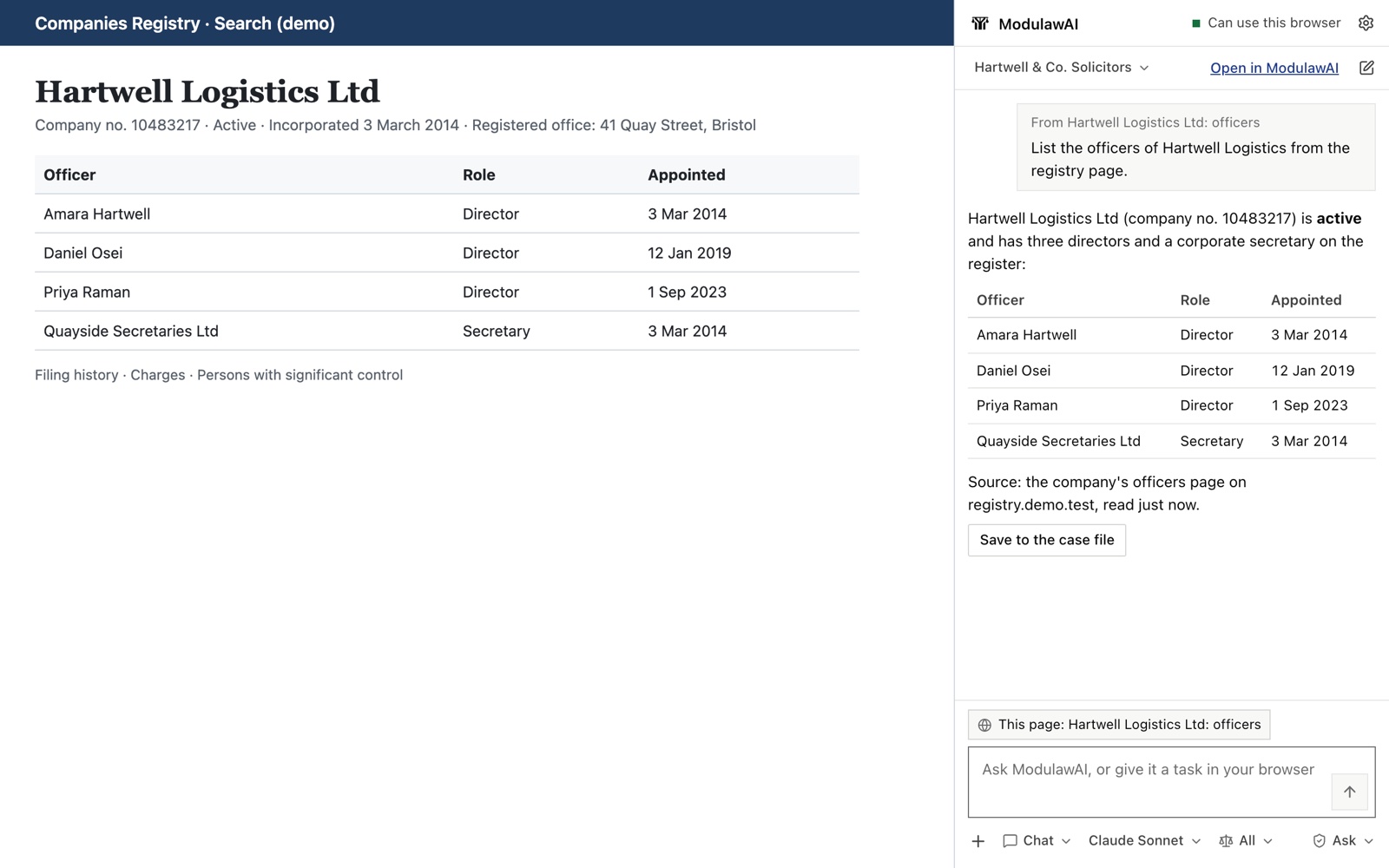
Answers you can check
It reads the page itself and reports what it found, with the site it came from. Save the result to the case file or keep going in the same chat. The conversation sits in your ModulawAI history, so you can pick it up in the web app.
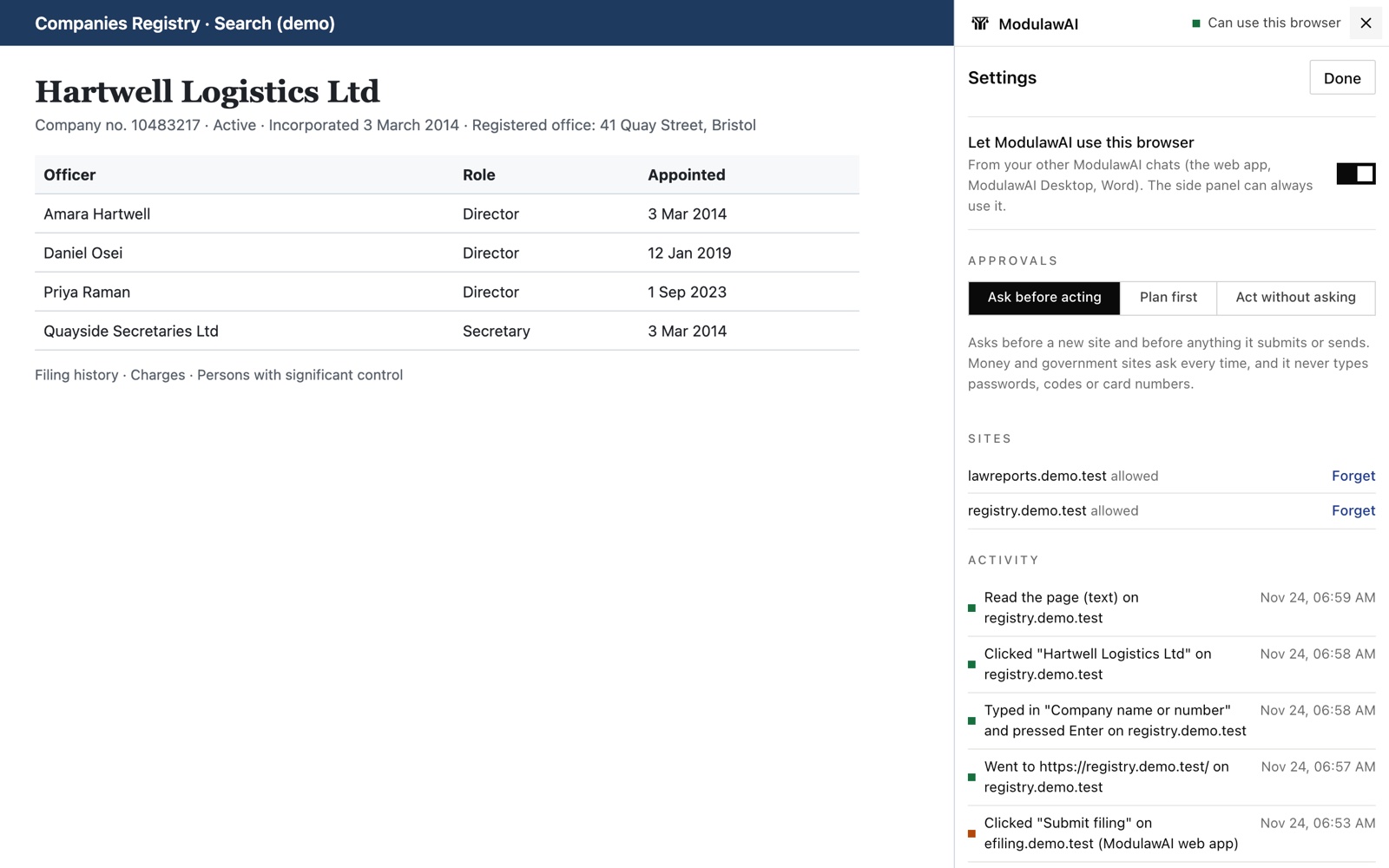
A list of everything it did
Settings shows the sharing switch, your approval mode, the sites you allowed and the 50 most recent actions the assistant took, each with the site and which app asked. Declined and blocked actions are marked. The list stays on your computer.
Approvals
You decide how often it asks.
| Mode | A site it has not used | Submit, send or delete | ModulawAI’s own actions in the panel |
|---|---|---|---|
| Ask before acting (the default) | Asks | Asks | Approve or Reject card |
| Plan first | Covered by the plan you approve | Asks | Approve or Reject card |
| Act without asking | Goes ahead | Asks | Approved, with a note in the answer |
In every mode it refuses to type passwords, one-time codes or card and bank numbers, pay for anything or solve a CAPTCHA. It stops and hands those steps to you. Money and government sites ask every time, whatever the mode, and Stop ends a task at once.
Privacy
What it sends, and what it leaves alone.
Sent to ModulawAI when you ask
- Your message and anything you attach
- The page you are on, while the This page chip is on: its title, its address and the first 30,000 characters of its text
- During a task you give it, the text and structure of the pages it works on, and screenshots of those tabs when it needs to see the layout
Never read or touched
- Your cookies, saved passwords and browsing history
- Tabs you did not give it: it works only in tabs it opened for a task or the tab you messaged from
- Analytics or advertising: the extension contains no such code
Page text reaches the model marked as untrusted material, and it is screened for text that tries to instruct the assistant. The ModulawAI for Chrome section of our privacy policy has the details.
Requirements
What you need.
| Item | Detail |
|---|---|
| Browser | Google Chrome on Windows, macOS or Linux, version 116 or later |
| Account | A ModulawAI account. The extension is free, and your plan’s limits apply as they do in the web app |
| Sign-in | A short code you approve in a normal ModulawAI tab, so Google sign-in and single sign-on work as usual |
| Updates | Chrome installs new versions automatically |
FAQ
Questions, addressed.
Does ModulawAI for Chrome cost extra?
No. It is free on the Chrome Web Store. You sign in with your ModulawAI account, and your plan’s usage limits apply as they do in the web app.
Which browsers does it work in?
Google Chrome on Windows, macOS and Linux, version 116 or later. It uses Chrome’s side panel.
Can it see everything I browse?
No. It sends nothing from a page you have not asked about or given it a task on. It works only in tabs it opened for a task or the tab you messaged from, and it asks before it uses a site for the first time.
Will it type my passwords or make payments?
No. Passwords, one-time codes, card and bank numbers, payments and CAPTCHAs stay with you. When a step needs one, it stops and asks you to do it.
Why does Chrome say the extension started debugging this browser?
Court and registry portals often ignore clicks that scripts make, so the extension clicks and types through Chrome’s DevTools input, and Chrome shows that bar while it does. It attaches only to tabs the assistant is using and lets go after a quiet minute, when you press Stop, or when the tab closes.
Can my other ModulawAI chats use my browser?
Only when you turn on Let ModulawAI use this browser in the extension’s Settings. It is off by default, and you can turn it off at any time.
Where do my side panel conversations go?
Into your ModulawAI chat history, like any other chat. Open in ModulawAI takes you to the same conversation in the web app.
Chrome said Proceed with caution when I installed it. Why?
Chrome shows that to people with Enhanced Safe Browsing turned on when the publisher is new to the Chrome Web Store. It goes away once the publisher has a few months of good standing. Google reviews every version of the extension before it is published.
Keep reading
Related reading.
Put ModulawAI beside every page.
Free with your ModulawAI account. It installs in seconds, and it does nothing in your browser until you ask.