The client portal gives each client a private space to see their cases, message you and share documents. This guide covers switching it on for a client and what happens on their side.
What the client needs
- An email address on their client record
- A device with a modern browser
That is all. There is nothing to install, and no password to create. The portal signs clients in through a link sent to their email, so there is one less credential for a client to lose and one less thing for you to reset.
Email is optional on a client record, but login links only travel by email. A phone-only client cannot receive one, so add an email address to their record first.
Enabling the portal for a client
- Open Clients in the Case Manager sidebar
- Find the client in the list
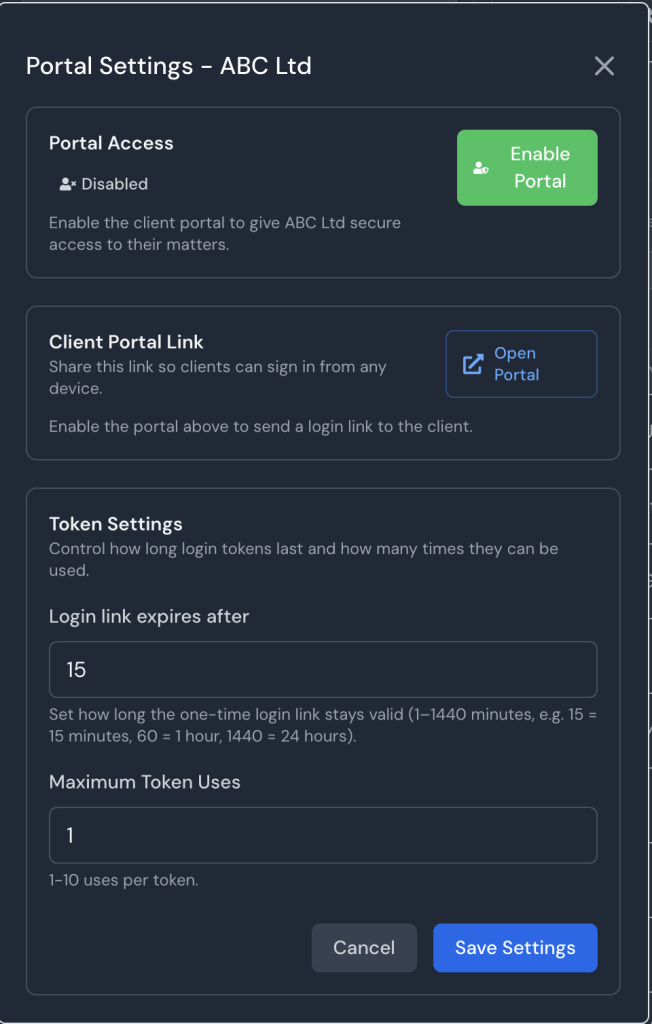
- Click Client portal on their row to open their Portal Settings
- Click Enable Portal
Access switches on straight away, and ModulawAI emails the client a login link at the same moment. There is no separate invitation to accept.
The same window has two other controls. Send Login Link emails the client a fresh link whenever they need one. Open Portal opens the portal sign-in page, which you can share with the client so they can sign in from any device.
What the client can see
Portal access is a single switch per client, with no permission levels. Once it is on, the client sees every case linked to them, with its title, number, status and key dates. You cannot hide one of their cases while it is linked to their record.
What appears inside each case is up to you, item by item:
- Documents appear when the client uploaded them, or when someone at the firm marks them visible in the client portal.
- Notes, tasks, invoices, expenses and calendar events appear only when they are marked to show in the client portal.
Anything not marked stays internal. So the way to keep sensitive work away from a client is to leave those items unmarked, not to switch the portal off.
How sign-in works
The client receives an email with a link. Clicking it signs them straight in, with no password step.
Those links are deliberately short-lived. By default, a login link expires 15 minutes after it is issued and can be used once. You can change both under Token Settings in the client’s Portal Settings, then click Save Settings:
| Setting | Default | Range | What it controls |
|---|---|---|---|
| Login link expires after | 15 minutes | 1 to 1440 minutes (24 hours) | How long a login link stays valid |
| Maximum Token Uses | 1 | 1 to 10 | How many times a single link can be used |
Fifteen minutes is short on purpose: it limits how long a stray link stays useful. It also means a client who opens their email an hour later will find the link dead. That is the most common portal support question, and the fix is a new link.
There are two ways to get one. You can click Send Login Link in their Portal Settings. Or the client can request one themselves at app.modulaw.ai/portal/login by entering their email address.
If your clients routinely check email in batches, consider lengthening the expiry for them.
If the client cannot get in
| Symptom | What to do |
|---|---|
| “The link doesn’t work” | Almost always expiry. Click Send Login Link, or ask them to request a new link from the sign-in page, and to open it straight away. |
| “The link worked once, now it doesn’t” | Links are single-use by default. Send another, or raise Maximum Token Uses. |
| No email arrived | Check the email address on the client record (typos are the usual cause), then check their spam folder. |
| No email on the record | Add one. Login links cannot be sent to a phone-only client. |
| Corporate mail filtering | Ask them to allow mail from your firm’s sending domain, or use an alternative address. |
There is no delivery tracking on login link emails; you cannot see whether an email was delivered, opened, or bounced. If a client says nothing arrived, verify the address and send again.
Turning access off
Click Disable Portal in the client’s Portal Settings. They can no longer sign in.
Nothing is deleted. The client record, their cases and the history all remain; you are only removing their access. You can enable it again later, which sends a fresh login link.
Practical advice
- Enable it while you are on the phone. Links expire after 15 minutes by default, so the best moment is when the client is at their inbox and you can walk them through it.
- Check the email address first. A typo is the most common reason a login link “never arrives”.
- Tell them the link is time-limited. Setting the expectation on the call prevents most of the confusion.
- Decide what to share before you enable it. Mark the documents and items the client should see, so the portal is useful from their first visit.
- Enable it early in the case. The sooner the client is on the portal, the sooner document exchange moves out of your inbox.