You can schedule a call from three places, and each one puts the call on the calendar. On a ModulawAI video call, guests from outside the firm join from a link and do not need an account. Which place to use depends on who the call is with and what it belongs to.
| You want to… | Use |
|---|---|
| Call colleagues in a channel, maybe with a guest or two | A Team Chat channel |
| Meet a client, counsel or anyone outside the firm, and send them a link or code | ModulawAI Calls |
| Book a meeting that belongs to a case or a client, with a reminder, Zoom or Google Meet | The calendar |
From a Team Chat channel
- Open the channel in Team Chat.
- Click Schedule a call, the calendar icon in the channel header.

- Give it a Title, then pick the Start time and a Duration (15 minutes to 2 hours).
- Add a Description if you want one.
- Under Attendees, everyone in the channel is ticked. Untick anyone who does not need to come.
- To invite people outside the firm, type their addresses in Invite by email, separated by commas.
- Click Schedule.
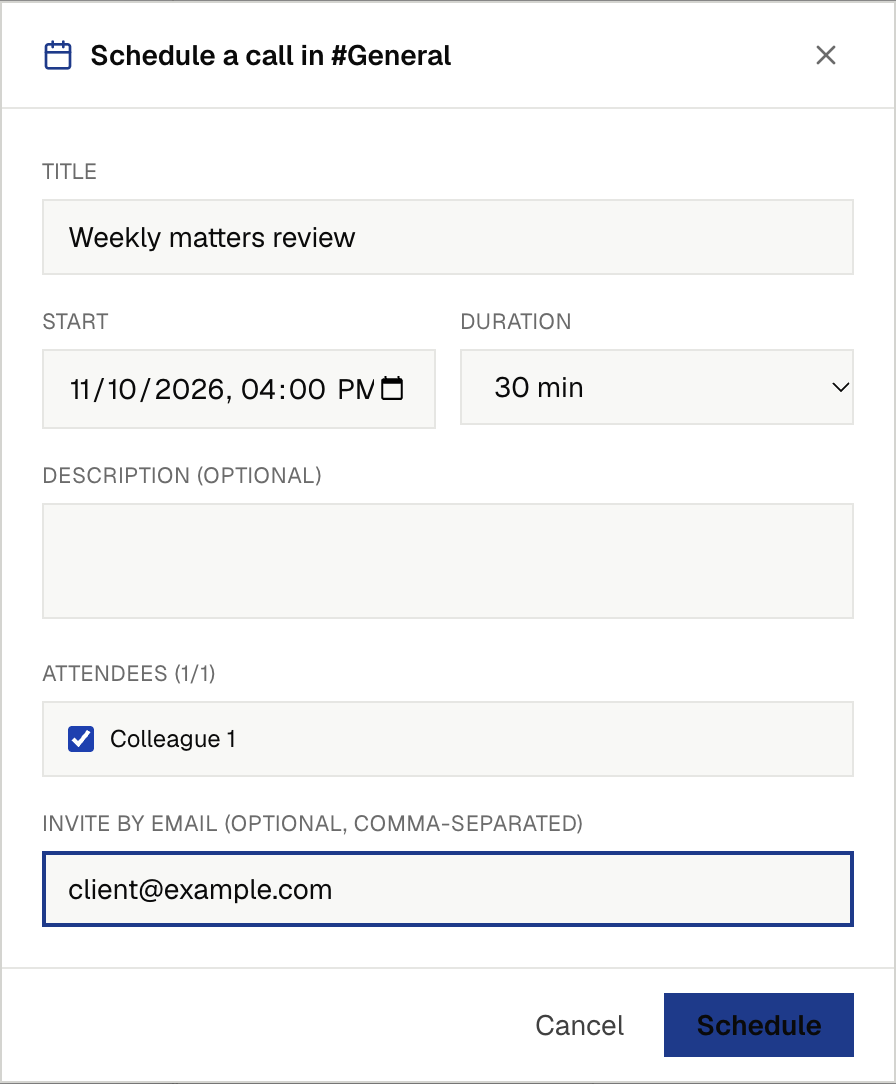
The call goes on the attendees’ calendars, and the people you invited by email get an invitation with the link to join.
From ModulawAI Calls: meetings with people outside the firm
Use this when you want a link or a short code to send to someone yourself, for example by WhatsApp or in an email you write.
- Go to app.modulaw.ai/call, or open ModulawAI Calls from the Calls panel in Team Chat. You need to be signed in and part of a workspace.
- If you belong to more than one workspace, pick the one the meeting is for under New meetings belong to.
- Click New meeting and choose Schedule for later.
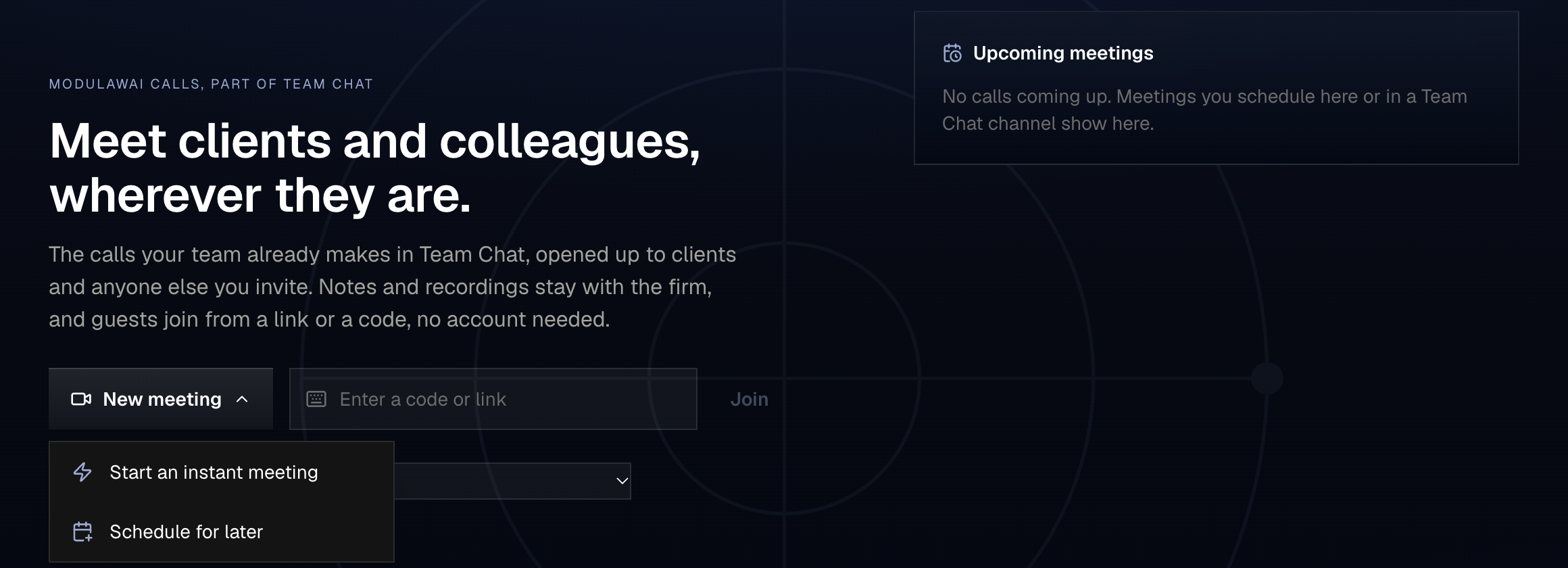
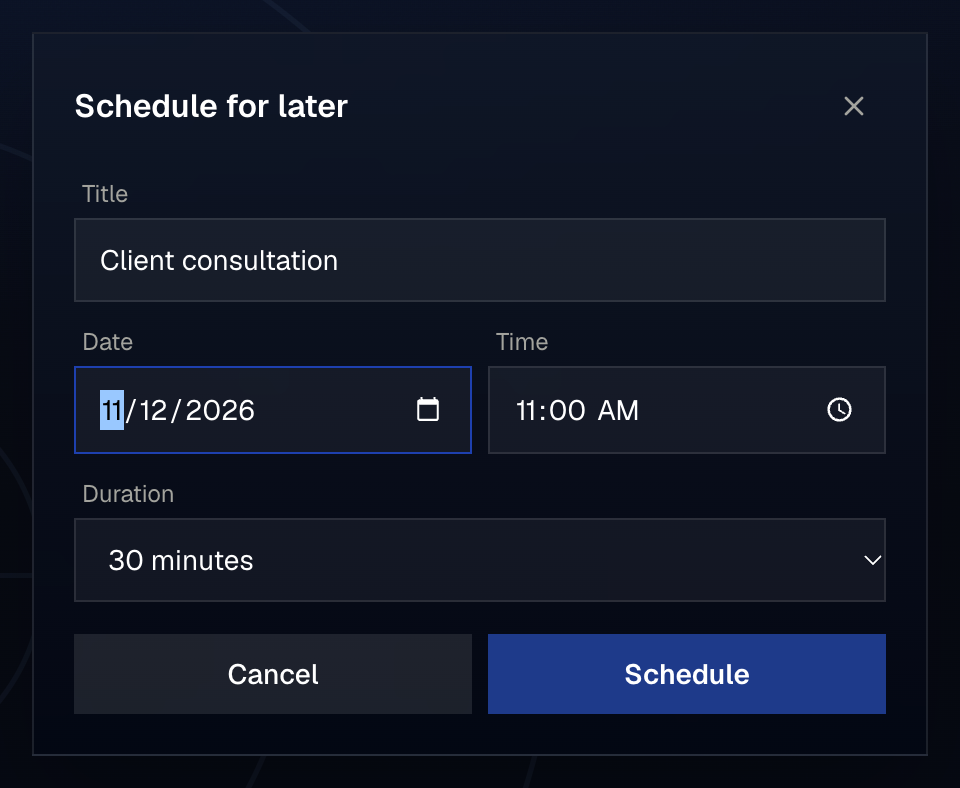
- Enter a Title, the Date and Time, and a Duration, then click Schedule.
- You see Meeting scheduled with the Meeting link and the Meeting code. Click Copy beside either and send it to the people you want in the meeting. You are its host.
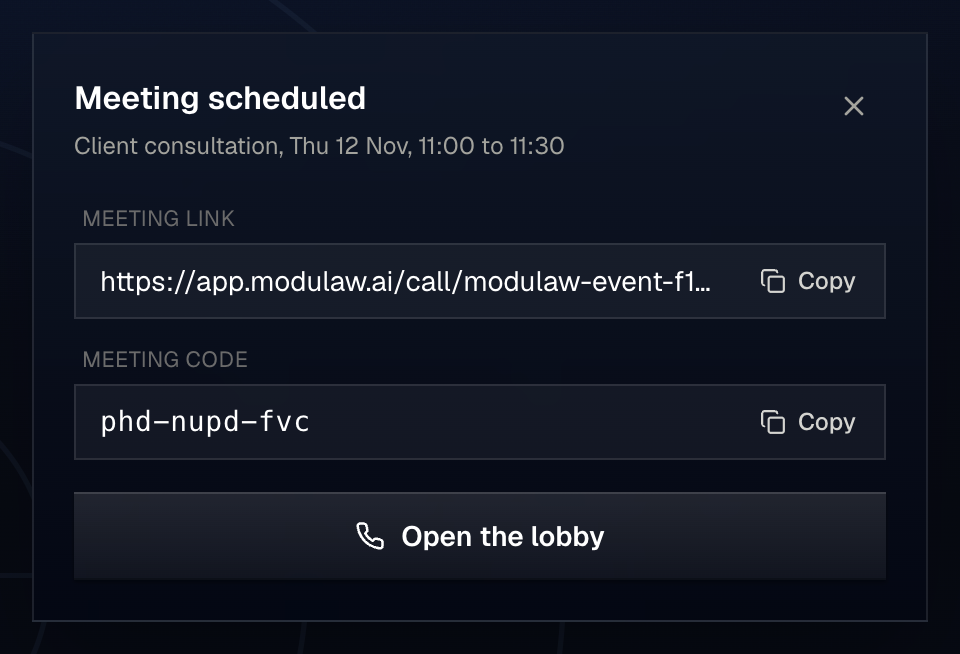
Send the link yourself. Scheduling here puts the meeting on your own calendar with an invitation to you. It does not email anyone else, so guests only know about it when you share the link or code.
Guests open the link, or enter the code in the Enter a code or link box on the same page. They type their name, check their microphone and camera, and join. They do not need an account.
From the calendar: meetings on a case or with a client
Use the calendar when the meeting belongs to a matter or a client, or when you want a reminder, Zoom or Google Meet. You can start from any of these:
- Schedule in the Case Manager sidebar, then New event. You can link the event to a case from here, or leave it as a firm-wide event.
- The Calendar tab on a case, for a meeting that belongs to that case.
- A client’s record in Clients, using Schedule a meeting with this client. You can link it to one of their cases or leave it unlinked.
Then fill in the event:
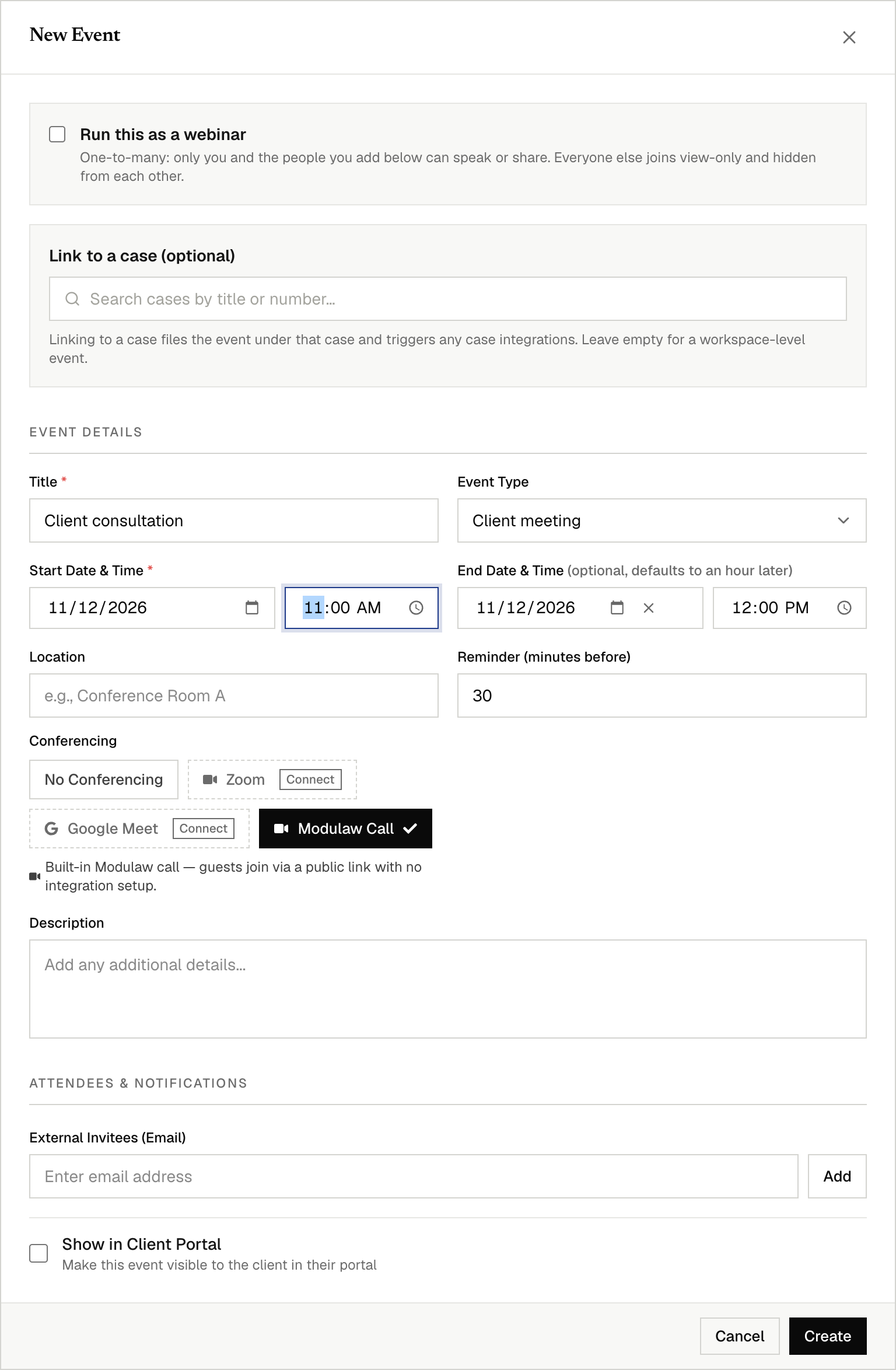
- Enter a Title and choose the Event Type, such as Client meeting or Internal meeting.
- Set the Start Date & Time. The end defaults to an hour later; change End Date & Time if it should run longer or shorter.
- Under Conferencing, choose how people will join:
- Modulaw Call: the built-in video room, selected for you. Guests join from a link, and nothing needs setting up.
- Zoom or Google Meet: the meeting link is created for you. These only work once the integration is connected; if you see Connect, click it first.
- No Conferencing: for an in-person meeting. Add the place under Location.
- Adjust the Reminder (minutes before) if you want, and add a Description.
- For people outside the firm, type each address under External Invitees (Email) and click Add.
- Tick Show in Client Portal if the client should see the meeting in their portal.
- Click Create.
The people you invited get a calendar invitation with the joining details.
Running it as a webinar
For a talk or a client briefing to a large group, tick Run this as a webinar at the top of the form when you create the event from Schedule. Only you and the people you add can speak or share; everyone else joins view-only. You then choose Who can attend (anyone with the link, invited people only, or workspace members only) and whether to ask attendees for an email.
Ask ModulawAI to schedule it
If your firm has turned on the scheduling assistant, you can ask ModulawAI in Team Chat in plain English, for example “schedule a 30-minute call with @Sarah next Tuesday”. It finds times that suit everyone and you pick one.
An administrator turns it on under Settings > AI > In-chat scheduling assistant.

Finding and joining a scheduled call
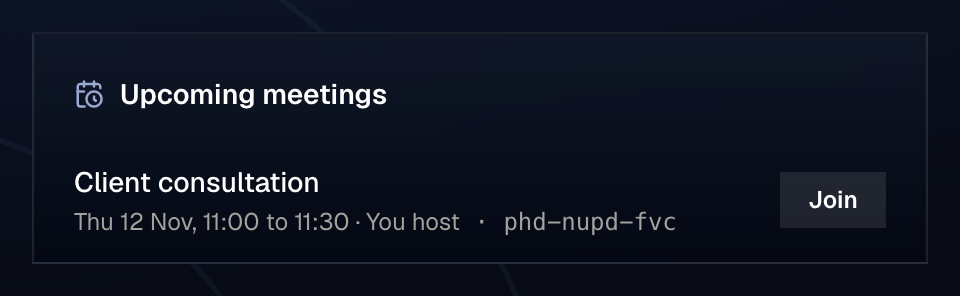
- Upcoming meetings on app.modulaw.ai/call lists the calls you scheduled there or in a Team Chat channel, each with a Join button.
- Calendar events appear in Schedule and on the case’s Calendar tab. Open the event to find its joining link.
- Guests use the link in their invitation, or the link or code you sent them.
For what you can do once the call starts, such as recording, sharing your screen and bringing in the assistant, see Voice & Video Calls.