ModulawAI has three ways to call, and it helps to know which one you are reaching for:
- Team calls: audio and video between people in your workspace, started from Team Chat
- ModulawAI Calls: meetings with people outside the firm, started now or scheduled, joined with a link or code
- Client calls: dialling a client’s phone number
They are covered separately below. Talking to the AI assistant by voice is a different feature again; see Voice Mode.
Team calls
Starting one
- Open the Team Chat channel or direct message you want to call. Calls can be started from any channel except a client channel.
- Click Start a call (the call button in the message box) and choose Audio call or Video call.
- The others see an incoming call prompt and can accept or decline.
You can also call a colleague from their card in People: it has Call and Video call buttons. To set a call for later, use Schedule a call in the channel header; see Schedule a call or meeting for the steps.
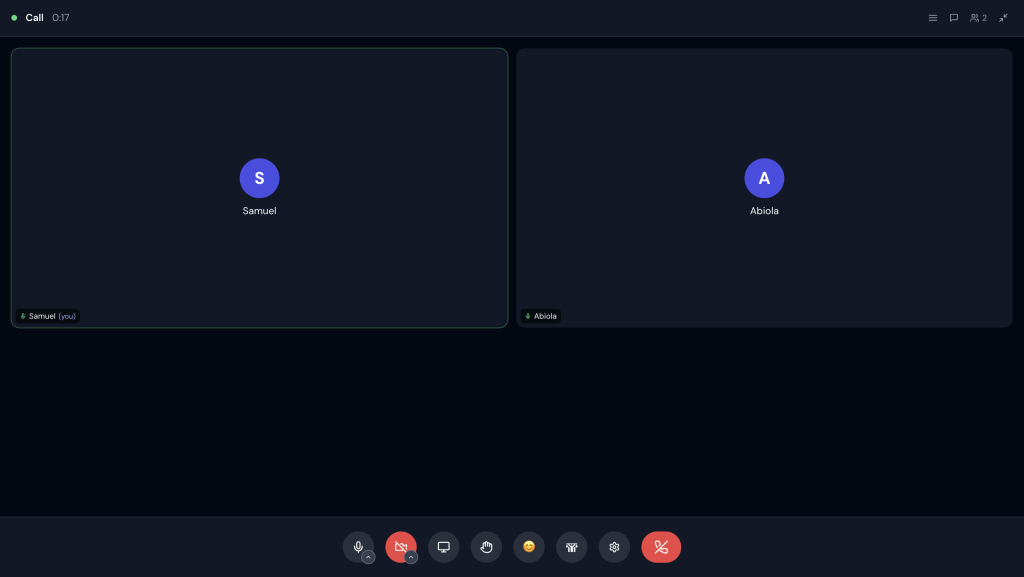
In-call controls
| Control | What it does |
|---|---|
| Mute / unmute | Toggles your microphone |
| Video on / off | Toggles your camera |
| Share screen | Share your whole screen, one window, or a single browser tab |
| Raise hand | Signals you want to speak; shown against your name in the participant list |
| Reactions | Quick emoji reactions without interrupting |
| Chat | A text panel alongside the call |
| Summon Modulaw | Brings the AI assistant into the call |
| Leave | Ends your participation |
You can minimise a call to a floating picture-in-picture window and carry on working elsewhere in the app while it continues.
In-call chat is kept
The chat panel during a call is not throwaway: messages are saved back into the channel when the call ends. Anything you paste in during the call, such as a citation or an action item, is still there afterwards.
This makes the chat panel the right place for anything that needs to survive the call. Say it out loud and type it.
Recording
Calls can be recorded. When a recording starts, everyone on the call is told: there is an announcement, not a silent capture. Afterwards, open Calls in the Team Chat sidebar. Each past call lists what it kept: the recording, the transcript, the notes and the in-call chat. If a recorded call has no transcript yet, click Transcribe to create one.
Transcription is charged in credits, currently 1,100 credits per minute of audio, so check your balance before transcribing a long call. Consider your obligations before recording a call involving a client or a third party.
Bringing the assistant in
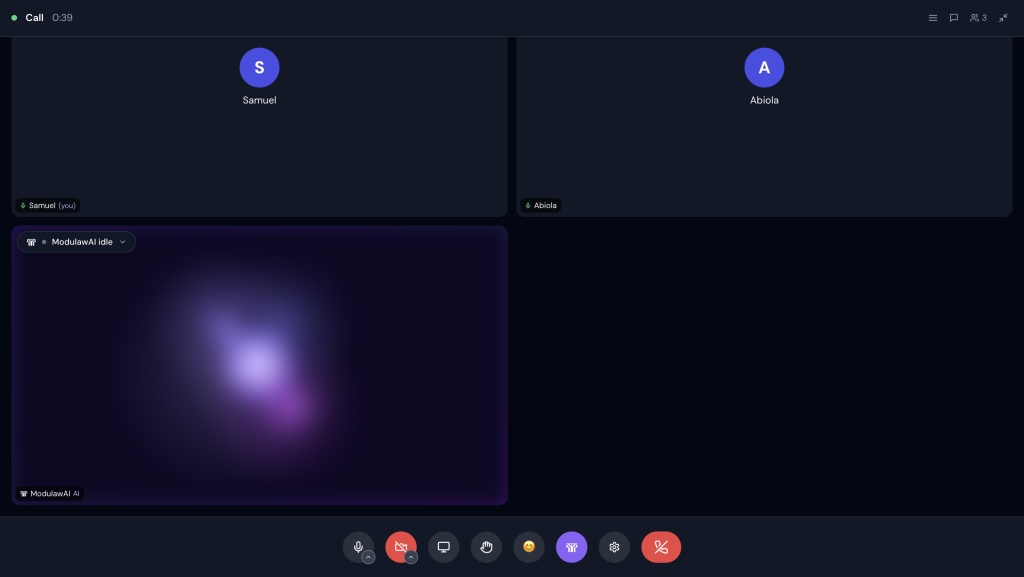
Summon Modulaw adds the AI assistant to the call, so you can ask it questions mid-conversation without breaking off to type.
ModulawAI Calls: meeting people outside the firm
ModulawAI Calls is the part of Team Chat for meetings with clients, counsel and anyone else outside your workspace. It uses the same rooms, recording and notes as a call started from a channel. Open it from ModulawAI Calls in the Calls panel, or go straight to app.modulaw.ai/call.
- Start a meeting now or schedule one, then share its link or meeting code. You need to be signed in and part of a workspace to do this. Schedule a call or meeting walks through scheduling one.
- Join with a code: anyone can enter a meeting code or open a meeting link.
- Guests do not need an account. Someone outside the firm opens the link, enters their name, checks their microphone and camera, and joins.
Client calls
This is a different feature: placing a call to a client’s actual phone number.
From the client roster
- Open Clients in the Case Manager sidebar
- Find the client
- Click the call icon beside their phone number
From the dialler
Open the dialler from the client area. It opens a Place a call panel: type a number and call it.
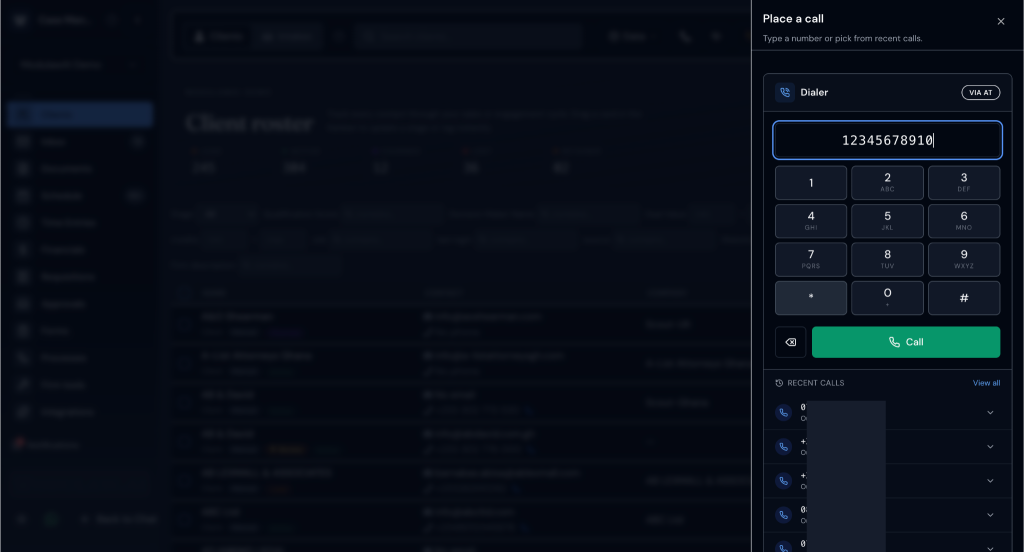
Client calling depends on telephony being configured for your workspace. If the call controls are not available, ask your workspace administrator whether it has been set up.
Requirements and troubleshooting
- Browser: a current version of Chrome, Edge, Safari, or Firefox
- Permissions: microphone and camera for video
- Connection: calls are real-time, so they are more sensitive to a poor connection than the rest of the app
| Problem | Fix |
|---|---|
| “Microphone not found” | Check the site’s permission via the padlock in the address bar; make sure no other app has the microphone |
| Choppy audio | Close bandwidth-heavy apps, or turn video off to save bandwidth |
| Echo | Use headphones and turn the speaker down |
| Cannot share screen on a Mac | Grant Screen Recording permission to your browser in System Settings > Privacy & Security |
| Call will not connect | Office firewalls sometimes block real-time audio and video; try another network to confirm |
Call or message?
| Message when | Call when |
|---|---|
| The question is quick and factual | You need to work through strategy or nuance |
| You want a written record | It will be back-and-forth |
| The other person may be busy | It is urgent |
| You are sharing a link or a reference | You are reviewing a document together |